

Audiobooks and Visual Storybooks
Two of the narrated Studio modules are built for long-form work: the Audiobook, which turns a manuscript into chaptered narration, and the Visual Storybook, which tells an illustrated story scene by scene and can produce both a video and an audiobook from one run. Both sit on the same media engine as the Training Video, so voices, caching, and cost work the way Narration, Voices, and Cost describes. This guide teaches the parts specific to long-form: the chapter model and the per-chapter economics that make a correction cheap, leveling to an audiobook loudness target, the file you export, and the scene-based storybook workflow. After it you will be able to produce and correct a full-length audiobook without paying to re-voice the whole thing, and build an illustrated story that ships as more than one format at once.
The Audiobook: a Manuscript in Chapters
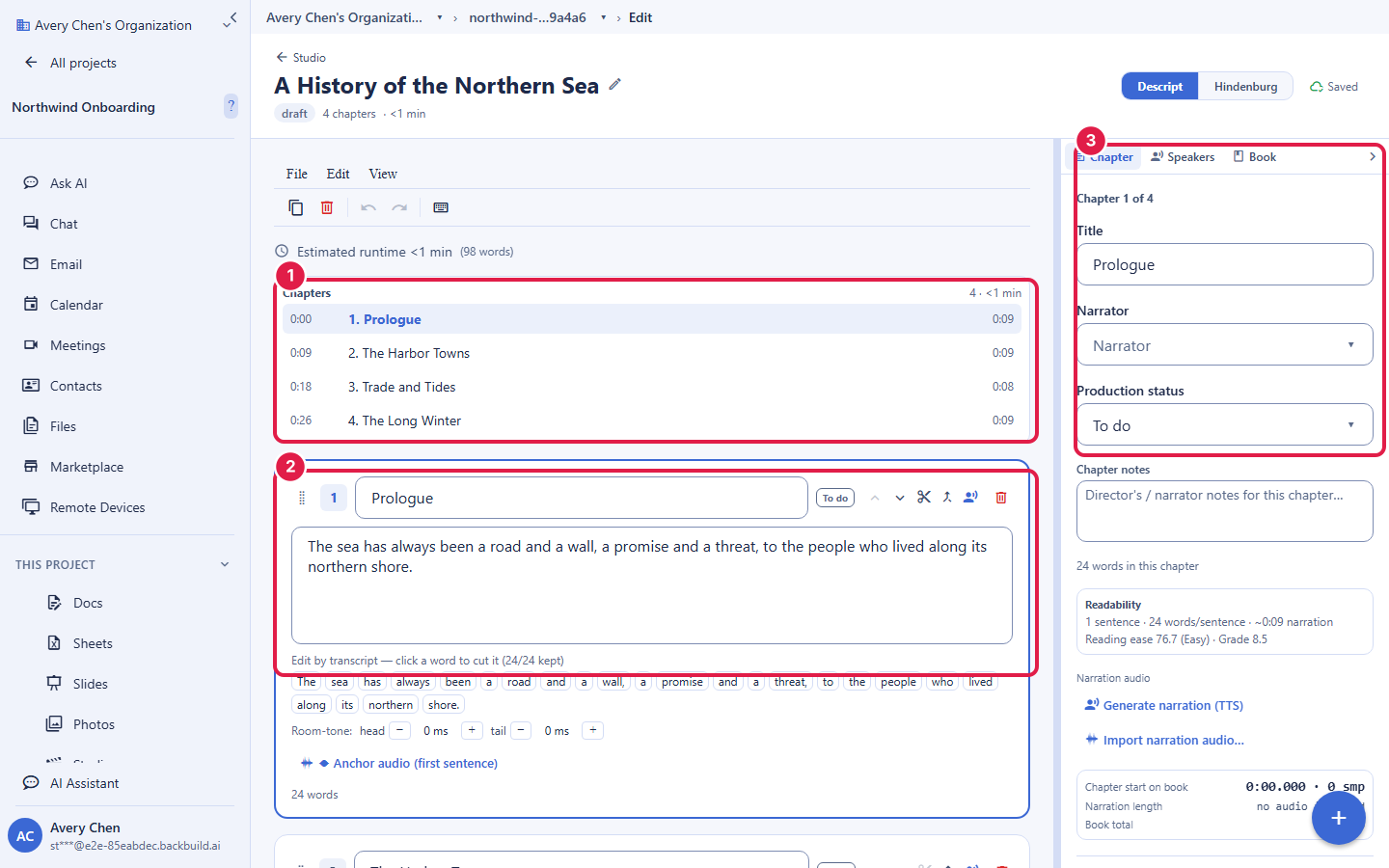
After this section you will structure a full-length narration. An audiobook is organized into chapters. Its main surface is a chapter-scoped manuscript editor, not the word timeline, because at book length you are working with prose, not with per-word cues. You import or paste a manuscript, see word and length statistics, and split it into chapters. Each chapter is narrated on its own, which is the property that changes the economics of the whole format.
Per-Chapter Synthesis: Why a Correction Is Cheap
After this section you will understand the single most important property of the audiobook module. Because each chapter is synthesized independently, editing one chapter re-synthesizes only that chapter. Fixing a mispronounced name in chapter nine does not re-voice chapters one through eight. For a ten-hour book, that is the difference between a small, cheap correction and re-paying for the entire narration, and it is why proofing and polishing an audiobook here does not punish you for finding a late mistake. Combined with the caching in the engine, an unchanged chapter is never re-synthesized at all.
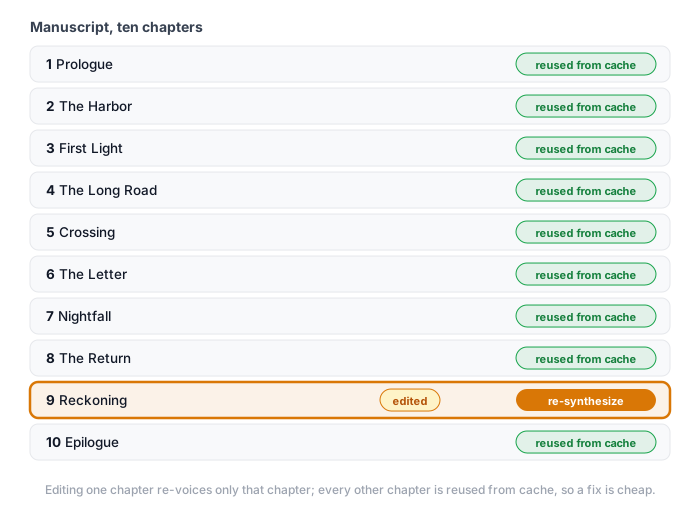
If I fix a word in a long book, do I re-pay to narrate the whole thing? No. Each chapter is synthesized on its own, so an edit re-voices only the chapter you changed. Every other chapter is reused from the cache at no cost. That is the core reason to produce a long audiobook here.
Fine-Tuning a Chapter
After this section you will polish delivery where it matters. When a chapter needs closer attention, a per-chapter fine-tune view opens the word timeline for just that chapter, so you can place a pause, drop a sound effect, add a touch of room tone, or mark a retake against specific words, exactly the word-level control the Training Video uses, applied to one chapter at a time. You also get breath markers, a cleanup and enhance pass, gap navigation to jump between silences, a timecode readout, and a waveform view for the chapter.
Multiple Speakers
After this section you will voice more than one character. A production can honor a different voice per segment, so a dialogue-heavy book or a multi-narrator piece is not stuck with one voice for everything. You assign the voice a segment should use, and the synthesis follows it.
Leveling and the Exported File
After this section you will ship a file a store will accept. Studio normalizes an audiobook to a loudness target suitable for distribution, including the level an audiobook store such as Audible's ACX program expects, so you are not hand-tuning gain to meet a spec. You export the finished book as a chaptered audio file that carries its chapter markers and cover art, or as an MP3. The chapters and cover travel inside the file, so a player shows the chapter list and the artwork without any extra step.
Does it hit the loudness target a store requires? Yes. Studio levels the book to a distribution loudness target, including the level an audiobook store such as ACX expects, so the export meets the spec without manual gain-riding.
Do chapters and cover art end up in the file? Yes. The exported chaptered file carries its chapter markers and cover art inside it, so a player shows both. You can also export a plain MP3.
The Visual Storybook: Scene by Scene
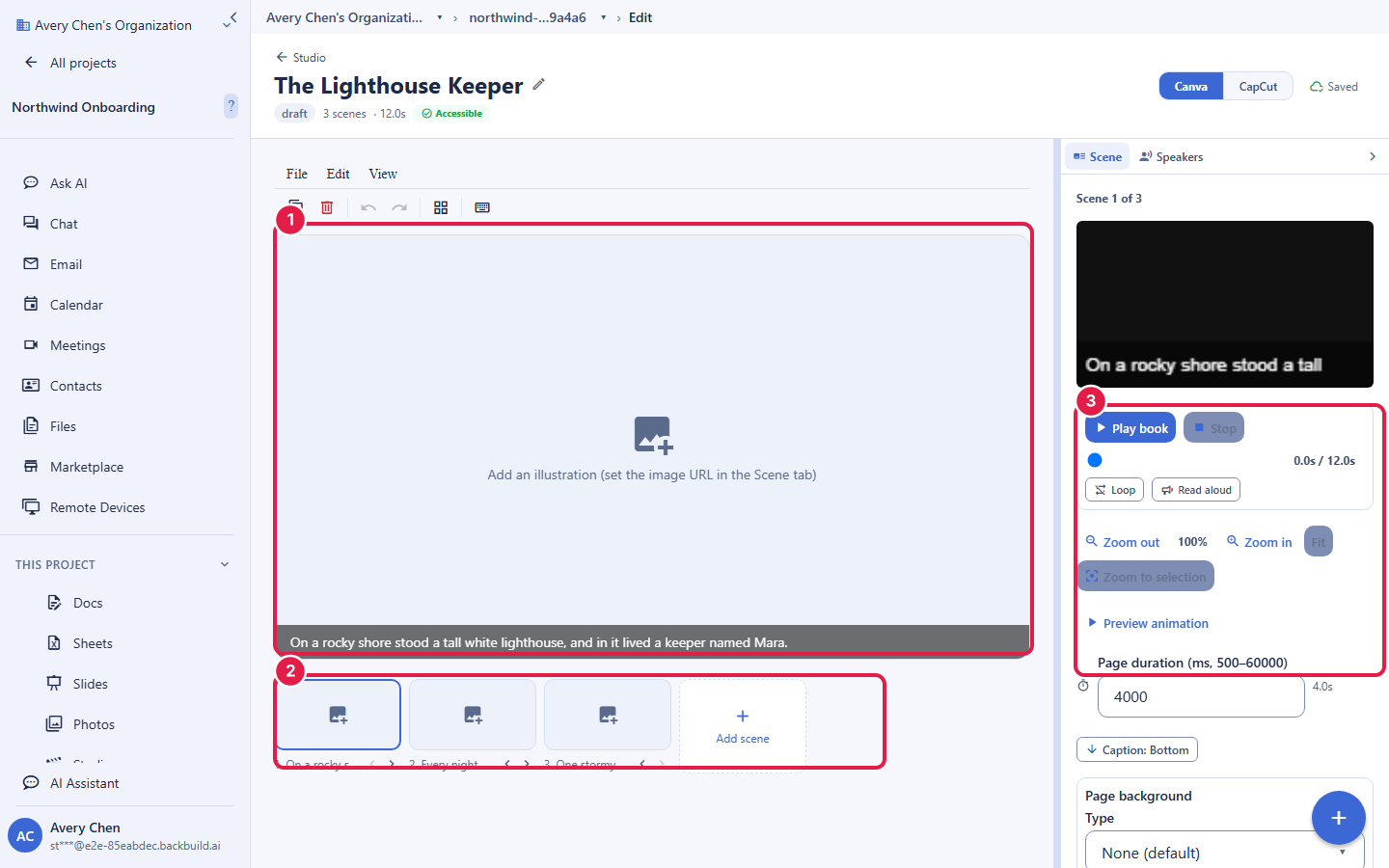
After this section you will build an illustrated, narrated story. A Visual Storybook is told as a sequence of scenes. A page strip lists the scenes; a scene canvas with layout templates lays out each one; and a layer manager stacks art, characters, backgrounds, text decoration, and speech bubbles, with libraries of characters and speech bubbles to reuse. You narrate the story, and read-aloud plays it back. Each scene's duration is derived from the window of narration it covers, so the pacing follows the voice rather than a guessed timer.
Motion comes from a pan-and-zoom (Ken Burns) editor: you set the start and end framing on a scene and Studio glides between them, with transitions between scenes, so a still illustration feels alive without you animating it by hand. You can generate art with the AI image tools right in the scene, so you are not blocked waiting on an illustrator to see the story take shape.
One Run, More Than One Format
After this section you will get a video and an audiobook from a single story. A storybook render can emit any mix of a widescreen 16:9 video, a vertical 9:16 video, and an audiobook or podcast, all from one run, sharing a single narration, one alignment, and one audio mix. You do not produce the video and the audio separately and hope they match; they come from the same source, so a change to the story updates every format together.
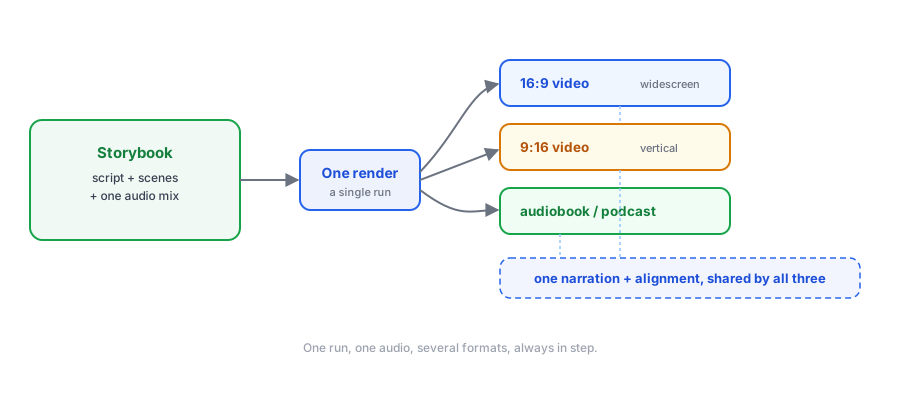
Can one story become both a video and an audiobook? Yes. A single storybook run can emit a widescreen video, a vertical video, and an audiobook or podcast together, all built from the same narration and mix, so the formats never drift apart.
Do I need my own illustrations to start? No. You can generate art with the AI image tools inside a scene, so the story takes shape immediately, and swap in your own art whenever you have it.
Where to Go Next
- Narration, Voices, Caching, and Cost: the voices and the cost model these modules share.
- Making a Training Video: the word timeline these modules borrow for fine-tuning.
- The Audio Editor: open any chapter or clip in the mastering editor for deeper cleanup.