

Filing & Tracking a Ticket
When something is wrong or you need help, you open a ticket. Backbuild gives you two ways to do it: describe the problem in your own words, or record a privacy-safe walkthrough that shows the support team exactly what you did, without ever capturing what you typed, the text on your screen, or a screenshot. Every ticket you file is tracked in one place, you reply to the team right in the ticket, and a bell in the header tells you the moment someone answers. After this page you will be able to open a ticket, choose the right flow, and follow it to resolution.
Anyone with a Backbuild account can open a ticket, on any plan. The Free plan covers up to 20 tickets a month and every paid plan is unlimited. See the pricing page.
Opening a Ticket
After this section you will have filed a ticket. The ticket dialog is always one click away.
- Open your profile menu in the top corner and choose Open Ticket.
- Enter a subject: a short line that says what the problem is.
- Pick a category. Categories route your ticket to the right team, and the list is drawn from whatever the product you are using has set up. If you are filing about a specific package or project, a picker lets you name it.
- Choose how to explain the problem: describe it in the composer, or reproduce the issue by recording your steps. Both are covered below.
- Submit. Your ticket is created and routed, and you can follow it immediately.
The dialog opens instantly, and anything you type survives if the page reshuffles around you, so a long description is never lost to a stray refresh.
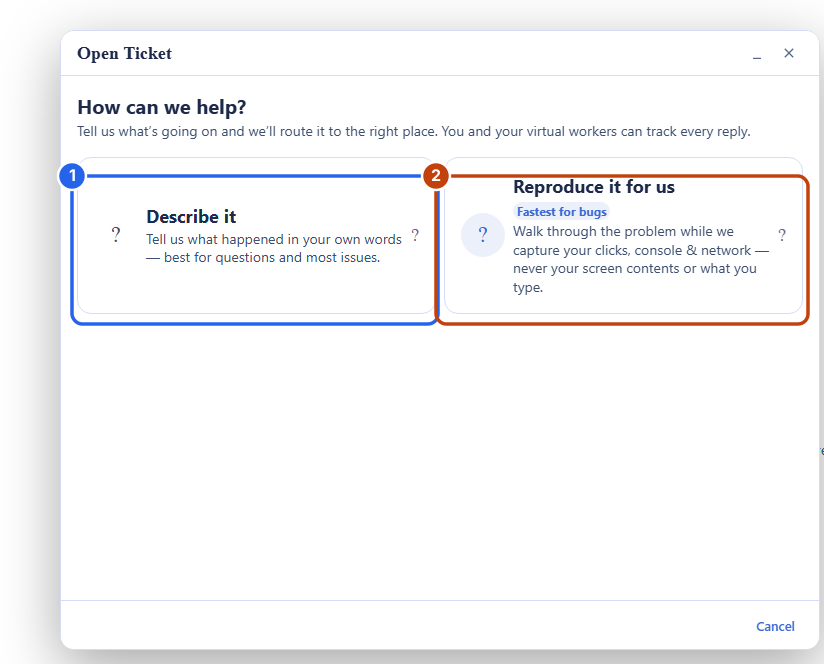
Describe It: The Rich Composer
After this section you will be able to write a clear ticket. The describe flow is the fast path. You get a full rich-text composer, the same editor as Backbuild Docs, so you can format steps, paste a link, and lay out what happened clearly. A short context summary shows the screen you were on so the team has a starting point.
To help the team diagnose a technical problem, a small, bounded set of diagnostic breadcrumbs is attached automatically: the address of the page you were on and a short, recent trail of technical events from your session. This is metadata only. It does not include what you typed, the contents of any field, or the text of the page, and identifying details in web addresses are stripped before anything is attached. It exists so an agent can see the shape of a failure without you having to reconstruct it.
Reproduce the Issue: A Privacy-Safe Walkthrough
After this section you will be able to show the team a bug instead of describing it, and know exactly what is recorded. Some problems are hard to put into words. The reproduce flow lets you replay them. When you choose Reproduce the issue for us, you first see a plain-language primer that states exactly what will and will not be captured. You click Start , the dialog shrinks to a small floating REC pill, and the app becomes fully interactive again. You go and do the thing that goes wrong. When you are finished you click I'm done, the dialog returns, and you add a subject and a short description before submitting.
The recording is deliberately shallow. It captures the shape of your interaction, where you moved and clicked, when you scrolled or resized, where you navigated inside the app, and a short technical event trail, so an agent can follow your path. It never captures the things that would make a recording a privacy risk.
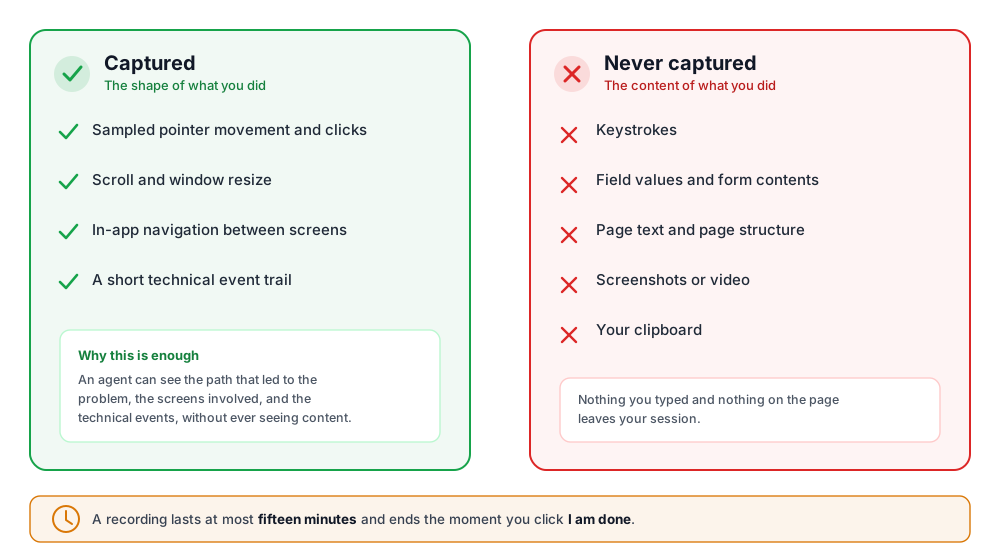
- What is captured: sampled pointer movement and clicks, hovers, scroll and resize, drag markers, the pages you moved between inside the app, and a short trail of technical events.
- What is never captured: your keystrokes, the values you type into any field, the text or structure of the page, any screenshot or video, and your clipboard.
- How long: a recording runs for at most fifteen minutes, and always stops the moment you click I'm done.
When you submit, Backbuild tells you honestly whether the recording was stored. If something prevented it, you see a clear note that the ticket was filed without the reproduction, never a blanket success message that hides a partial result. The support team sees the walkthrough as a read-only diagnostic timeline; there is no video and no pixel replay.
Tracking Your Tickets
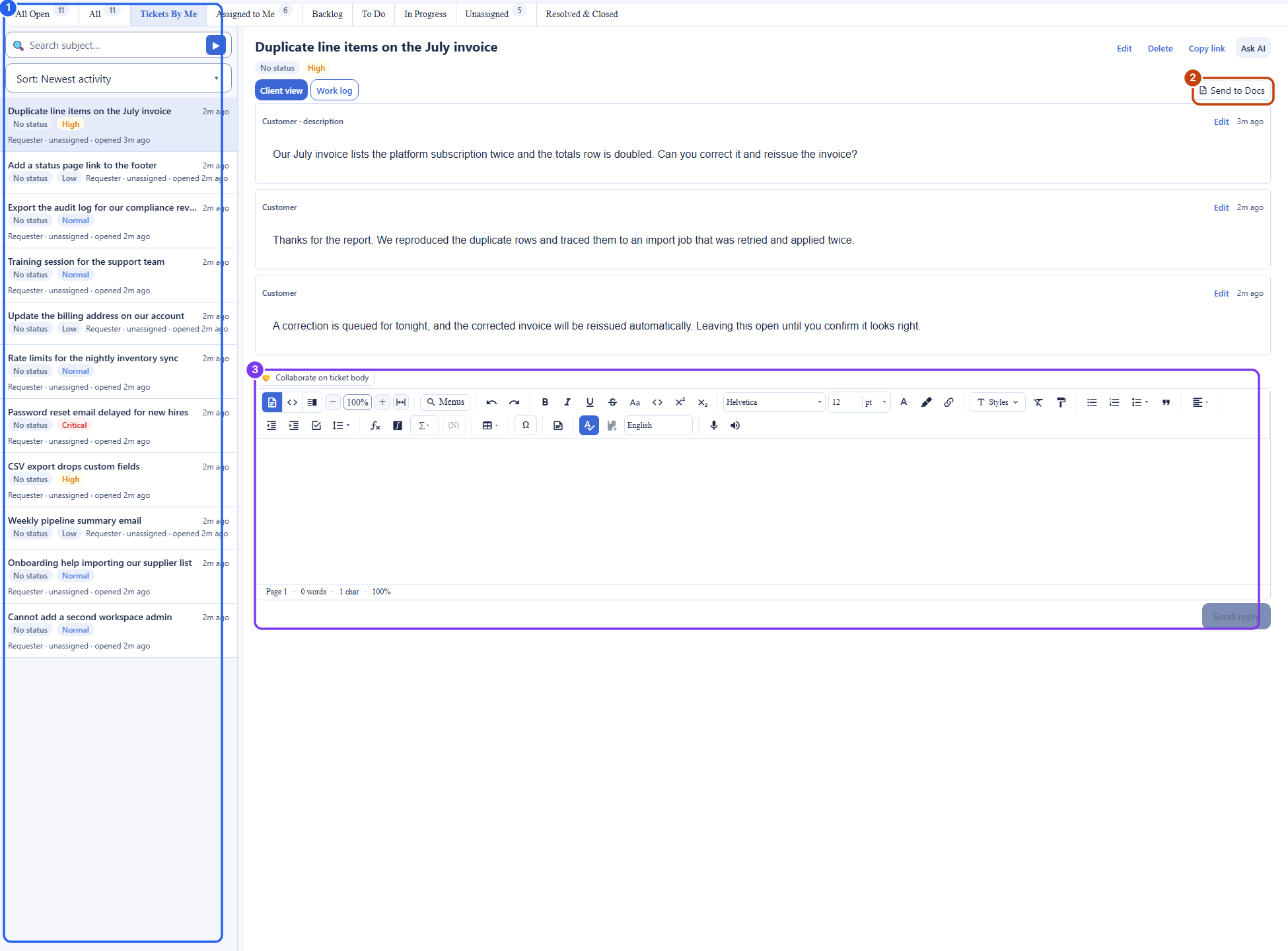
After this section you will be able to follow every ticket you have filed. From your profile menu, choose View Support Tickets. This is your personal list of every ticket you have opened, across all the organizations and products you file to, with its current status and latest activity. Open any ticket to read the full public conversation and reply.
- You see the public conversation. A ticket shows you the thread between you and the team. Internal notes the staff leave each other are never shown to you; your view is only the messages meant for you.
- You can reply. Add a message to keep the conversation going. If a ticket was resolved and you reply again because the problem is not actually fixed, your reply reopens the conversation for the team.
- You can save the thread. Send your ticket's public conversation into your own workspace as a document, so you keep a copy of what was discussed and agreed.
Getting Notified
After this section you will never miss a reply. A bell in the app header lights up when there is new activity on a ticket you filed, a reply, a status change, so you do not have to keep checking. Open the bell to jump straight to the ticket that changed.
Will the support team see what I typed or a screenshot of my screen? No. Neither flow captures your keystrokes, the values in any field, the text of the page, or any screenshot or video. The describe flow attaches only technical metadata with identifying details stripped, and the reproduce flow records only the shape of your interaction. A recording always ends when you click I'm done and lasts at most fifteen minutes.
Can I see the team's internal notes? No, and that protects you too. You see only the messages meant for you. Anything the staff write to each other stays on their side.
Can I reply and reopen a ticket if it is not really fixed? Yes. Reply from the ticket at any time. Replying to a resolved ticket brings the conversation back to the team's attention automatically.
Where do I find tickets I filed to different products? All of them are in one place under View Support Tickets, no matter which organization or product each was filed to.
Where to Next
- The Tickets Console: if you are on the staff side, this is where you work the tickets people file.
- Working a Ticket: the agent's view of the reproduction timeline and the internal work log.
- Security, Privacy and Governance: exactly how ticket data, including a reproduction, is protected, retained, and deleted.