

Banking and Reconciliation
Reconciliation is the discipline that turns a pile of transactions into books you can trust: you prove that what your ledger says matches what the bank actually did. This guide teaches the banking side of Backbuild Finances, from setting up accounts and writing rules that categorize the boring recurring transactions for you, to the reconciliation itself. After this page you will be able to work the register, auto-categorize with rules, understand why your bank balance and your book balance differ, and reconcile an account to zero.
Banking, bank rules, deposits, and reconciliation are part of the back office, free for teams up to 50 seats. See the pricing page.
Bank and Asset Accounts, and the Register
After this section you will work an account like a checkbook. Open Banking from the Finances sidebar. Each bank or asset account has a register: the running list of transactions with a running balance, the familiar checkbook view.
- Add the bank and other asset accounts your business uses.
- Work each account's register to see and edit its transactions and running balance.
- Move money between your own accounts with a transfer, which posts both sides for you so nothing is double-counted as income or expense.
You bring transactions into an account by entering them, importing them (see Importing and Migrating), or, where your bank is supported, connecting the account so transactions come in for you. Whichever way they arrive, the register and reconciliation work the same.
Bank Rules: Categorize the Boring Ones Automatically
After this section most of your categorization disappears. Manual categorization is where bookkeepers lose hours, and most of it is the same handful of vendors every month. Bank rules do it for you. Open Banking, then Rules.
- Create a rule that matches on text, such as a vendor name that appears on the transaction.
- Set the account the match should be categorized to.
- Apply rules across your imported transactions, and the recurring ones post to the right account without you touching them.
The more rules you build for your regular vendors, the less of your month is spent categorizing, which is exactly the time saving that decides whether a tool is worth using day to day.
Deposits and the Undeposited-Funds Idea
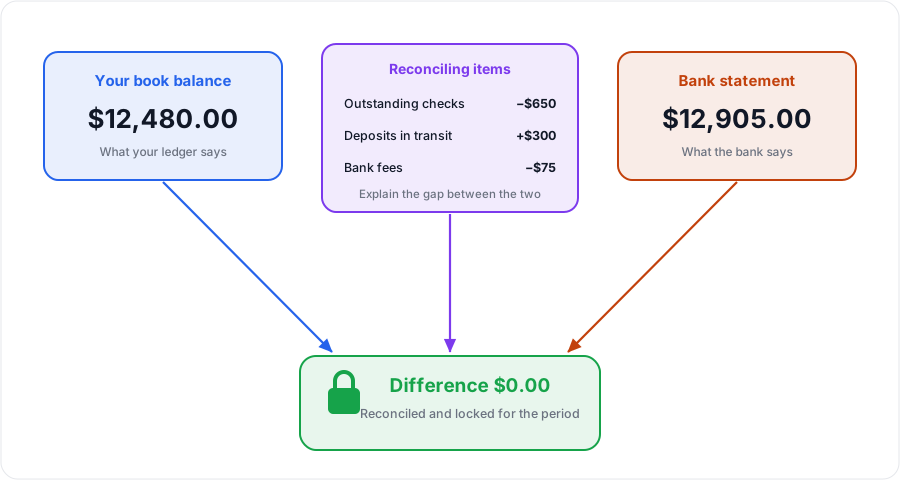
After this section your bank balance will stop mystifying you. The classic reason a book balance and a bank balance disagree is timing: you recorded three customer payments on Monday, but the bank shows one lump deposit on Tuesday. Grouping the payments into a single deposit is how you make your books match what physically hit the bank.
- Payments you receive can sit in a holding state (undeposited funds) until you take them to the bank.
- Go to Banking, then Deposits, and group the individual receipts that make up one real-world deposit.
- Record the deposit so your ledger shows the same single amount the bank shows, and reconciliation lines up cleanly.
If you record a deposit wrong, you can void it, which reverses it cleanly rather than leaving your books out of step.
Match and Reconcile
After this section you will reconcile an account to zero. Matching connects an imported bank transaction to the entry you already recorded, so the two are recognized as the same event rather than duplicated. Reconciliation is the periodic proof that the account agrees with its statement. Open Accounting, then Reconcile.
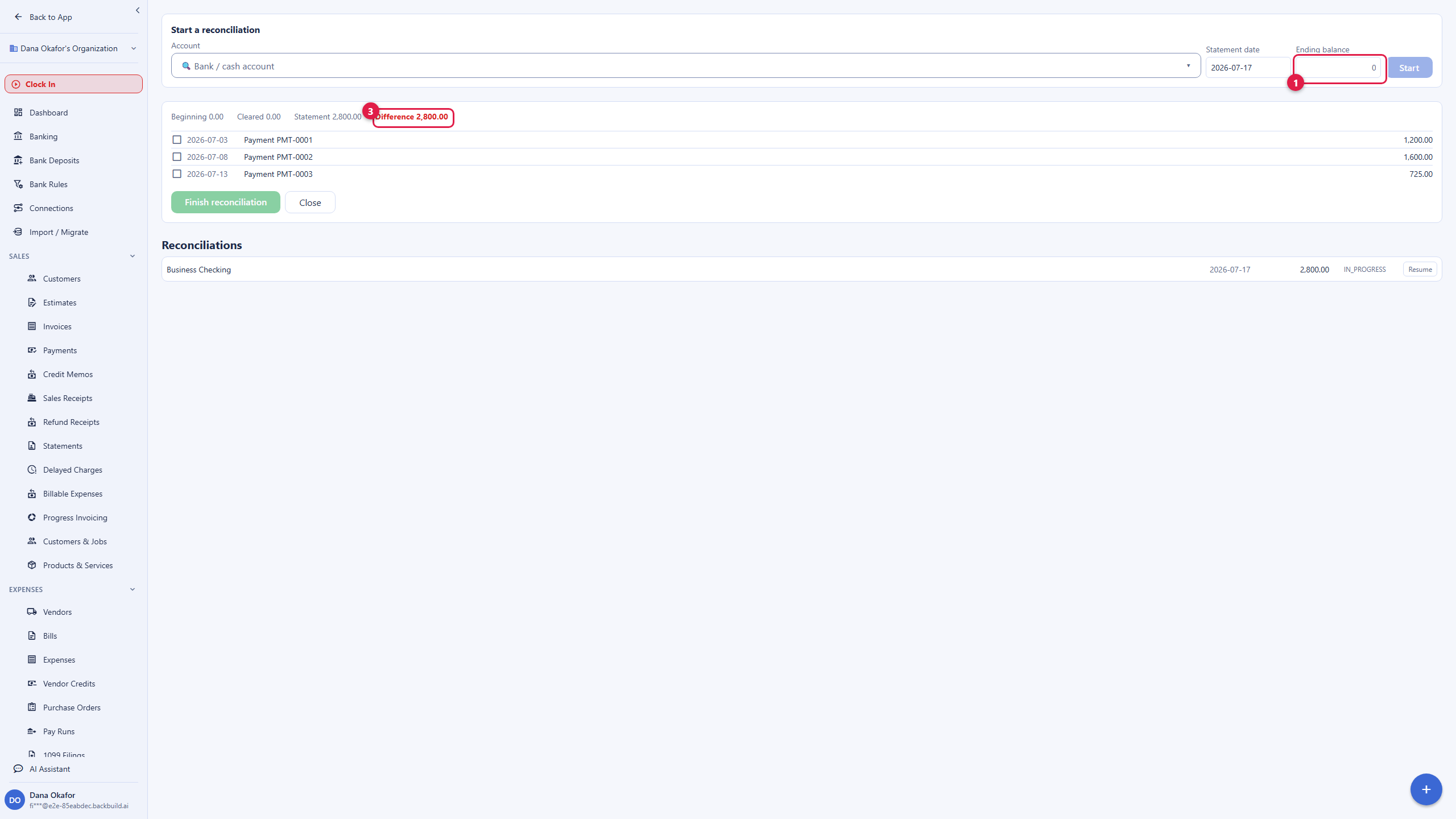
- Start a reconciliation and enter the statement balance and date from your bank.
- Work down the candidate lines, toggling each one cleared as you confirm it appears on the statement. Matching first means most lines are already paired to a recorded entry.
- Watch the difference fall toward zero. When it reaches zero, complete the reconciliation, which locks the cleared lines and carries the beginning balance forward to next period.
If a feed or an import brings in a transaction twice, matching and the cleared toggles are how you spot the duplicate before it corrupts the balance: an unexpected difference is the signal to look for the double. A reconciliation that completes at zero is your assurance the books are honest for that period.
Why doesn't my bank balance match my books? Almost always timing: payments you recorded that the bank has not cleared yet, or several receipts the bank shows as one deposit. Grouping receipts into a deposit and reconciling resolves it.
Can I auto-categorize recurring transactions? Yes. Bank rules match on text such as a vendor name and post to the account you choose, so your regular vendors categorize themselves.
How do I catch a duplicate transaction? Match imported transactions to recorded entries and reconcile; a difference that should be zero but is not is the sign of a duplicate to find and remove.
Do I have to connect a bank? No. You can enter or import transactions and reconcile the same way. Connecting a supported bank simply brings transactions in for you.
What does completing a reconciliation do? It locks the cleared lines for that period and carries the beginning balance forward, so the proven period stays proven.
Where to Next
- The Accounting Ledger: the accounts your bank transactions post to.
- Importing and Migrating: bring transactions in from a file.
- Reports and Sales Tax: the statements your reconciled books produce.
- Access, Security and the API: who can reconcile, and the audit trail behind it.