

Invoicing and Getting Paid
Late payment is the defining pain of running a small business: you do the work, bill the client, and then chase the money for weeks. This guide teaches the whole receivables workflow in Backbuild Finances, and the tools that keep late payment under control: clear terms and due dates on every invoice, recurring invoices so repeat billing never slips, and an aging view that shows you exactly who is overdue and by how long, so you chase the right people at the right time. After this page you will be able to create and post an invoice, set terms, bill repeat clients from a recurring template, receive a payment, and read who owes you and for how long.
The Free plan includes up to 5 invoices a month; every paid tier is unlimited. Connecting Stripe to sync your online payments into the books is part of the paid tiers. Current figures are on the pricing page.
Create and Post an Invoice
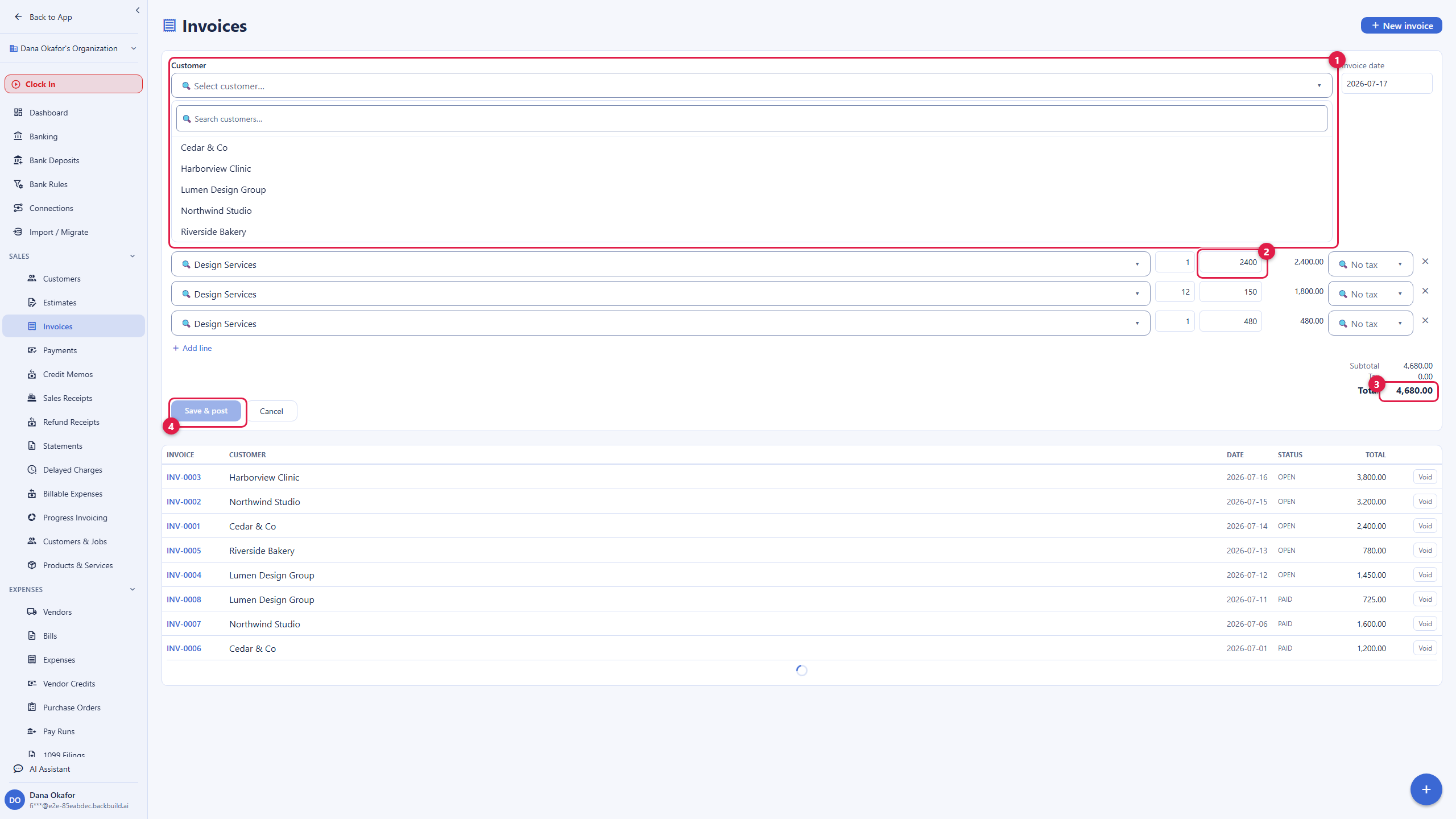
After this section you will have billed a customer. You reach invoicing from the Finances sidebar under Sales, then Invoices.
- Choose New invoice and pick a customer, or add one on the spot with a name and email. The customer record carries their balance, history, and default terms.
- Add line items: a description, quantity, and unit price. You can pull from your saved products and services so you are not retyping the same lines every month.
- Set the payment terms (for example, due on receipt, net 15, or net 30). Terms drive the due date, and the due date drives the aging.
- Save and post. The invoice records what the customer owes as an account receivable, and it immediately shows up in your aging view.
Because the customer, the invoice, and the eventual payment are all the same set of books, posting an invoice records the receivable to your ledger for you. You never touch a journal entry to bill someone.
Terms, Due Dates, and Statements
After this section late payment will be visible, not a surprise. Most late payment is not refusal, it is drift: the work is done, the due date passes, and no one is sure who is behind. Clear terms and a good aging view are how you stay on top of it.
- Set clear terms on every invoice (for example due on receipt, net 15, or net 30) so the due date is unambiguous and the aging is meaningful.
- Watch the accounts-receivable aging view to see who has slipped past due and by how long, so your follow-up goes to the right customers first.
- Produce a customer statement that summarizes a customer's open invoices and balance when you want one document that covers everything they owe.
The payoff is that nothing overdue hides from you: instead of remembering who owes what, you read it off the aging and act on the real list.
Recurring Invoices for Repeat Clients
After this section you will stop rebuilding the same invoice every month. If you bill the same client the same amount on a cycle, you should not be recreating that invoice by hand.
- Build the invoice once as a recurring template with the customer, the line items, and the terms.
- Set the frequency (for example monthly) and the next run date.
- When templates come due, Run due now materializes each one into a real posted invoice and advances its next run date, so your repeat billing is one click instead of a rebuild.
Receive and Record a Payment
After this section you will clear a receivable. When a customer pays, you record the payment against the invoice and watch what they owe drop to zero.
- Open the invoice, or go to Sales, then Payments, and choose to receive a payment.
- Select the customer and the invoice or invoices the payment covers, and enter the amount and the account it landed in.
- Save. The receivable clears, the payment posts to your ledger, and the customer's balance and your aging update.
If you record a payment in error, you can void it, which reverses the posting cleanly rather than deleting it silently, so your books keep an honest trail.
Bring in Your Stripe Payments
After this section your online sales will land in the books. If you take card and online payments through Stripe, you should not be re-keying them into your accounting. On the paid tiers you can connect Stripe from Connections, and Backbuild Finances syncs your Stripe payment activity into your books so it is recorded and ready to reconcile against your bank, with no copy-paste. You experience it as one setup step (connect your Stripe account once) and then your Stripe money-in flowing in for you. Connecting Stripe is a paid-tier feature; see the pricing page.
Know Who Owes You: A/R Aging
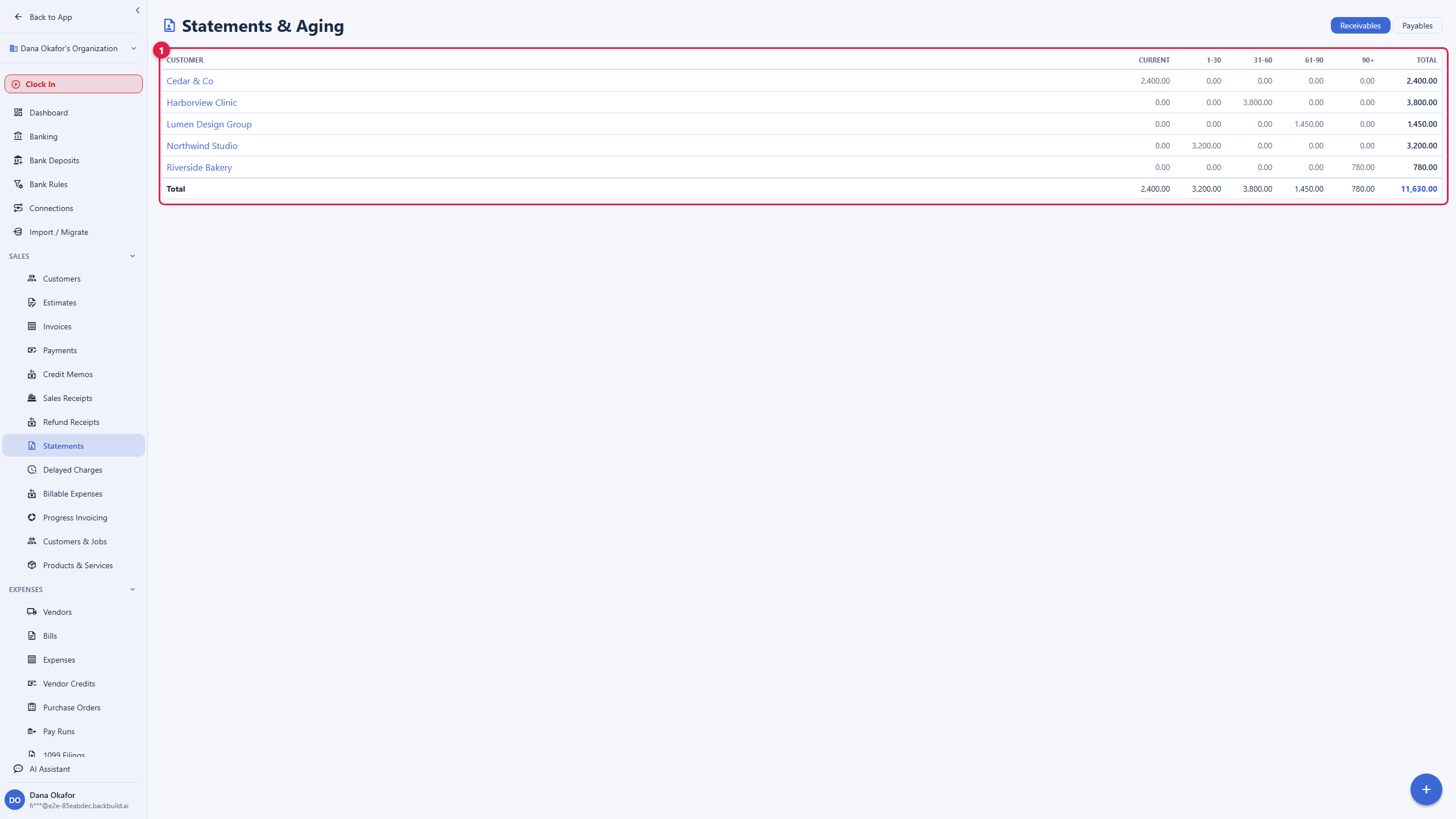
After this section you will see your receivables at a glance. The accounts-receivable aging view groups what you are owed into buckets: current, then 1 to 30, 31 to 60, 61 to 90, and 90-plus days overdue, with how late each invoice is. It is the one screen that answers "who do I need to call," and because it draws straight from the ledger, every figure ties back to a real invoice and payment. Work it from the most overdue down and the calling list stays short.
Is invoicing really free? The Free plan includes up to five invoices a month, with no ads and a full invoice. Every paid tier is unlimited. See the pricing page.
How do I stay on top of clients paying late? Set clear terms so the due date is unambiguous, watch the accounts-receivable aging to see who is overdue and by how long, and produce a customer statement when you want one document of everything a client owes. The aging turns "who is behind" from a guess into a list.
Can I bill the same client every cycle without rebuilding it? Yes. Build a recurring invoice template once, set its frequency, and Run due now materializes every template that has come due into a real posted invoice, so you are not recreating it by hand.
How do payments and Stripe fit in? Record a payment you took any way (card, transfer, check, cash) against the invoice, and it clears the receivable. If you collect through Stripe, connect it on a paid tier and your Stripe payment activity syncs into the books automatically so you are not re-keying it.
What if I record a payment wrong? Void it. The void reverses the posting so your books stay correct, rather than deleting the record and losing the trail.
Where to Next
- Expenses, Bills and Mileage: the money-out side, so your profit-and-loss is complete.
- Reports and Sales Tax: apply tax to invoice lines and see your profit and cash position.
- The Accounting Ledger: what an invoice and payment actually post behind the scenes.
- Access, Security and the API: create and post invoices programmatically over the REST API.