

Views, Events, and RSVPs
This guide teaches the everyday work of the calendar: choosing the view that fits the task, creating and editing an event with every field explained, reading the detail card, replying to an invitation, keeping a private event private, and finding anything with search. After this page you will move through your calendar quickly and never lose an event to a wrong setting.
The Views
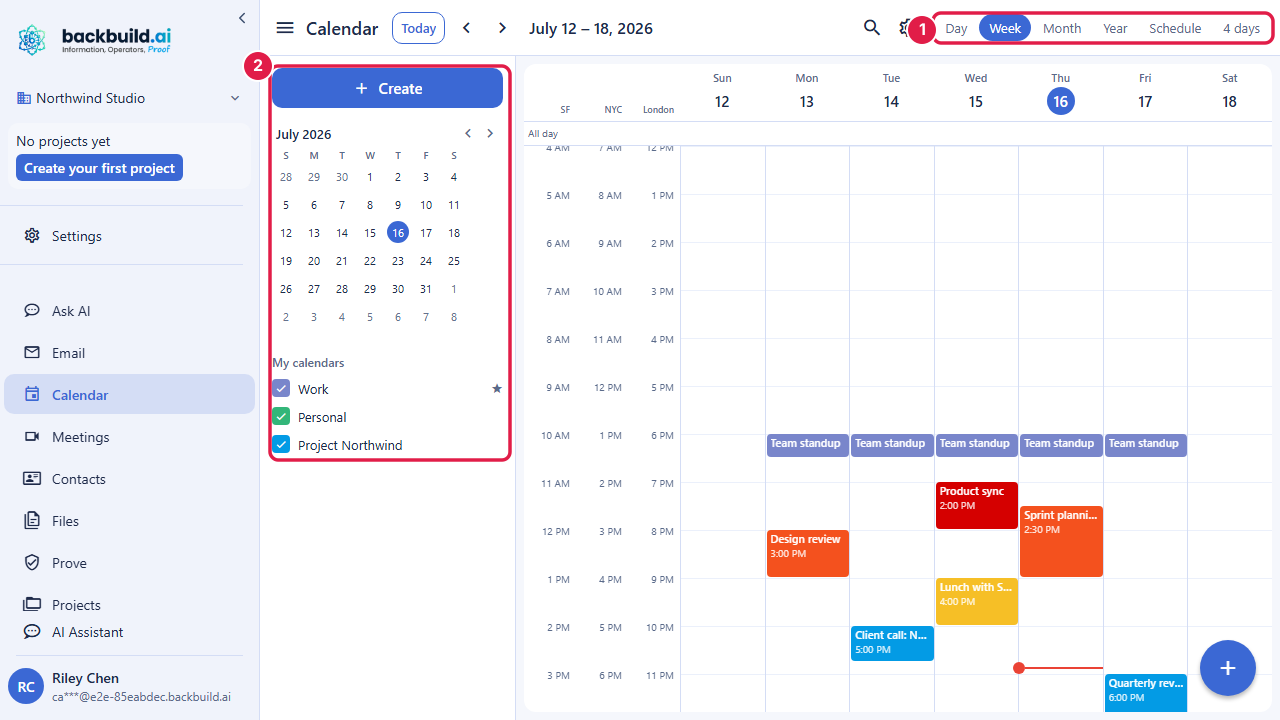
After this section you will pick the right view for what you are doing. The view switcher sits in the top bar. Each view steps forward and back by its own unit when you use the previous and next chevrons, and the Today button always returns you to the current date.
- Day shows a single day as an hour-by-hour time grid.
- Week shows seven days side by side, the default for most people.
- Month shows the familiar wall-calendar grid.
- Year shows the whole year at a glance for spotting busy stretches.
- Schedule shows an agenda list of what is coming, one event after another.
- 4 days is a custom multi-day view when a week is too much and a day is too little.
The left rail carries the Create button, a mini-month date picker (click any day to move the grid there), and your calendar lists. You can toggle the rail open and closed from the top bar to give the grid more room.
Create and Edit an Event
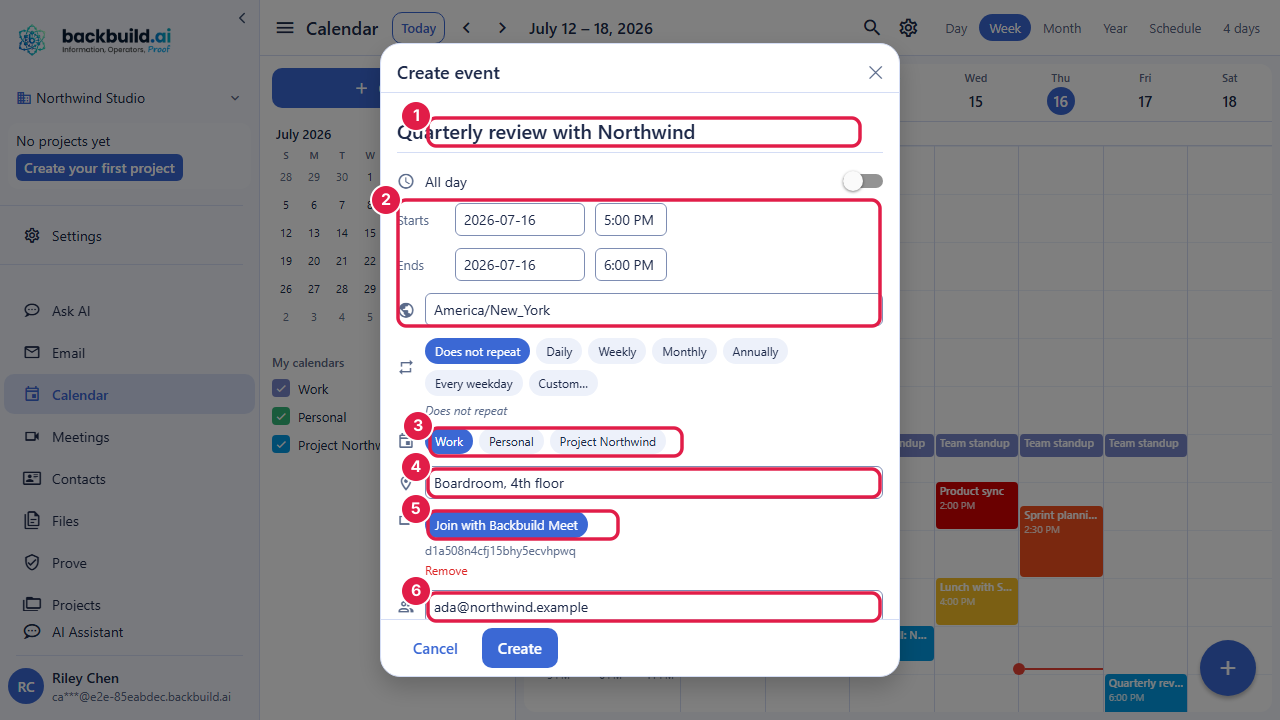
After this section you will know what every field on the event editor does. Open the editor by clicking an open slot (it pre-fills the day and hour you clicked) or by pressing Create. Editing an existing event opens the same editor with its values loaded.
- Title: the name of the event, shown on the grid.
- All-day toggle: switch between a timed event and a day-long one. An all-day event uses the dates you see; a multi-day all-day event runs through the last day you set, inclusive.
- Starts and Ends: a date field and, for timed events, a time field that follows your 12-hour or 24-hour clock preference.
- Time zone: shown for timed events and set to your browser's zone by default. Change it when you are scheduling an event that is anchored to a different place. See Settings and Time Zones.
- Repeat: Does not repeat, Daily, Weekly, Monthly, Annually, Every weekday, or a Custom pattern you build. See Recurring Events.
- Calendar: which of your calendars the event belongs to. Only calendars you can write to appear here.
- Location: a free-text place, address, or room.
- Video meeting link: attach a meeting link so a join URL and meeting code travel on the invitation. Once attached you can join it or remove it.
- Guests: add attendees by email, separated by commas or spaces. Invited guests receive an email invitation. See Guests and Replies.
- Description: multi-line notes that travel with the event.
- Reminders: pick when to be reminded (from 5 minutes to 1 day before, or none).
- Visibility: Default, Public, or Private. A private event hides its details from people who can only see your availability.
- Busy or Free: whether the event marks you busy or leaves you shown as free.
- Color: a swatch for the event, or inherit the calendar's color.
The Event Detail Card
After this section you will read an event at a glance and act on it. Click any event to open its detail card. It shows the color dot and title, the time or "All day", a note when the event is part of a recurring series, the location, the description, and the guest list with each guest's reply. If you can edit the event, Edit and Delete appear here. If you are a guest, your reply buttons appear here too.
Replying to an Invitation
After this section you will respond to invitations and see others' responses. When you are a guest on an event, the detail card offers Yes, Maybe, and No. Your choice is recorded on the event and visible to the organizer and other guests. As an organizer, open your event to see each guest's current response next to their name, so you know who is coming without chasing replies by email.
Will guests actually get an email, and can they reply from any calendar app? Yes. Each guest receives a standards-based email invitation with a calendar attachment, so it lands correctly whatever calendar they use, and their reply flows back onto your event. The full guest workflow is in Recurring Events, Guests, and Reminders.
Keeping a Private Event Private
After this section you will trust that a private event stays private. Visibility is enforced by the server, not hidden by the screen. When someone can see only your availability (the free-busy tier of a shared calendar), or when an event is marked Private, they receive a plain "Busy" block with no title and no details. There is nothing on their screen to reveal, because the private details were never sent. You control this per event with the Visibility field, and per calendar with the access tier you grant; see Calendars, Sharing, and Find a Time.
Is my private event truly hidden from teammates I share with? Yes, at the free-busy tier and for any event marked Private, a viewer sees a featureless busy block, never the title or the details. Someone you grant the details tier can read the event; that is the point of that tier. Choose the tier that matches what you want each person to see.
Searching Your Calendar
After this section you will find any event fast. Open search from the top bar and type at least two characters. Backbuild Calendar searches your events by text, and clicking a result jumps the grid to that day so you land on the event in context.
Frequently Asked Questions
How do I make an event that repeats? Use the Repeat field in the editor. The full recurrence builder, including custom patterns and the choice of what a later edit applies to, is covered in Recurring Events.
Can I attach a video meeting so people join in one click? Yes. Attach a video meeting link on the event and the join URL travels on the invitation, so guests click straight through from the invite or the event card.
Why can't I pick a certain calendar when creating an event? The Calendar picker lists only calendars you can write to. If a calendar was shared with you at the details or free-busy tier, you can see it but not add events to it. See the access tiers.
How do I show a colleague as free even though I blocked the time? Set the event to Free instead of Busy in the editor. It stays on your grid but does not count against your availability when others read your free-busy.