

Screen Definitions
Screen definitions let you shape what your tenants actually see inside the running product. Each screen definition describes one screen: its stable key, what kind of screen it is, how it is laid out, which components it renders, who can see it, and where it sits in the ordering. Build the set of screens once on the package; every subscriber gets that experience.
Pro Screen definitions are part of Backbuild Pro. See pricing.
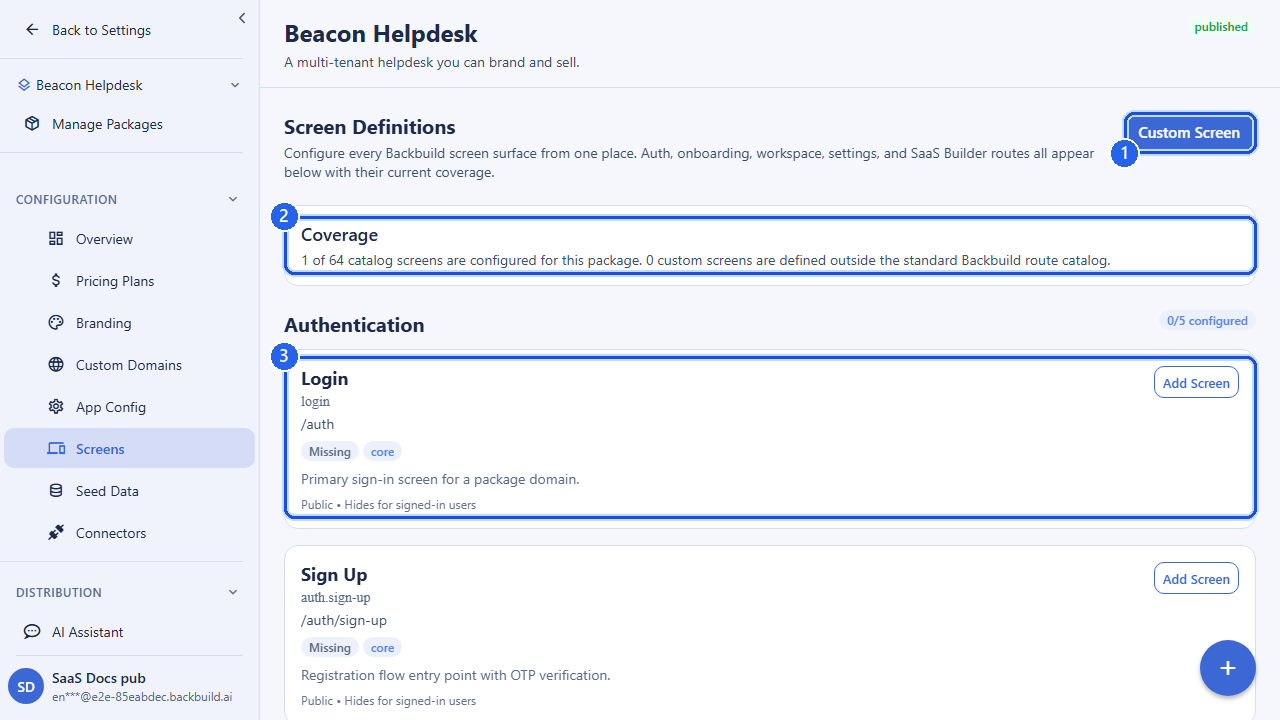
Where Screens Live
Screen definitions are bundled under a
SaaS package and managed in the
package’s own URL space at
/v1/saas-packages/:packageId/screen-definitions. Because they
are scoped to the package, the screens you define for one product never bleed
into another, and they travel with the package when you clone it or capture a
data bundle.
A screen definition is configuration, not code. You describe the screen declaratively (a layout, a component arrangement, a visibility rule) and the app renders it. That means you can add, reorder, hide, or retire screens for your tenants without shipping a new app build.
The Anatomy of a Screen
Every screen definition is made up of a small set of fields. The two
free-form configuration objects (layout_config and
component_config) are where most of the customization happens.
| Field | What it controls |
|---|---|
screen_key | The stable identifier for the screen. This is how the app and the rest of your configuration refer to the screen, so it should be meaningful and durable (for example dashboard, projects.list, or settings.billing). Required on create. |
screen_type | The category of screen: core, custom, or view_based. See below. |
layout_config | A configuration object describing the screen’s layout: sections, regions, columns, and the structural arrangement the screen uses. |
component_config | A configuration object describing the components placed on the screen and their options: what each region renders and how it behaves. |
visibility | A configuration object describing who sees the screen: visibility rules expressed as structured options rather than a single flag, so you can gate a screen on plan, role, or other conditions. |
sort_order | An integer that orders screens relative to one another. Lower values come first. |
is_active | Whether the screen is enabled. Inactive screens stay defined but are not surfaced to tenants, which is the clean way to take a screen out of rotation without deleting it. |
Screen Keys
The screen_key is the screen’s name in your configuration.
It accepts letters, numbers, dots, underscores, and hyphens (up to 200
characters), which lets you namespace related screens with dotted keys like
projects.list and projects.detail. Pick keys you
will not want to rename later, since other parts of your configuration may
reference them.
Screen Types
The screen_type tells the app how to treat the screen. There are
three types:
| Type | Use it for |
|---|---|
core | A standard, built-in screen of the product: the kind of screen the platform already knows how to render, customized through its layout and component configuration. This is the default when you do not specify a type. |
custom | A screen you compose yourself from components and layout, beyond the standard set, for purpose-built pages specific to your product. |
view_based | A screen driven by one of your data views, so the screen renders a configured view of your entities rather than a hand-placed component layout. |
Layout and Component Configuration
The layout_config and component_config objects are
intentionally open-ended so you can express the structure your product needs.
A common pattern is to use layout_config to declare the regions
of the screen and component_config to say what fills each region.
POST /v1/saas-packages/:packageId/screen-definitions

{
  "screen_key": "dashboard",
  "screen_type": "core",
  "layout_config": {
    "type": "grid",
    "regions": ["header", "main", "sidebar"]
  },
  "component_config": {
    "header": { "title": "Overview" },
    "main": { "widgets": ["recent-activity", "key-metrics"] },
    "sidebar": { "widgets": ["quick-actions"] }
  },
  "sort_order": 0,
  "is_active": true
}
The exact keys you put inside these objects are up to you and the components your product uses; Backbuild stores and serves them as part of the package’s configuration. Keeping these objects tidy and consistent across screens makes the running app predictable for your tenants.
Visibility
The visibility object lets a screen be conditionally shown. Rather
than a single on/off switch (that is what is_active is for),
visibility is a structured set of rules: for example, only showing a
billing screen to tenant admins, or only revealing an advanced screen on
higher pricing plans. Pair this with your
feature flags and
pricing plans to tailor the
product surface to each tier.
Ordering and Enabling
Two fields control how screens present as a set:
- Ordering:
sort_orderarranges screens relative to each other. Lower numbers come first. Leave gaps (0, 10, 20…) so you can insert screens later without renumbering everything. - Enabling:
is_activetoggles a screen on or off. An inactive screen keeps its definition but is not surfaced to tenants, which is the safe way to stage a screen, retire one, or A/B a change without losing the configuration.
Working with Screen Definitions
The full lifecycle is create, list, fetch, update, and delete, all
under the package. Updates take only the fields you want to change, and you
can attach a short changelog note to an update to record why the
screen changed.
# Update a screen's layout and bump its order
PUT /v1/saas-packages/:packageId/screen-definitions/:screenDefId

{
  "layout_config": { "type": "stack" },
  "sort_order": 10,
  "changelog": "Switched dashboard to a single-column stack"
}
API Reference
All screen-definition endpoints are scoped to a package and require an authenticated session in your organization.
Create Screen Definition
POST /v1/saas-packages/:packageId/screen-definitionsRequest Body
| Field | Type | Required | Description |
|---|---|---|---|
screen_key | string | yes | Stable screen identifier; letters, numbers, dots, underscores, hyphens (max 200 chars) |
screen_type | string | no | One of core, custom, view_based |
layout_config | object | no | Layout configuration |
component_config | object | no | Component configuration |
visibility | object | no | Visibility rules |
sort_order | integer | no | Ordering, lowest first (≥ 0) |
is_active | boolean | no | Whether the screen is enabled |
Responds 201 with the created screen definition. A bad or dangling :packageId returns 404; an invalid body returns 400.
List Screen Definitions
GET /v1/saas-packages/:packageId/screen-definitionsQuery Parameters
| Parameter | Type | Description |
|---|---|---|
screen_type | string | Filter by core, custom, or view_based |
is_active | boolean | true or false; filters by enabled state |
limit | integer | Page size (1–200) |
offset | integer | Number of results to skip (≥ 0) |
Returns a paginated list of screen definitions with total, limit, offset, and has_more.
Get Screen Definition
GET /v1/saas-packages/:packageId/screen-definitions/:screenDefIdReturns the full screen-definition record. Responds 404 if it is not found in your organization.
Update Screen Definition
PUT /v1/saas-packages/:packageId/screen-definitions/:screenDefIdRequest Body
| Field | Type | Description |
|---|---|---|
screen_key | string | New screen key |
screen_type | string | core, custom, or view_based |
layout_config | object | Layout configuration |
component_config | object | Component configuration |
visibility | object | Visibility rules |
sort_order | integer | Ordering (≥ 0) |
is_active | boolean | Enabled state |
changelog | string | Optional note describing the change (max 4096 chars) |
At least one field is required. Responds 200 with the updated record, or 404 if it does not exist.
Delete Screen Definition
DELETE /v1/saas-packages/:packageId/screen-definitions/:screenDefIdRemoves the screen definition. Responds 200 on success, or 404 if it does not exist.
Alternate App-Pipeline Path
Screen definitions are also reachable through the app-build pipeline router, where they are addressed directly by ID and carry the package as a body or query parameter. These endpoints are equivalent in shape to the package-scoped ones above and are convenient when working alongside app configurations and builds.
POST   /v1/app/screens
GET    /v1/app/screens?saas_package_id=:packageId
GET    /v1/app/screens/:screenId
PUT    /v1/app/screens/:screenId
DELETE /v1/app/screens/:screenId
Next, configure how your product is packaged per platform in App Configurations & Builds, or return to the SaaS Builder overview.
Frequently Asked Questions
- What do screen definitions actually control?
- The in-app screens your tenants see: their layout, the components on them, their order, and whether they are shown.
- Can I hide a screen from certain plans or tenants?
- Yes. Screen visibility, combined with per-plan feature gating, decides what a given tenant sees.
- Do screen changes require a redeploy?
- No. Screen definitions are configuration served to the running app, so changes take effect without shipping code.