

The Backbuild Slides Editor
Backbuild Slides is the presentation editor in the Backbuild workspace. It builds 16:9 decks on the same editor as Backbuild Docs, so every design control you have in a document, precise positioning, shapes, charts, images, and live math, is available on a slide. It adds the parts a deck needs: a slide browser, design templates, transitions and animations, speaker notes, and a presenter runtime for showing the deck live. It is included in the free workspace on every plan.
Backbuild Slides is a design-first deck editor with an agent-drivable tool surface. You build a deck slide by slide with full control over every element, or an AI agent connected through MCP builds and restructures it for you: the agent can create a deck, add, delete, and reorder slides, set the slide size, apply design templates, add shapes, and read every slide layout and speaker note, running on your own AI provider key or on usage credits. Writing finished body text into slide text frames through the agent surface is on the roadmap, so an agent today delivers a structured, styled deck and you finish the words in the editor. A built-in one-step prompt-to-finished-deck generator is on the same roadmap.
A deck is built on the Docs editor
A Backbuild Slides deck is a presentation document that reuses the Backbuild Docs WYSIWYG editor and the same real-time fabric. A slide is a page laid out at 16:9, and slide content is placed on positioned layers, so you get pixel-level control over where every shape, image, and text box sits. Because the deck shares the document editor rather than forking it, every improvement to the writing and layout surface is automatically a slides improvement.
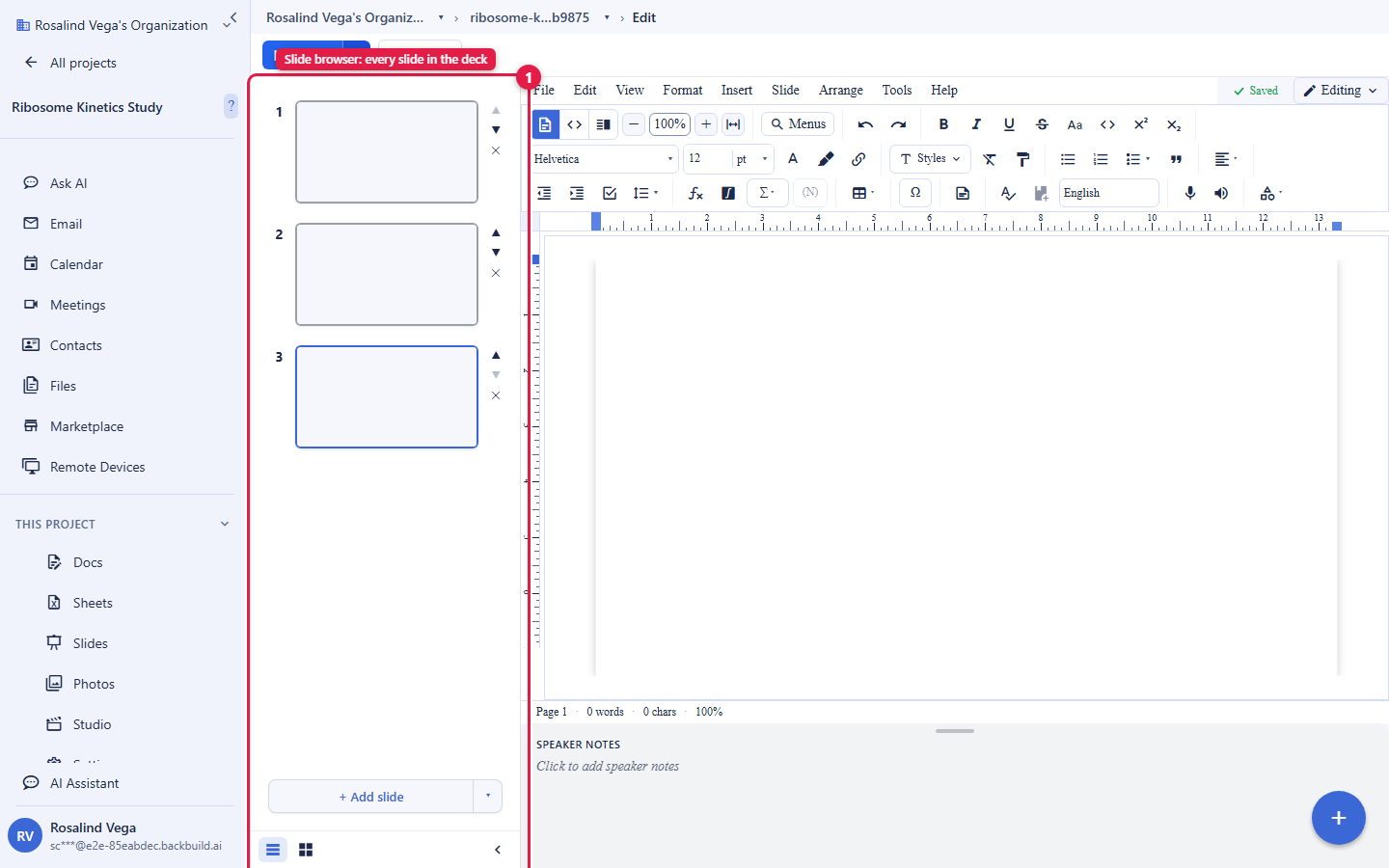
- Slide browser: a thumbnail rail to add, delete, reorder, duplicate, and hide slides, and to move through the deck as you build.
- Themes and layouts: ten built-in themes and eight slide layouts (title, section header, two columns, caption, and more) give the deck a consistent look, without being locked into a single generated theme.
- Precise layout: rulers, guides, alignment, and free positioning let you place elements exactly, the fine-grained control that prompt-only generators do not give you.
Shapes, charts, diagrams, and media
Slides hold the full range of visual content a talk needs, inserted from the editor:
- Shapes and WordArt: draw and style shapes, and add stylized WordArt text as a design element.
- Charts: insert bar, column, line, and pie charts that render on the slide from the values you give them.
- Diagrams: insert built-in process, hierarchy, cycle, and grid diagram scenes to explain a flow or a structure.
- Images: place images on a slide, including pictures from your workspace Photos library.
- Video and audio: embed video from YouTube and Vimeo, and audio from Spotify, directly on a slide.
- Live math: a slide can carry live LaTeX math, using the same math engine as Backbuild Docs, which matters for technical and academic talks.
Transitions and animations
Add transitions between slides, nine styles from fades and directional slides to flip, cube, dissolve, and zoom, and animate the elements on a slide with ten animation effects, each usable as an entrance, an exit, or an emphasis, triggered on click, with the previous step, or after it. Animations advance in ordered steps, so you can reveal a slide one point at a time as you talk, and everything plays back in the presenter runtime.
Speaker notes
Every slide has a speaker notes pane for the script and reminders you present from. Notes stay attached to their slide and appear in the presenter console while you show the deck, without ever showing to the audience.
Presenting your deck
Backbuild Slides includes a real presenter runtime with two modes that share one chromeless slide surface:
- Present: a single-screen fullscreen show with a timer and a notes toggle, for presenting on one display.
- Presenter view: a two-screen console. Your window becomes the presenter console with the current slide, a preview of the next slide, your always-on speaker notes, a timer, and navigation, while a second audience window shows the clean slide. The two windows stay in lock-step, so what the room sees follows exactly where you are.
Real-time collaboration, versions, and offline continuity
Several people build the same deck at once. Backbuild Slides uses the same real-time fabric as Backbuild Docs, so edits stream to everyone viewing the deck and the slides stay consistent for the whole team. Comments let collaborators discuss a specific slide or element in place. Access is enforced on every connection: a viewer without write access cannot change the deck, and access changes take effect within seconds.
The deck also keeps its own safety nets. Version history records snapshots of the deck you can review and restore, so a revision round never destroys the version a client approved. Offline continuity keeps a local copy of your work: if the connection drops, the editor reloads what you had and replays your edits when it reconnects. Sharing is scoped the way the rest of the workspace shares: grant a specific person, a group, or the whole organization access at the level you choose.
Import and export
Move decks in and out in the formats your audience and archives expect:
- Export: native PowerPoint (PPTX) and OpenDocument Presentation (ODP) files assembled from your deck, and PDF. The export is built by a dedicated assembler rather than a screenshot of a web view, so text, shapes, and layout are written as real slide objects.
- Import: bring in existing PowerPoint (PPTX) and OpenDocument (ODP) decks.
AI control
Backbuild Slides is controllable by an AI agent through the Model Context Protocol. An agent, whether an AI tool you link or the built-in workspace assistant, can create a deck, add, delete, and reorder slides, set the slide size, apply a design template, add shapes, and read every slide layout and speaker note, all through the same access checks that apply to a person, with every action recorded in the audit log. The inference runs on your own AI provider key or on usage credits, so the model and the cost are your choice. Two pieces are on the roadmap: agent primitives that write finished body text into slide text frames, and a built-in one-step prompt-to-finished-deck generator. Until they land, an agent delivers a structured, styled deck and the words are finished in the editor, where you keep full control of the result.
Included free. Backbuild Slides is part of the free Backbuild workspace on every plan. See pricing for what each plan adds around it, and there is no per-deck AI credit gate and no watermark on the decks you make.
Full guides. For the complete, job-by-job documentation, building a deck, adding content, transitions and animations, presenting, import and export, collaboration and governance, and the AI and API surface, see the Backbuild Slides documentation.