

Backbuild Meetings
Coming soon. Backbuild Meetings is a forthcoming part of the Backbuild workspace, and the pricing page marks it as coming soon. This documentation teaches the meeting experience you will use when it arrives, and states plainly what is not part of the first release, so you can plan around it. Nothing here describes a capability as available today that is not.
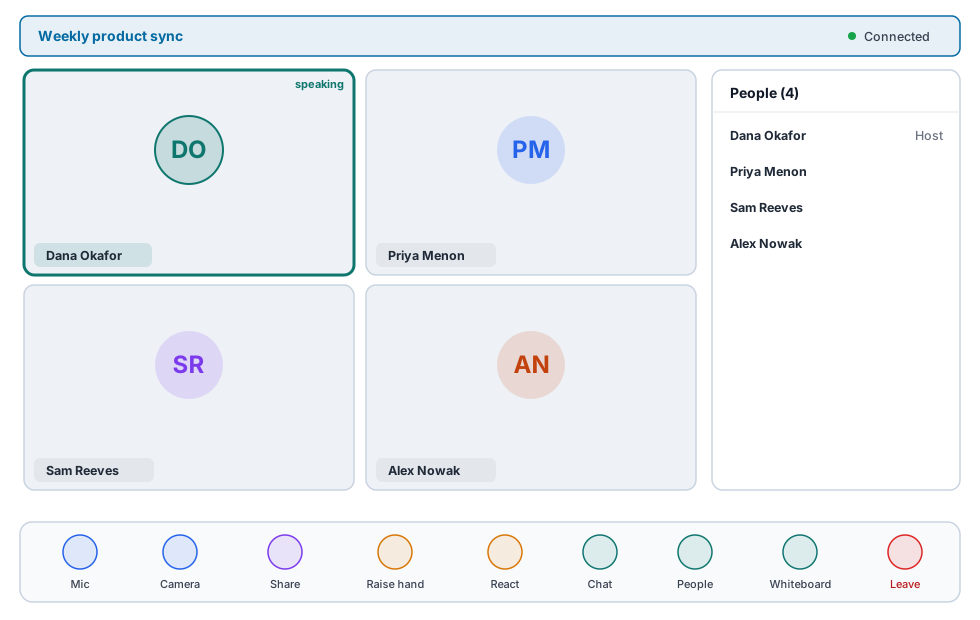
Backbuild Meetings is the video meeting app built into your Backbuild workspace. You start or schedule a meeting, invite people by email or by teammate name, and everyone joins in the browser with no download. Before you are seen or heard you check your camera, microphone, and speaker in a private lobby. In the room you share your screen, chat, react, raise your hand, and open a shared whiteboard, while the host admits the right people, mutes a noisy line, and locks the door. Guests join by link without an account, held at the door until the host lets them in, and they enter the moment they are admitted. It sits in the same workspace as Backbuild Calendar, Backbuild Mail, Backbuild Contacts, Backbuild Docs, and Backbuild Sheets, so a meeting, an event, and a message share one identity and one set of roles. After this page you will know what Backbuild Meetings will do, how you will join and host, and where to go for each job.
What You Will Get
After this section you will understand the shape of the app and which guide answers your question. Backbuild Meetings is a real video meeting tool for the meetings a team actually runs day to day: standups, one-on-ones, project syncs, client calls, and demos. It runs in the browser, so there is nothing to install and nothing to update, and it is built for small groups rather than large webinars.
- Join in the browser, no download. Open the link and the meeting opens in your browser. Guests do not need a Backbuild account, and a machine with no camera or microphone can still join: you enter without sending audio or video, and the room tells you so.
- A pre-join lobby that checks you first. A private camera preview, microphone, camera, and speaker pickers, a live input-level meter, and a record-and-play-back microphone test, so you confirm you look and sound right before anyone sees you.
- Start now or schedule for later. Create an instant meeting and drop straight into the room, or schedule one with a date and time so invitees get the details ahead.
- Invite by email and by name. Type any email address, or start typing a teammate's name and pick them from your organization directory. The invitation carries the join link and a meeting code.
- A waiting room you control. Newcomers can be held at the door until you admit them, one at a time. Each knock shows the person's real name, member or guest, and the person enters the moment you admit them, with nothing to refresh on their side. You can lock the room so no one else gets in.
- Host moderation. Mute a noisy participant, remove a disruptor, spotlight a presenter, and lock the meeting, from the participant roster.
- Share, chat, react, and raise a hand. Share your whole screen or a single window, send chat messages, drop a reaction, and raise your hand without interrupting.
- An in-meeting whiteboard. Open a shared board built on Backbuild Docs, sketch together, and keep the board after the call.
- Tied into your calendar and mail. A meeting can travel on a calendar event and an email invitation, so the join link reaches people where they already are.
- One identity, one audit trail. Meetings run under the same organization membership, roles, and audit logging as the rest of your workspace, not a separate conferencing account.
- Runs on usage credits, on every plan. There is no per-host video license: live meeting time draws your organization's universal usage credits at a per-participant-minute rate, on every plan including Free. The Meetings screen shows your balance and the current price, and offers credit packages right there when you run out. The details are in the plan section below.
Where Backbuild Meetings Will Fit on Your Plan
After this section you will know what to expect on your plan and what a meeting costs. Backbuild Meetings arrives on every Backbuild plan, including Free. There is no per-host video license to buy and no separate conferencing subscription: live meeting time runs on universal usage credits, the same credits that cover the built-in AI models, containers, and the platform's other metered usage. Because it lives inside the workspace, the people you meet with are the same records you keep in Backbuild Contacts, and the roles that govern your projects govern who can host and moderate.
- Every plan, including Free. Any organization with usage credits can host and join meetings. What differs between plans is the monthly credits included, not access to the feature.
- Billed per participant-minute. A live meeting draws credits for each person in the room for each minute they are connected, at the rate shown on the Meetings screen: currently 2,000 credits per participant-minute. There is no free meetings allowance; every live minute meters. Rates are current pricing and can change; the pricing page is the authoritative source for credit packages and rates.
- The host's organization pays. The whole meeting, guests included, is covered by the organization the meeting belongs to. Invitees and guests never pay anything and are never asked for billing details.
- The screen tells you where you stand. The Meetings hub always shows that meetings run on usage credits, your organization's current balance, and the current per-minute price. When the balance is zero, the hub offers the credit packages inline, right on the screen, and completing a purchase re-enables meetings in place with no reload.
- Zero credits blocks entry, never a meeting in progress. With no credits available, you cannot start or join a live meeting, and the screen says so plainly. Everyone already connected stays connected: a meeting is never cut off in the middle because the balance ran out. A guest arriving at a credit-blocked meeting simply sees that the meeting is unavailable.
- Invitations ride your email allowance. Sending invitations is email, so very large invite lists count toward your outbound email allowance the way any message does. See the outbound allowances guide.
- Recording and transcription are not part of the first release. When they arrive, they will run on the same usage credits, billed per minute of use, and this documentation will state their rates. See the note on recording and transcription below.
For scale: a one-hour meeting with four participants is 480,000 credits, about $3.20 at entry credit package rates and less on larger packages. The pricing page is the authoritative source for current plans, allowances, and rates.
How You Will Join Your First Meeting
After this section you will know the path from a link to a live room. Joining is the same short path whether you are a member or a guest.
- Open the link, from an email invitation, a calendar event, or a code you were given. It opens in your browser.
- Check yourself in the lobby. Confirm your camera preview looks right, pick the correct microphone, camera, and speaker, watch the input meter move when you talk, and run the microphone test if you want to be sure.
- Join, or, when the host has restricted the meeting, ask to join; you enter the moment the host admits you, with nothing to refresh.
- Take part. Share your screen when asked, use chat and reactions, and raise your hand to speak.
Do I need an account or a download to join? No. Backbuild Meetings opens in your browser, and a guest joins by link with no Backbuild account and nothing to install. The full attendee walkthrough, including the device test, is in Joining a Meeting and the Lobby.
What if my computer has no camera or microphone? You can still join. You enter the room without sending audio or video, the room shows a notice saying so, and you can watch, listen, and take part with chat, reactions, and a raised hand.
Choose Your Guide
Each guide teaches one job end to end. Start with the one that matches what you need to do.
- Joining a Meeting and the Lobby: open a link, test your camera, microphone, and speaker in the pre-join lobby, fix the wrong-device problem, join as a member or a guest, and use reactions and raised hands in the room.
- Hosting: Create, Schedule, and Invite: start an instant meeting or schedule one for later, invite by email and by teammate name, let the calendar and email invitation carry the link, and rename, delete, or end a meeting.
- In the Meeting: Share, Chat, and Whiteboard: share your whole screen or a single window, use chat and reactions, raise your hand, and open the shared whiteboard that stays after the call.
- The Waiting Room and Moderation: keep uninvited people out with the waiting room and lock, admit people one at a time, mute a noisy line, remove a disruptor, and spotlight a presenter.
- Administration and Security: for admins and reviewers, how meeting access follows your identity, who can host, how guests are contained, what is logged, how meetings draw your organization's usage credits and where that spend is visible, how meetings are encrypted in transit, and the honest posture on recording, transcription, and end-to-end encryption.
- Backbuild Calendar: attach a meeting to a calendar event so its join link and code travel on the invitation.
What Backbuild Meetings Will Not Do at Launch
Choosing well means matching the tool to the requirement, so here are the edges to weigh. These are deliberately out of the first release, and this documentation will be updated as they arrive.
- Cloud recording and transcription are not part of the first release. Backbuild Meetings will not save a recording or produce a transcript at launch. When they arrive, they will run on universal usage credits, billed per minute of use, and this documentation will state their rates. Do not rely on a saved recording or a transcript until this documentation says they are available.
- Large webinars and broadcast events are not the target. Backbuild Meetings is built for small working groups, not audiences of hundreds. If your requirement is a large-scale webinar, weigh that carefully.
- Breakout rooms, polls, and Q and A are not available at launch.
- Dial-in by phone (PSTN) is not available. Everyone joins over the internet in the browser.
- End-to-end encryption is not offered for meetings. Meeting connections are encrypted in transit; see Administration and Security for the honest posture a reviewer needs.
- Screen sharing from the desktop app is coming soon. Share your screen from the web app for now.
- Live captions and background blur or replacement are not available at launch.
- Native mobile apps are not available; you use Backbuild Meetings through the web app on your computer.
If a saved recording, a transcript, phone dial-in, or webinar-scale attendance is a hard requirement for you today, weigh that against everything above. If you want reliable small-group video that lives in the same workspace as your calendar, mail, contacts, documents, and sheets, with a real waiting room, host moderation, and a shared whiteboard, Backbuild Meetings is being built for you.