

Your Library, Albums, and Slideshows
This guide teaches how images get into Backbuild Photos and how you keep them organized so the right person finds the right picture in seconds. After it you will be able to upload without creating duplicates, choose the scope an image lives in, search and sort a large library, view any picture full-screen, build albums that group without moving files, and play a selection as a full-screen slideshow. It answers the questions a brand or asset owner asks when a shared drive has become an unsearchable pile.
The Gallery
After this section you will know every control on the main screen. Backbuild Photos opens on a fast, responsive grid of thumbnails. Each thumbnail streams through an authorized URL, so an image is never exposed at a public address anyone could guess. From the gallery you can:
- Upload: pick files with the native file picker, or drag and drop images anywhere on the grid.
- Switch scope: the header toggle moves your view between the project library, the organization library, and your personal library.
- Search: filter the grid by file name, and by the camera details (make, model, lens, capture time) of any image you uploaded with Preserve metadata turned on.
- Sort: newest first, oldest first, or by name.
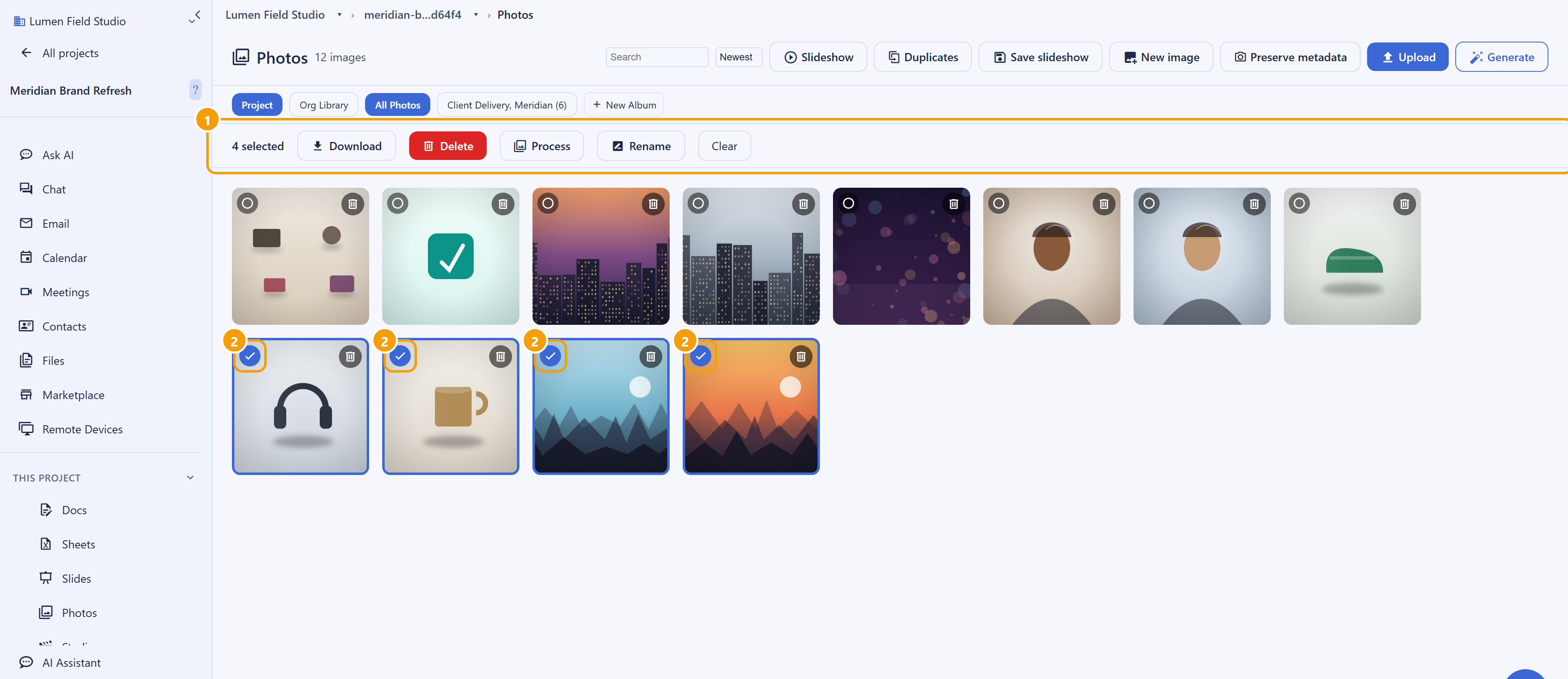
- Select in bulk: check several photos to act on them together from the selection bar: download them, delete them, batch resize and reformat them, or batch rename them by a numbered pattern, in one action.
- Find duplicates: surface exact duplicate images so you can clean up a library that has accumulated copies.
- Create from scratch: start a blank canvas to draw or compose on, or generate an image from a text prompt (see AI Image Tools).
Uploading Without Making a Mess
After this section you will bring a large batch in cleanly. Uploads run in parallel, each with its own progress, and one file that fails to process does not abort the rest of the batch. Two behaviors keep your library tidy as it grows:
- Duplicate detection on upload. If you upload a file whose contents you have already uploaded, Backbuild Photos recognizes it and returns the existing image instead of adding a second copy. Re-dropping a folder does not litter the grid.
- Metadata stripped by default. GPS coordinates and camera metadata are removed from the file before storage. The file name, dimensions, format, and size are always kept for display. Turn on Preserve metadata before uploading to keep allowlisted camera details (make, model, lens, capture time, exposure); those are then shown in the Info panel and searchable. GPS is never kept, even then.
Accepted upload formats are PNG, JPEG, WebP, GIF, and BMP. Uploads are validated by their actual content rather than their file name, and very large or maliciously constructed images are rejected, so the library stays safe for everyone who shares it.
When do we outgrow a shared drive for this? The moment finding the current, approved version of an image takes real time, or the same file exists in several folders under slightly different names. An organization-scoped library with one current copy of each asset, duplicate detection on upload, search, and a version history on every image removes exactly those failure modes.
How do I organize so people use the right files? Keep shared assets in the organization scope, group them into albums that map to your campaigns or categories, and rely on search and sort. Because every image carries a version history, the current copy is always the one people open, and an older look is never lost.
The Lightbox
After this section you will inspect and act on a single image. Click a thumbnail to open the lightbox, a full-size view that fills the screen. From it you can:
- Move through the set with previous and next, and a position indicator that shows where you are.
- Zoom in and out to check detail.
- Read the Info panel: the camera details (make, model, lens, capture time, exposure) kept for the image when it was uploaded with Preserve metadata on. The file name, dimensions, and size always show at the foot of the view.
- Open the editor with Edit, or add the image to an album.
- See the version history of the image and the edits saved from it.
- Create a share link or delete the image. Sharing is covered in Sharing, Access, and Governance.
Albums
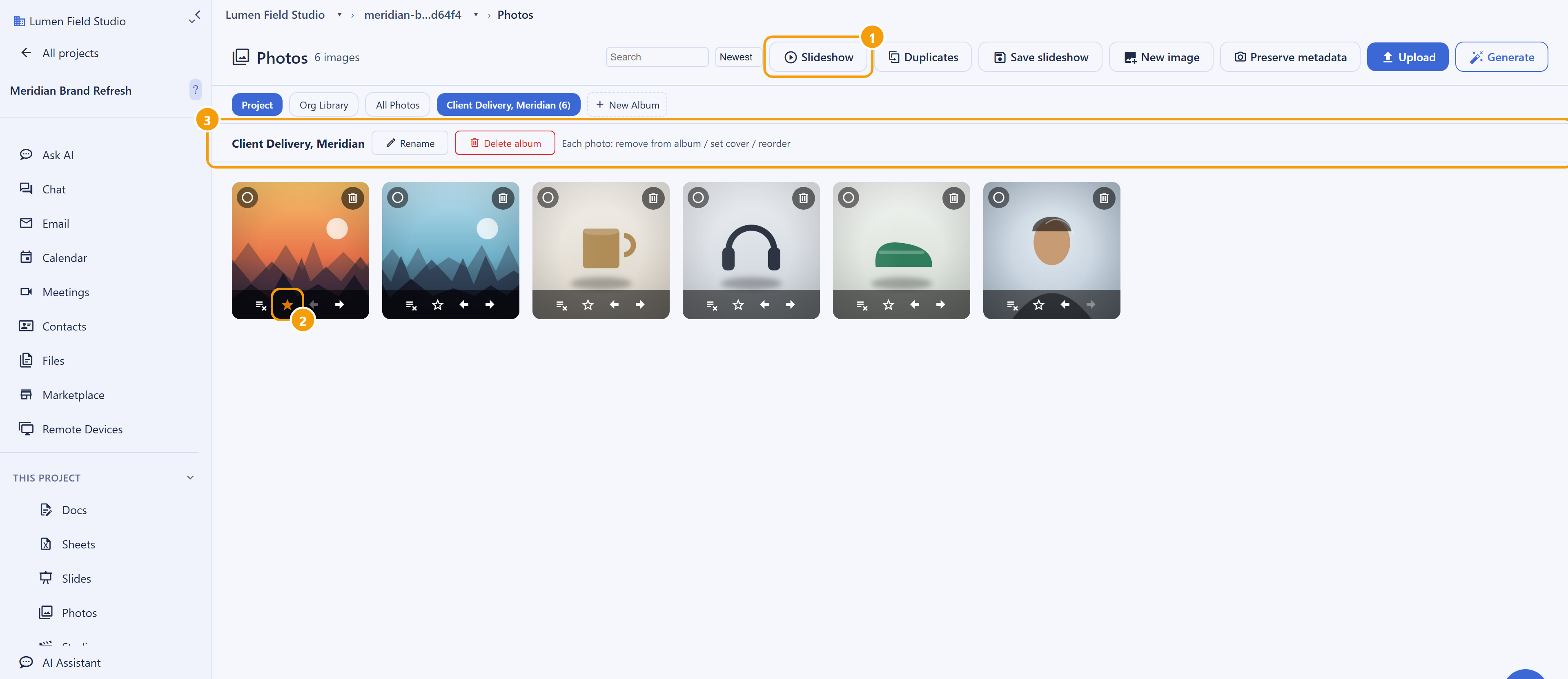
After this section you will group images without moving or copying them. An album is a named, ordered collection. Adding a photo to an album does not move the file or make a copy: one photo can belong to many albums at once.
- Create, rename, and delete albums. Deleting an album never deletes the photos in it.
- Add and remove photos, one at a time or in a multi-select batch from the gallery.
- Reorder with the move controls on each photo, so the sequence tells the story you want.
- Set a cover image that represents the album at a glance.
- Play the album as a full-screen slideshow.
Slideshows
After this section you will present your images full-screen. A slideshow turns an album or a hand-picked selection into a playable show. You control it at two levels:
- Overall settings: the interval each slide holds, the transition between slides (fade, slide, or none), whether the show loops, and whether a Ken Burns pan and zoom is applied.
- Per-slide settings: override the duration or transition for an individual slide, and set a Ken Burns move by dragging a start and an end crop rectangle on a preview.
The player fills the screen, advances on a timer, animates the motion, cross-fades between slides, loops when you ask it to, and responds to the keyboard for previous, next, play, and pause. Close it to return to your library. This gives a photographer a clean way to show a client a set, and a marketer a quick way to tell a visual story, without exporting to another tool.
Can I deliver a set to a client that looks professional? Yes. Present a curated album as a full-screen slideshow, or share the album with a public link that you can set to expire and revoke, so the recipient sees a real gallery rather than a bare file link. See Sharing, Access, and Governance.
Are my originals safe if I re-edit later? Yes. The uploaded file is kept immutable and content-addressed, and every edit is saved as a new rendition with a version history, so an earlier look is always recoverable. The editor guide covers version history in detail.
Where to Go Next
- Editing Photos: open any image in the non-destructive, layer-based editor.
- AI Image Tools: generate a new image or retouch one with a prompt.
- Sharing, Access, and Governance: send an album to a client or a team with the right access.
- File versus database storage: how the images you upload count toward your allowance.