

Your Mileage Settings in Backbuild Miles
Mileage settings is the screen that decides how much Backbuild Miles does on its own. One switch on it governs whether the app records your driving at all, and the choices beneath it decide where a captured drive lands and how it is presented back to you. This page teaches you what each control changes, how to turn recording off and be certain it stopped, and where the rest of the setup lives.
Open it from the Settings tab at the far right of the bottom bar. Every choice here belongs to you, not to an entity: if you work across several entities, these preferences follow you into all of them, and they follow you onto a new phone when you sign in. Two settings are the exception and are set separately on each phone: the Background GPS monitoring switch and the map tile cache.
Automatic Tracking: The One Switch That Matters
After this section you will be able to stop and start automatic recording, and confirm which state you are actually in.
At the top of the screen is Automatic tracking. When it is on, Backbuild Miles detects that a drive has begun and records it without you opening the app or pressing anything. That is the whole point of the product, so a fresh installation starts with it on.
Turning it off is the complete stop. It is not a pause, not a filter, and not a setting that applies only while the app is open. With the switch off, the app releases its hold on your phone's location straight away, stops watching for drives, and creates no new trips. It stays that way through closing the app, the phone killing the app in the background, and a restart of the phone: a reboot does not turn recording back on.
If you switch it off in the middle of a drive, the part already recorded is closed off and kept, and it appears in your trip review queue like any other trip. Recording stops at the moment you moved the switch; the rest of that journey is not recorded, and the trip is not left open to be added to later. If you would rather not keep the part that was recorded, delete that trip from the Trips tab.
The screen is explicit about which state you are in, and it uses three separate signals so you are never guessing:
- The row reads Tracking is on or Tracking is off in words, not just as a coloured switch.
- The switch itself moves and changes colour.
- When it is off, a warning line appears underneath: Drives will not be recorded while this is off. That line is there deliberately. Turning recording off is easy to do and easy to forget, and a month of missing business mileage is expensive to reconstruct.
Three other readings tell you something needs attention:
- Tracking is not set up: setup has not been run on this phone yet, so nothing is recorded. The switch opens setup.
- Tracking on, will start when reconnected: you turned it on while offline, and it takes effect once the phone is back on a connection.
- Tracking is on, but not running, with a red line saying nothing on this phone is recording: switch it off and on again to restart it, and if that does not help, use Re-run setup and permissions below.
Your choice is stored with your account and on the phone, so it survives closing the app, restarting the phone, and a software update. If you turn recording off, it stays off until you turn it back on.
Turning Recording Off for a While
There are good reasons to switch it off: a holiday, a stretch of personal driving you would rather not have logged at all, lending the phone to someone else, or a week when you are not driving for work. Switch it off, and switch it back on when you need it. Nothing you have already recorded is touched, and your vehicles, entities and rules are all still there when you return.
The one thing to remember is that a drive taken while the switch is off cannot be recovered afterwards. There is no record to import. If you realise afterwards that a trip mattered, add it by hand from the Trips tab.
If Something Goes Wrong While You Are Changing It
Two things have to agree when you flip the switch: your account setting, and the phone itself. The screen tells you when they do not.
- If the change cannot be saved to your account, the screen says so and leaves the switch where it was. It never shows you a change that did not happen.
- If the change was saved but the phone could not be told, the screen says that too, and asks you to reopen Backbuild Miles so the two can agree.
- If you are offline, the change is held on the phone and sent when you are back on a connection.
Turning recording off is always applied to the phone straight away, even when the rest of the change is still in flight. Failing to stop is the expensive direction, so the app never waits to stop.
Background GPS Monitoring and Snap to Known Locations
After this section you will know when to turn on background GPS monitoring, how to set its check interval, and what Snap to known locations adds.
Both controls sit directly under the automatic tracking switch, and both appear only in the Backbuild Miles app on your phone, once automatic tracking has been set up there.
- Background GPS monitoring lets the app notice a drive even when your vehicle's Bluetooth is not connected. It is off until you turn it on, and most drivers never need it, because a paired vehicle connecting is what normally starts a drive for free. Turn it on if you drive a car you have not paired. It costs battery, typically 3% to 10% a day depending on the phone. The switch belongs to this phone and does not follow you to a new one.
- Check interval. With background GPS monitoring on, a field sets how often the app looks for a drive, from 10 to 600 seconds; new accounts start at 30, and 30 to 300 is the recommended range. A shorter interval catches a drive sooner and records its start more accurately, at more battery. The interval is saved with your account and comes back on a new phone. A number outside the range is pulled into it when you finish typing.
- Snap to known locations anchors a drive that starts or ends inside one of your saved places to that place, so the start or end stays accurate even with a longer check interval. It is off until you turn it on, it is saved with your account, and it matters most for trip ends. See Known Locations.
If automatic tracking is on but no vehicle is paired and background GPS monitoring is off, the screen warns you that drives will not be recorded automatically, because nothing is left to notice one starting. Pair your vehicle's Bluetooth or turn on background GPS monitoring to clear it.
Setup and Review
After this section you will know what each of the five links leads to.
The middle of the screen collects the things you set up once and then revisit occasionally.
- Re-run setup and permissions. Walks the first-run setup again. This is the place to go when recording has stopped working and you suspect Android has taken a permission back, which it does to apps it thinks you have stopped using.
- Trips needing review. Opens the queue of captured drives that have not been assigned to an entity yet. See Clearing Your Trip Inbox.
- Saved places. The places you drive to and from, the same list as Known locations in the menu. See Known Locations.
- Classification rules and odometer reminders. Teaches the app to classify drives for you by working hours, named places and frequent routes, and sets when it should prompt you for an odometer reading.
- Dashcam. Cameras, recording resolution, how much storage the rolling buffer may use, and how long kept footage is retained. Dashcam recording is off by default and footage stays on the phone.
The Map Tile Cache
After this section you will be able to decide how much of your phone the maps may use, and free that space when you need it.
Every map in Backbuild Miles is drawn from small squares of map imagery. The app keeps the squares it downloads on the phone and reuses them, so panning and zooming a map you have seen before does not download it again, and the roads you drive often stay ready even on a weak signal. The Map tile cache section controls that store, for this phone only:
- What it is using. A line at the top reports how much space the cache holds now and how many squares, against the limit you set.
- Cache size limit. Choose 25 MB, 100 MB, 250 MB, 500 MB (the starting value), 1 GB, 2 GB, 5 GB or 10 GB, or type any whole number of megabytes from 25 to 10,000. When the cache reaches the limit, the squares used least recently make room for new ones.
- Keep tiles for. 7, 14, 30 (the starting value), 60, 90, 180 or 365 days, or Never expire. The time counts from when a square was last needed, not from when it was downloaded, so the squares for roads you drive regularly do not expire while you keep driving them.
- Clear cached map tiles. Frees the space at once. Maps keep working; the squares download again as you use them.
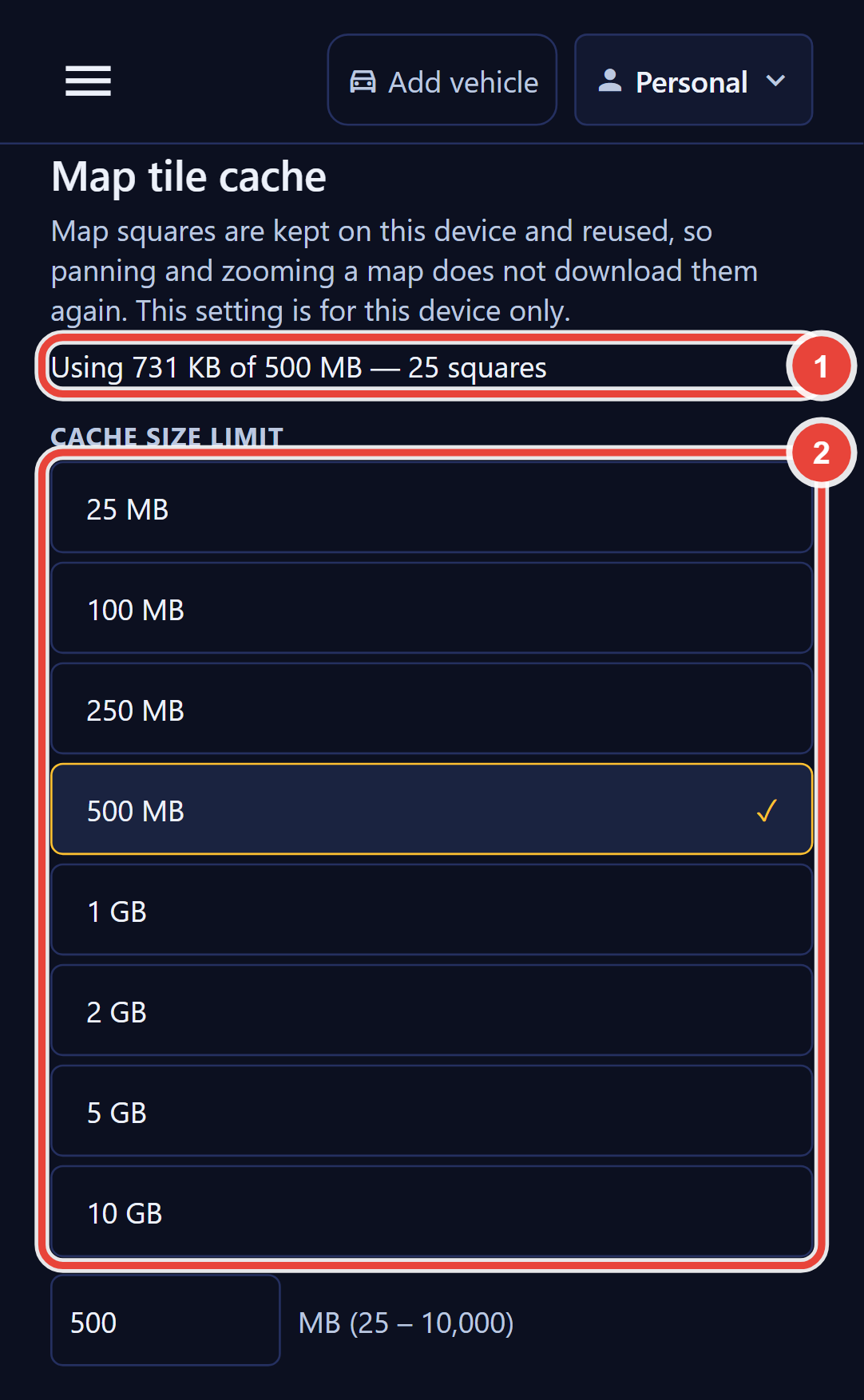
A larger cache suits a driver who covers the same area every day and wants maps that open instantly; a smaller one suits a phone short on storage. If the phone will not store the setting, the screen says so, and the previous value comes back the next time the app starts.
Distance Units
After this section you will know what the units choice is for.
Three options: Automatic (locale), which follows the region your phone is set to, Miles, or Kilometers.
Set it to Automatic unless you have a reason not to. The usual reason is a phone whose region does not match where you drive, or a preference for reading kilometres while filing a deduction that is calculated in miles.
Your choice applies to every distance Backbuild Miles shows you: the dashboard headline and its charts, the trips list, a trip's own detail, the review queue, and the totals on a split or a merge. It also decides how a distance you type is read. When you add a past trip by hand, the distance field is labelled with the unit you chose and the number you enter is taken in that unit, so entering 30 with Kilometers selected records a thirty-kilometre drive.
Note. Distance units are a display preference. They do not change how a trip is measured, how a deduction is calculated, or what an export contains. A mileage deduction is worked out from the distance actually travelled and the rate for the date of the trip, whichever unit you prefer to read.
One exception. The speedometer on the live drive screen reads in miles per hour whichever unit you choose, because the posted speed limits it compares against are published in miles per hour. Every distance on that screen still follows your setting.
Default Destination
After this section you will be able to send new trips to the right entity automatically.
In Backbuild Miles, a trip belongs to an entity: your personal records, or a business you drive for. The default destination decides where a newly captured trip goes when nothing else has already answered that question.
The list has one row for Ask every time, then one row for each entity you belong to. Your personal records are listed as Personal.
- Ask every time is the right choice if you drive for more than one business and the split is genuinely mixed. Every captured drive waits in the trip review queue until you say where it belongs.
- Choosing an entity is the right choice if nearly all of your driving is for one of them. New trips route there on their own, and you can still move any individual trip afterwards.
You can only choose an entity you are currently a member of. If your membership of an entity ends, the app tells you plainly that it is no longer available as a default and asks you to pick another one, rather than silently sending your mileage somewhere you can no longer see it.
Setting a default is not a lock. A default answers the question so you do not have to; it never prevents you from answering it differently for a particular drive.
What These Settings Do Not Do
Worth stating plainly, because these are the assumptions people most often arrive with:
- They do not delete your records. Changing any setting on this screen leaves every recorded trip, vehicle and receipt exactly as it was. The only thing a control here removes is the map squares stored on the phone, when you choose Clear cached map tiles, and those download again as you need them.
- They are not per-entity. Switching entity in the header does not give you a different set of these preferences.
- They do not change the tax treatment of a trip. Classification does that, and it lives in the trip itself and in your classification rules.
Common Questions
If I turn tracking off, do I lose the trips already recorded?
No. The switch controls whether new drives are detected. Everything already captured stays in your trips list and your reports.
Does turning tracking off save battery?
Yes. With the switch off the app is not watching for the start of a drive, so the work that costs battery is not being done.
I turned tracking off. Why is the app still on my phone doing something?
Backbuild Miles still syncs trips you have already recorded, and still shows you your dashboard and reports. What it stops doing is detecting and recording new drives.
Does the setting follow me to a new phone?
Yes, apart from two. These preferences belong to your account, so signing in on a new phone brings them with you; the Background GPS monitoring switch and the map tile cache are set on each phone, so set them again on the new one.
I picked kilometres and a screen still says miles. Why?
Distances follow your setting everywhere in the app, so a screen still showing miles is usually one the app has not reloaded since you changed the setting. Return to the dashboard and open the screen again. The one place that stays in miles by design is the speedometer on the live drive screen, because posted speed limits are published in miles per hour.
Can I set a default vehicle here?
Not on this screen. A vehicle is chosen per entity, and the quickest way to get it right automatically is to pair the vehicle with your car's Bluetooth: see Pairing Your Vehicle.
Where do I stop recording for one drive rather than for good?
Leave automatic tracking on and end the drive from the live drive screen, or reclassify it as personal afterwards. See Recording a Drive.
Where to Go Next
- Clearing Your Trip Inbox shows you how captured drives are assigned to an entity and classified.
- Pairing Your Vehicle gets the right vehicle onto a trip without you choosing it.
- Reports and Exports turns the recorded year into the substantiation record you file.