

Backbuild Desktop
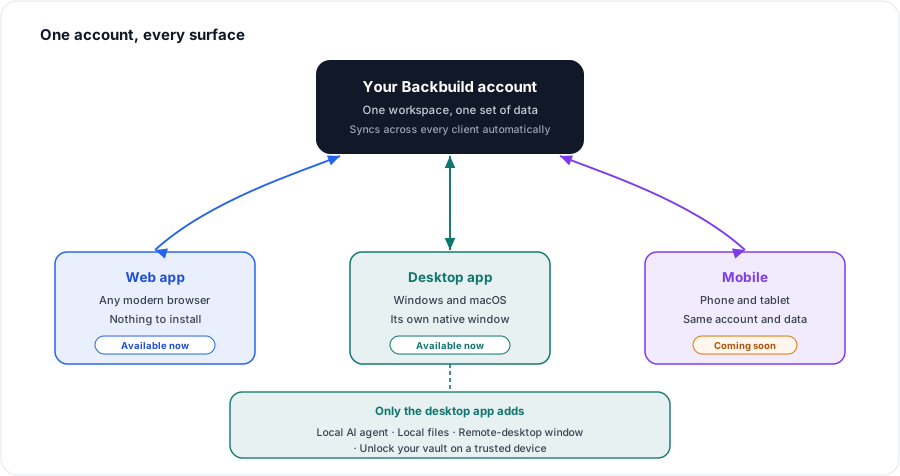
Backbuild Desktop is the Backbuild workspace as a native application for Windows and macOS, with Linux on the way. It is the same product you use in the browser, running in its own window instead of a tab, signed in as the same account, showing the same organizations and the same data. Everything you do on the web you can do here, and the native app adds a small set of things a browser tab simply cannot: running an AI agent on your own machine, opening files that live in a local folder or Git repository, popping a remote desktop out into a real window, and unlocking your vault without repeating two-factor on a computer you trust. After this page you will know what the desktop app is, whether it costs anything, how it relates to the web app, and which guide answers your question.
The desktop app is free to download and use. It is not a separate plan or a paid add-on: you sign in with your existing Backbuild account and everything follows your current plan, exactly as it does on the web. See the pricing page for what each plan includes, and the download page for the current installers.
What Backbuild Desktop Is
After this section you will understand exactly what you are installing and what it is not. The desktop app is a native window around the complete Backbuild workspace. When it opens, it loads the same application the web app serves, so the screens, shortcuts, and behavior are the ones you already know. It is not a cut-down companion app, and it is not a different account: it is your Backbuild, in a window.
- The same workspace. Backbuild Docs, Sheets, Slides, Mail, Calendar, Contacts, Photos, Finances, Studio, the Secrets vault, containers, Remote Desktop, projects, the AI assistant, and everything else on your plan are all present, unchanged.
- The same account and data. You sign in with the same credentials, see the same organizations, and work on the same content. Nothing is stored in a separate desktop silo; a change you make on the desktop shows up in the browser and the reverse.
- A real application window. It launches from your taskbar or dock, keeps its place across restarts, and gets its own window for second-monitor and single-task focus, rather than competing with thirty browser tabs.
- A few things only the native app can do. Running a local AI agent on your machine, opening local files, a pop-out remote-desktop window with drag-and-drop, and unlocking your vault without repeating two-factor. These are the reasons to install it, covered below.
Do I Lose Anything Compared to the Website?
After this section you will know the app is a superset of the web, not a subset. This is the most common worry, and the answer is straightforward: you lose nothing. Because the desktop app runs the same application, every feature you rely on in the browser is here. On top of that, the native app can reach parts of your own computer that a web page is not allowed to touch, which is where its extra capabilities come from.
| Capability | Web app | Desktop app |
|---|---|---|
| The full Backbuild workspace (Docs, Sheets, Slides, Mail, Calendar, Photos, Finances, Studio, Secrets, containers, projects, AI, sharing, roles) | Yes | Yes |
| Same account, organizations, and data | Yes | Yes |
| A dedicated window that survives restarts | No | Yes |
| Run an AI agent on your own machine with your own installed tools | No | Yes |
| Open files from a local folder or Git repository | No | Yes |
| Pop a remote desktop into a real window with native drag-and-drop | No | Yes |
| Unlock the vault without repeating two-factor on a trusted computer | No | Yes |
Is the desktop app just a web page in a wrapper? It runs the same web application, so the workspace is identical, but it is a real native app: it holds its own window, stays open across restarts, and does things a browser tab is not permitted to do, such as running a program on your machine or reaching a local folder. Those native powers are the point of installing it.
Is it free? Yes. The download and the app cost nothing, and there is no desktop-only plan. You are billed exactly as you are on the web, by your existing plan and any usage credits, never for the client itself.
Platforms and Requirements
After this section you will know whether your computer is supported. Native builds are available for Windows and macOS today, and a Linux build is coming. Until Linux ships, Backbuild runs in any modern browser on Linux with nothing to install.
| Platform | Requirement | Installer | Status |
|---|---|---|---|
| Windows | Windows 10 or later, 64-bit | Installer (.exe) | Available now |
| macOS (Apple Silicon) | macOS 11 or later, M-series Mac | Disk image (.dmg) | Available now |
| macOS (Intel) | macOS 11 or later, Intel Mac | Disk image (.dmg) | Available now |
| Linux | x86-64 | AppImage and .deb | Coming soon |
On some Windows computers the installer will also fetch a small Microsoft component the first time, and on both Windows and macOS the first launch of a newly downloaded app shows a standard operating-system safety prompt you click through once. Both are normal and expected, and the Installing and First Launch guide walks you through each one so nothing takes you by surprise.
Your Data Is the Same, Online or Off
After this section you will trust where your work lives. Your content lives in your Backbuild account, not on any one device, and it syncs across the web app, the desktop app, and (soon) mobile automatically. Recent work stays available and editable if your connection drops, and reconciles when you are back online, so a train tunnel or a flaky cafe network does not stop you. Uninstalling the desktop app removes only the client from that computer; your account and everything in it are untouched and still there on the web and your other devices.
Choose Your Guide
Each guide teaches one job end to end. Start with the one that matches what you need to do.
- Installing and First Launch: download the right build, clear the one-time operating-system safety prompt honestly and safely, sign in, learn how the window behaves, and understand how updates work.
- Local AI Agents and Files on Your Device: run an AI agent on your own machine with your own installed command-line tool, open files that live in a local folder or repository, and open Backbuild links straight into the app.
- Remote Desktop in the Native App: pop a remote session out into its own window, drag files between the remote machine and your own desktop, share your screen, and keep a machine reachable.
- Signing In, Sync, Device Unlock and Security: the single sign-on story, unlocking your vault without repeating two-factor on a trusted computer, offline behavior, and what the app is and is not allowed to connect to.
- Deploying to a Fleet: for administrators, installing across many computers quietly with your management tool, preparing the prerequisites, keeping everyone on the current build, and what a security review will want to know.
Related Guides
The desktop app is a door into the whole platform. When your question is about a specific app rather than the desktop client, these are the guides to read.
- Remote Desktop: the browser-based engine the native pop-out window builds on, and how to reach your own enrolled machines.
- Connect a Local AI Agent: the full picture of running your own coding agent against Backbuild, which the desktop app makes local.
- Backbuild Secrets: the vault, its sharing model, and every way to unlock it, including the device factor the desktop app uses.
- Getting Started: create your account and finish your first project, whether you are on the web or the desktop.