

The Tickets Console
The Tickets console is where your agents live. It is built for the daily reality of support and issue work: find the right ticket in seconds, arrange the queue the way your team actually works, act on a whole batch at once, and pull a report you can hand to your leadership without assembling it by hand. You reach it from the Tickets item in your sidebar, which appears once the help desk is enabled for your organization. After this page you will be able to filter and search the queue, switch between the list, grid, board, and table views, save a view for your team, run a bulk action, and export.
The console is available to staff whose role grants them ticket access. Who can read and who can work tickets is set by your roles and permissions.
Quick Filters and Counts
After this section you will be able to jump to the tickets that need you now. A rail of quick-filter chips runs across the top of the console, each with a live count, so you can see your workload at a glance and click straight into it. You land on All Open, the tickets still in play. The other chips narrow the queue instantly:
- All Open and All: the working set, or everything.
- Tickets By Me and Assigned to Me: the ones you raised, and the ones on your plate.
- Backlog, To Do, and In Progress: by where a ticket sits in its lifecycle.
- Unassigned: tickets nobody has picked up, so none fall through.
- Resolved and Closed: the finished work, including tickets resolved anywhere in your organization.
Finding a Ticket: Search or Filter
After this section you will be able to find any ticket two ways, whichever fits. The bar above the queue has a toggle between two modes, and only the active mode applies, so the two never fight each other.
Search: by the words in the ticket
Search matches your text against a ticket's title, the requester's name, its category, and the latest public message, so you can find a ticket by something you remember about it. Search runs when you ask it to: type your terms and press Enter or click the send button. It does not fire on every keystroke, which means you can type a full phrase without the list flickering underneath you and without a half-typed word triggering a query.
Filter: a precise, structured query
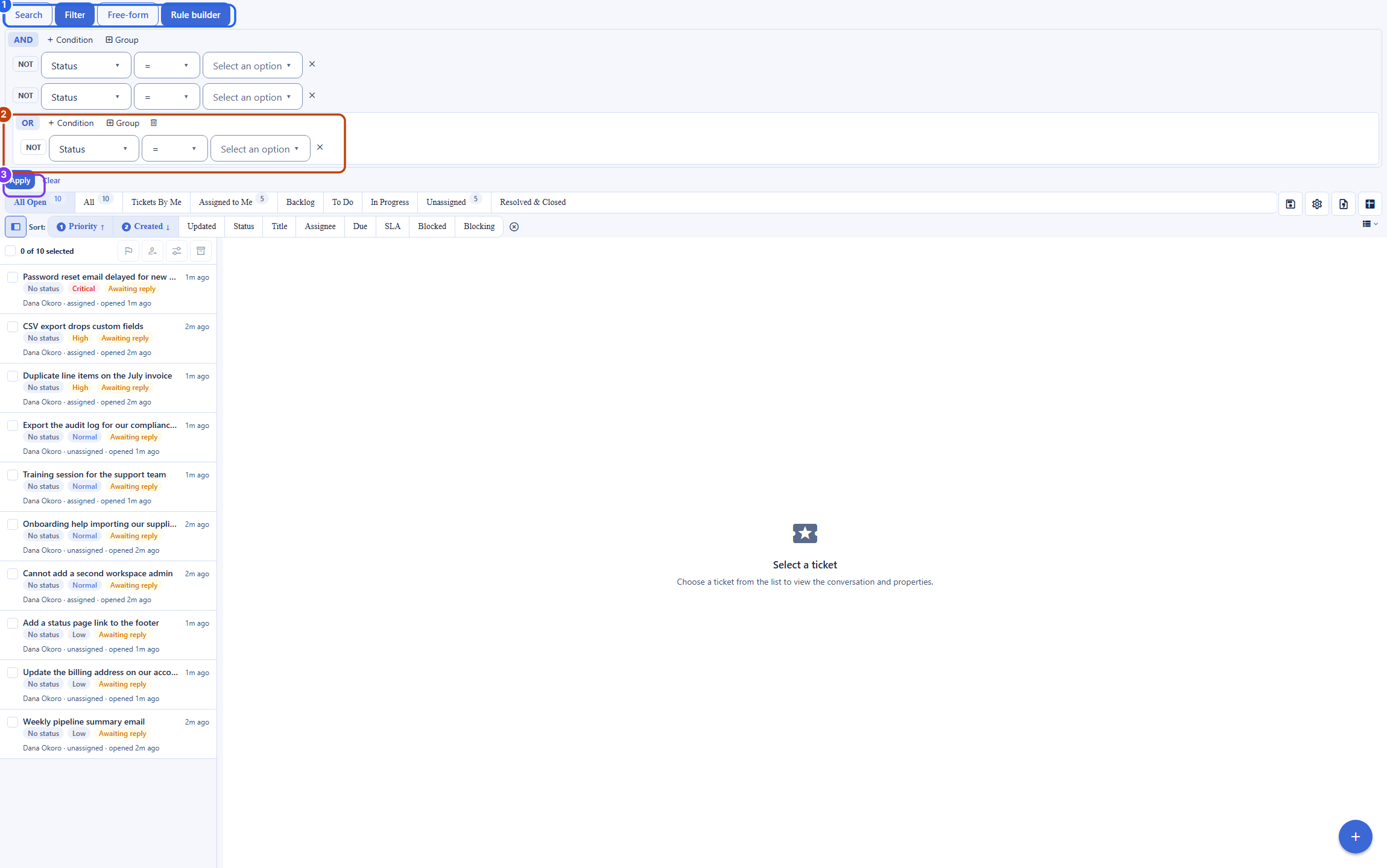
Filter builds an exact query out of a ticket's real attributes. You build it either of two interchangeable ways, and both feed the same query:
- The free-form input hints you through a valid query one piece at a time: it suggests a field, then an operator that fits that field, then a value for the slot your cursor is in, and it will not let you apply until the query is valid.
- The visual rule builder lets you assemble nested groups of AND and OR conditions by clicking, with no syntax to learn.
You can filter on a ticket's status and workflow state, priority, assignee (including me and unassigned), type, project, label, product, requester, title, category, severity, source, its created, updated, resolved, and due dates, whether an SLA was breached, how many times it was reopened, its satisfaction score, whether it has a reproduction, and its parent. Each field offers only the operators that make sense for it: text contains or equals or is empty, an enum is in or not in a set, a date is in a range or a relative window like the last seven days, a number compares, a yes-or-no is true or false. A query can nest to a sensible depth so it stays readable. Whatever you build is translated safely on the server; the words you type are never run as raw code.
Four Ways to See the Queue
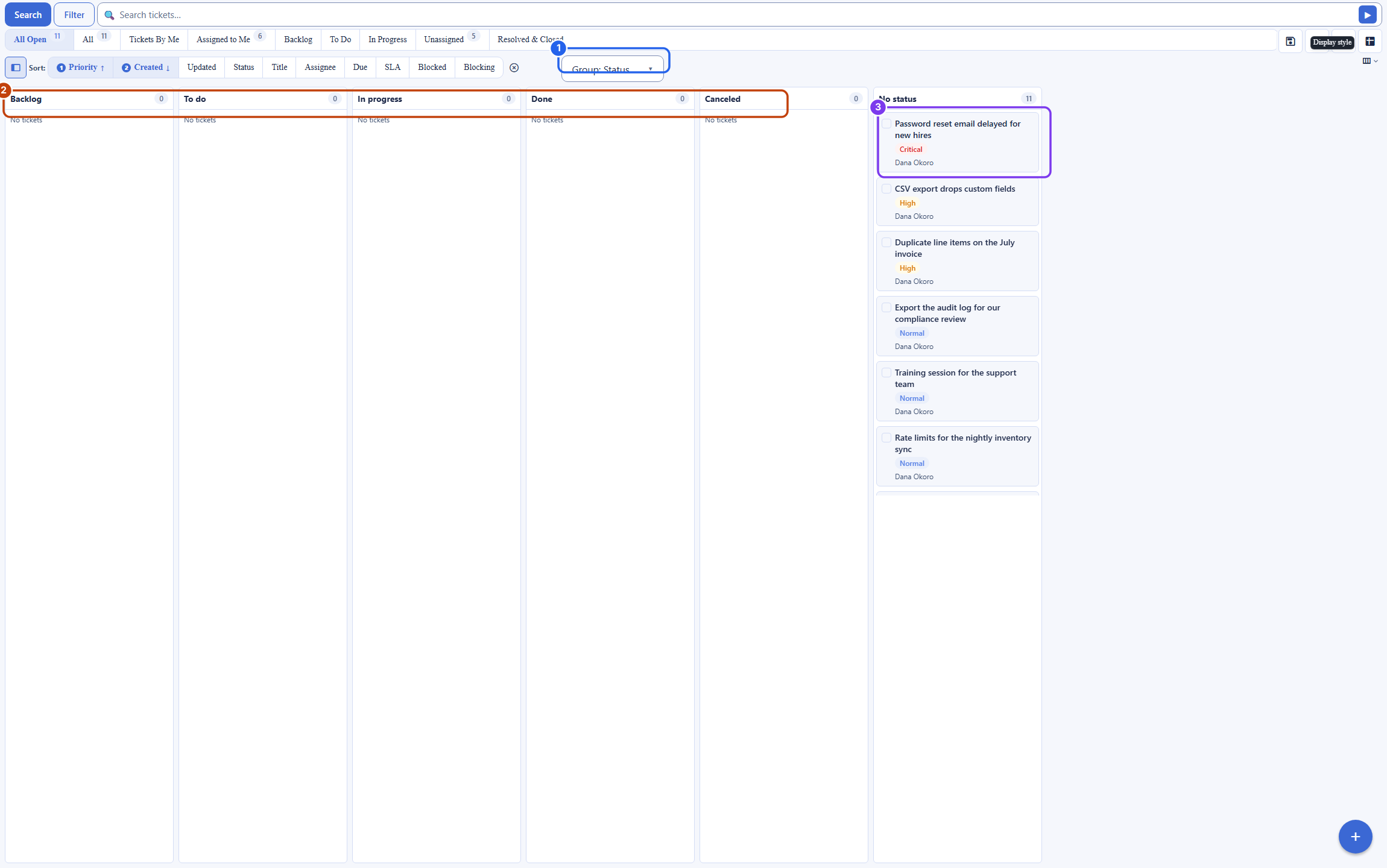
After this section you will be able to arrange the queue for the job. A view toggle switches how the same filtered set is laid out, and your choice is remembered per tab so each context keeps the shape you gave it.
- List is the default: a master list with the selected ticket's detail beside it, ideal for working tickets one after another.
- Grid lays the tickets out as cards for a quick scan.
- Board is a kanban board grouped by lifecycle stage by default, and you can regroup it by assignee, type, project, state, or label. Drag a card between columns to move the ticket through its workflow.
- Table is a dense, columnar, windowed grid for scanning and sorting large volumes.
A timeline Gantt view is coming soon; its icon is present but not yet active.
Saved Views: Report Without Rebuilding
After this section you will be able to save a view once and reopen or share it forever. Any combination of filter, grouping, and sort can be saved as a named view. A saved view can be kept for yourself or shared with your team, so the report your leadership asks for, this week's backlog, tickets breaching SLA, everything a director wants to see, is a link they open, not a query someone rebuilds by hand every Monday. Fixed quick chips (All, Backlog, To Do, In Progress, Unassigned) layer on top of whatever view is active, so you can drill in without losing your saved starting point.
Multi-Column Sort
After this section you will be able to order the queue by more than one thing. Sort by an ordered list of keys, up to four, so you can, for example, put the highest-priority tickets first and the longest-waiting ones first within each priority. Familiar one-click presets like newest activity, longest waiting, and priority are there when you just want a quick order.
Bulk Actions
After this section you will be able to act on many tickets at once. Select a set of tickets and act on all of them together: set a priority, assign them to a person, edit their labels and properties, archive them, or move them through a state transition (on the Board, by dragging a card). The bulk buttons enable only when you actually have a selection, so you never fire an action on nothing. A bulk state change does not trigger AI auto-dispatch by default, so reorganizing your queue never quietly spends credits.
Export: CSV and Sheets
After this section you will be able to take your queue out. Export the current filtered and sorted list as a CSV download or send it straight into Backbuild Sheets. Export covers the whole result set you have filtered to, not just the page on screen, up to a generous cap; if a result is larger than the cap, you are told plainly that you are seeing the first N of M rows, so a number is never silently truncated. From an open ticket you can also send its public conversation or its full work log into your organization's Support Ticket Workspace as a document.
Will search actually find the ticket I am looking for? Yes. Search spans the title, the requester's name, the category, and the latest public message, so a ticket is findable by what you remember about it. For a precise result, switch to Filter and query on real attributes. Search runs on Enter or the send button, so a full phrase never triggers a half-typed query.
Can I get a report I can share upward without rebuilding it? Yes. Save a filter, grouping, and sort as a named view and share it with your team; anyone opens the same live report. For a snapshot, export the filtered list to CSV or Sheets.
What views do I get, and can I group and multi-sort? List, Grid, Board, and Table. The Board groups by stage, assignee, type, project, state, or label, and you can sort by up to four keys at once. A Gantt view is coming soon.
How expressive is the filter, and are there limits? You filter over a fixed set of ticket attributes with type-appropriate operators and nested AND and OR groups, up to a sensible depth so a query stays readable. It is built for real support and issue queries, not arbitrary code, and it is translated safely on the server.
Where to Next
- Working a Ticket: open a ticket from the list and work its conversation, notes, and detail.
- Ticket Types, Workflows and SLAs: the states the Board columns and the lifecycle chips come from.
- Administration, Routing and White-Label Support: how tickets get routed and categorized before they reach your queue.
- Backbuild Sheets: where an exported queue lands when you send it to a spreadsheet.