

Calendars, Sharing, and Find a Time
This guide covers everything about more than one calendar: creating separate calendars and overlaying them, controlling who can see what with the four access tiers, following calendars shared with you, and reading a team's availability to find a slot that works. After this page you will run several calendars cleanly, share exactly the right amount, and stop trading availability emails.
Keep Separate Calendars, See Them in One Grid
After this section you will organize your schedule into calendars and turn them on and off at will. You start with a primary calendar, and you can create as many more as you need: one for personal time, one for a project, one for a team. Each secondary calendar has a name, an optional description, a time zone, and a default color. The primary calendar is pinned and cannot be removed; a secondary calendar can be deleted when you no longer need it.
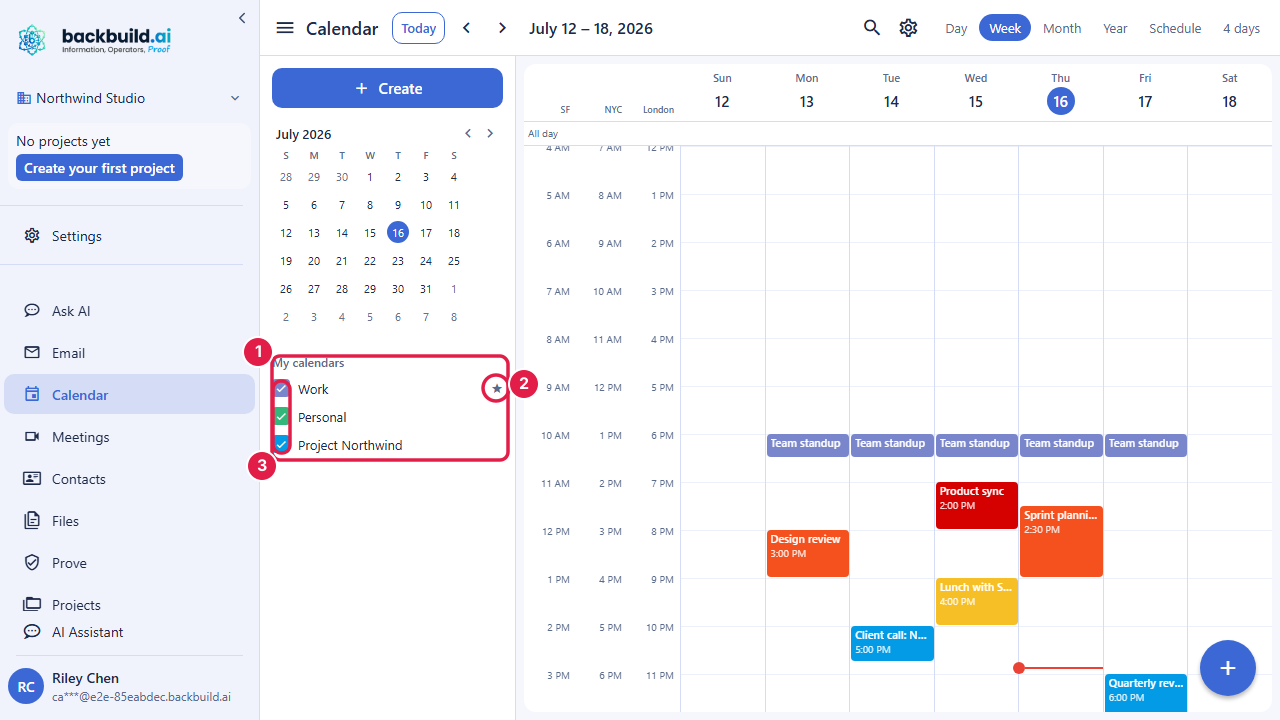
The left rail lists your calendars under My calendars (the ones you own or administer) and Other calendars (ones shared to you). Each row is a checkbox: tick it to show that calendar's events in the grid, untick it to hide them. This is how an assistant or a manager overlays several people's calendars at once and reads them as one schedule, then hides all but one to focus. Your visibility choices are remembered for you across sessions.
- Per-viewer color: you can override a calendar's color just for your own view, so overlapping calendars stay easy to tell apart on your screen without changing what anyone else sees.
- Star on the primary: your primary calendar is marked with a star in the list.
- Hide everything: untick every calendar and the grid is empty; tick the ones you want back.
How do I set up one shared schedule so my small team stops double-booking? Put the shared events on a calendar the team can see, and have each person overlay it in their own grid. Everyone reads the same events in real time, so an open slot is an open slot for all of you. Combine that with the free-busy read below to confirm a time before you book it.
The Four Access Tiers
After this section you will know exactly what each level of access lets a person see and do. Sharing in Backbuild Calendar is built on four nested tiers. Each tier includes everything below it, so you grant the least a person needs:
- Free-busy: the person sees only that you are busy or free at a given time, never a title or any detail. This is the right level for letting someone schedule around you without reading your day.
- Details: the person can read event titles, descriptions, locations, and guests. This is the level for a teammate who needs to know what is on the calendar.
- Write: the person can create and edit events on the calendar. This is the level for a co-owner of a shared team calendar.
- Manage: the person can administer the calendar, including its sharing. This is the highest level and should go only to a trusted co-administrator.
A calendar also has a public-visibility setting that governs exposure beyond your organization: none, free-busy only, or details. Leave it at none unless you deliberately want a calendar readable outside your organization.
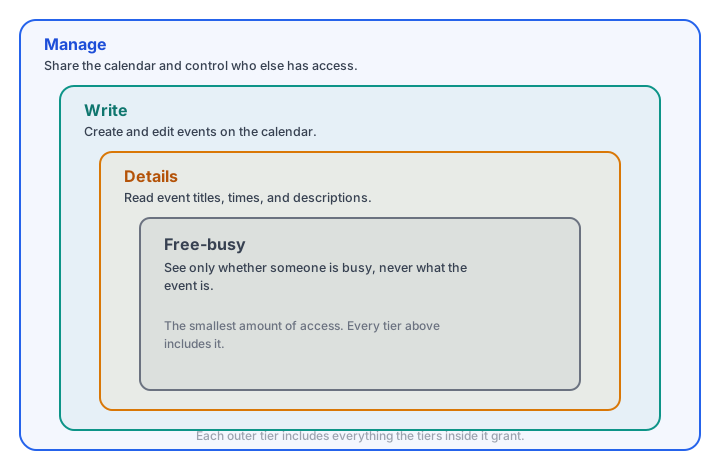
How granular is sharing, free-busy only versus see-details versus edit? Those are exactly the tiers: free-busy for availability only, details to read the events, write to make changes, and manage to administer. You pick the tier per person, so an assistant can be given write while a wider team gets only free-busy.
Following Calendars Shared With You
After this section you will work with calendars other people have shared to you. A calendar shared to you appears under Other calendars in the left rail. Tick it to overlay it, give it a color that suits your view, and read it at the tier you were granted: a free-busy share shows busy blocks, a details share shows the events themselves. You cannot add events to a calendar unless you were given the write tier, which is why it will not appear in the event editor's calendar picker until then.
What Sharing You Can Do In the App Today
After this section you will have a straight answer about delegation. The access model above is built in and enforced on every read and write. What the app does not yet offer is a point-and-click panel for granting a share or for approving a request to follow your calendar; those actions are available through the Backbuild REST API today, and a visual sharing control is part of the calendar's ongoing work. In practical terms:
- You can see and work every calendar shared to you, overlay calendars, recolor them for your view, and create and delete your own calendars, all from the app.
- Granting another person access to your calendar, at any tier, is done through the API today rather than a settings screen. See the API reference.
- Managing another person's calendar on their behalf (full delegate control from your own screen) is not a one-click in-app feature yet. The write tier lets a co-owner edit a shared calendar, which covers many delegation needs; a dedicated "manage on behalf of" surface is not present today.
We call this out plainly so an assistant or office manager evaluating Backbuild Calendar can plan around it rather than discover it. The visibility and overlay tools that make managing several calendars bearable are here now; the self-service grant screen is the piece still to come.
Can I manage someone else's calendar and act on their behalf? You can overlay and read any calendar shared to you, and if you are granted the write tier you can create and edit events on a shared calendar. A full self-service delegation screen, where you grant yourself or others manage-on-behalf control from a settings page, is not available in the app yet; today shares are granted through the API. We would rather tell you that than imply a screen that is not there.
Find a Time With Free-Busy
After this section you will pick a meeting time that works for everyone without seeing anyone's private events. Backbuild Calendar can read the busy intervals across the calendars you select or across the members of your organization, and return only busy or free, never the contents of an event you are not allowed to see. That availability read is what lets you find an open slot across a team quickly, and it is the same server-enforced boundary that keeps a private event private: the answer is "busy", full stop.
Can I see the whole team's free-busy to find a time that works? Yes. The availability read spans the members or calendars you choose and shows when each is busy or free, so you land on an open slot without opening anyone's events.
Booking Pages and Automated Scheduling
After this section you will know what to expect on client self-booking. A public booking page (a link a client opens to pick an open slot with you, the way an appointment scheduler works) is coming soon, and the pricing page marks it as such. The automated rules that ride with booking, such as round-robin assignment, buffers between meetings, and daily booking limits, arrive with it and are not available today.
Until then, the way to prevent double-booking is the one above: keep shared events on a calendar the team overlays, and read free-busy before you commit a time. If a public self-booking page is your defining requirement today, weigh that honestly; everything else about running a shared, availability-aware calendar is here now.
Is there a public booking page where clients self-book, like a dedicated scheduler? Not yet; booking pages are coming soon. Today you keep client records in Backbuild Contacts, create events and invite clients, and manage availability with shared free-busy. When booking pages ship, they build on the same calendar you are already using.