

Adding a Past Trip in Backbuild Miles
Backbuild Miles records your drives on its own, but a phone can go flat, an app can be force-quit, and a permission can be switched off without you noticing. Any of those leaves a hole in your mileage log, and a log with holes is the one that fails an audit. Adding a past trip is how you fill the hole. After this page you will be able to enter a drive the app never saw, know which fields it will not let you leave wrong and why, override a distance the app only estimated, get out of a half-filled form without losing your work, and confirm the trip landed in your history.
When to Add a Trip by Hand
After this section you will know when the form is the right answer and when something else is.
Use it for a real drive that was never recorded. The usual causes are a flat battery, the app being swiped away mid-journey, or location access being switched off before you acted on the tracking-health banner. In all of those the drive happened, you know roughly where it went and when, and nothing in your log shows it.
It is not the place to fix a drive that was recorded. If the app captured the journey but filed it as the wrong kind of trip, put it against the wrong car, or left the purpose blank, open the trip from your history and correct it there. Adding a second copy by hand would double the miles.
You reach the form from the Trips tab: the Add past trip control sits at the top of the list, next to New Trip. The two are different. New Trip opens the live drive view for a journey happening now. Add past trip opens the form below, for a journey that is already over.
The Form, Field by Field
After this section you will be able to fill every field correctly the first time.
The screen is one scrolling form, headed "Add a trip", with the line "For a drive Miles did not record automatically." underneath it. The fields are in the order you would think about the journey: where it went, when, how far, what kind of trip it was, and in which vehicle.
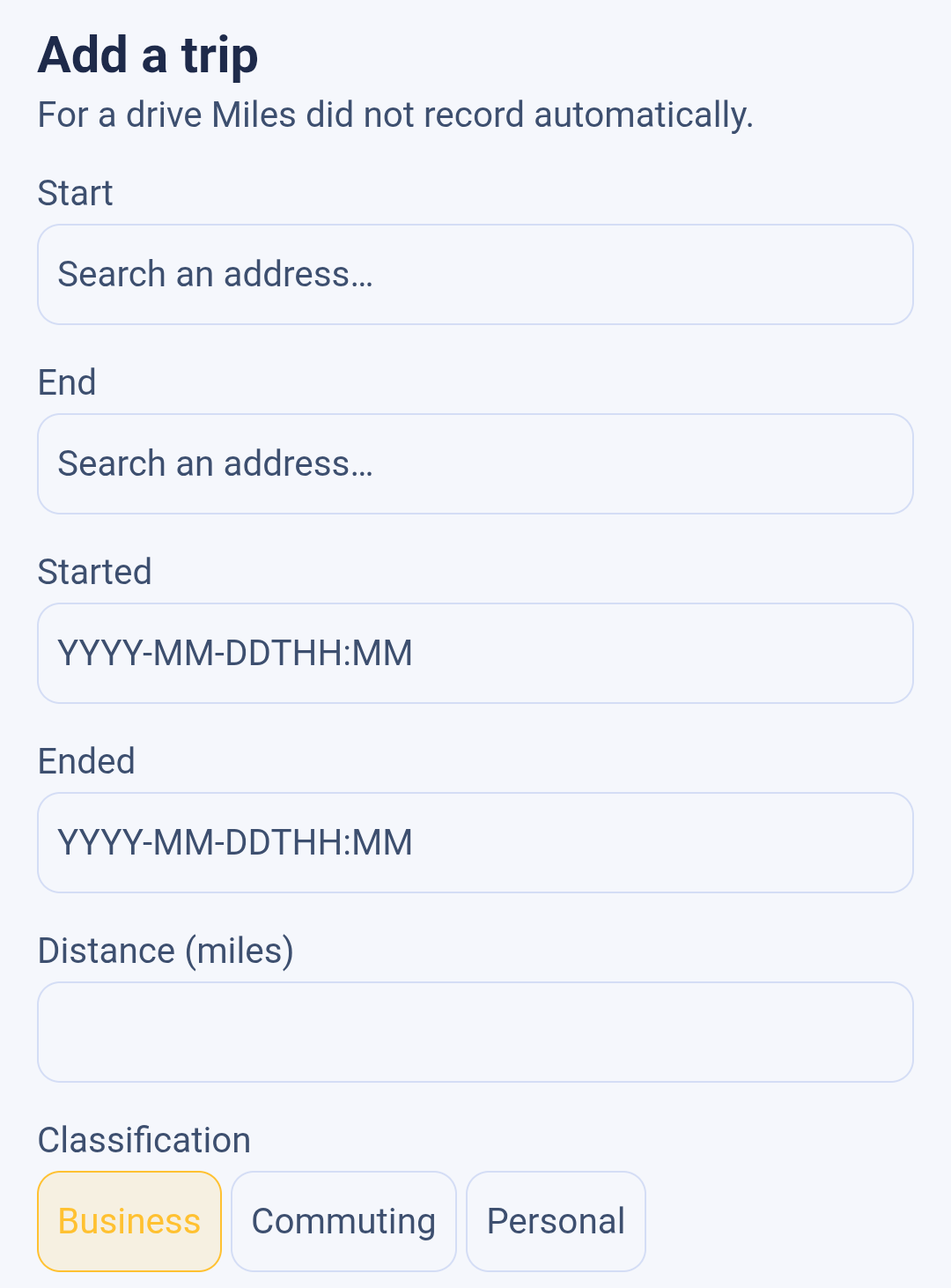
1. Start and End
Both ends of the trip are addresses you look up rather than type freehand. Type at least three characters and pause for a moment; a spinner shows while the field looks, then the matches appear underneath it, each with a short name on the first line and the full address on the second. Tap the one you mean.
Once you have picked it, the field stops being a search box and shows the chosen place against a map pin, with a clear control on the right if you picked the wrong one. Both places are required, and looking them up is the only way to set them, because a stored trip needs real coordinates and not just a line of text.
Search by something the map will recognise. A street number and street with the town works well; a business or landmark name usually works too. If the lookup runs and genuinely finds nothing, the field says there are no matches for what you typed and suggests trying a street and a town. That is a different message from the one you get when the lookup cannot be reached at all, which is covered further down.
2. Started and Ended
These two are typed, in exactly the shape the placeholder shows: YYYY-MM-DDTHH:MM. So a drive that began at a quarter to three in the afternoon on 28 July 2026 is 2026-07-28T14:45: four-digit year, two-digit month, two-digit day, the letter T, then the hour on a 24-hour clock and the minutes. Seconds are allowed on the end but never needed.
The form insists on that one shape on purpose, and it is worth understanding why rather than fighting it. Written as digits alone, 28/07/2026 and 07/28/2026 are the same day to a person and different months to a computer, and the wrong month on a mileage record is the wrong figure on a tax return. Rather than guess which convention you meant, the form accepts only the shape that cannot be read two ways, and says so on any other input. A date that does not exist, such as 30 February, is refused rather than quietly rolled forward into March.
Type the clock time as it read where you were driving. The times are understood in the time zone the phone is in as you type them, so if you can, add the trip before you travel somewhere else.
3. Distance
The field is labelled with the unit you chose under Your Mileage Settings ("Distance (miles)" or "Distance (kilometers)"), and the number you type is read in that unit. The screenshots on this page were taken with miles selected.
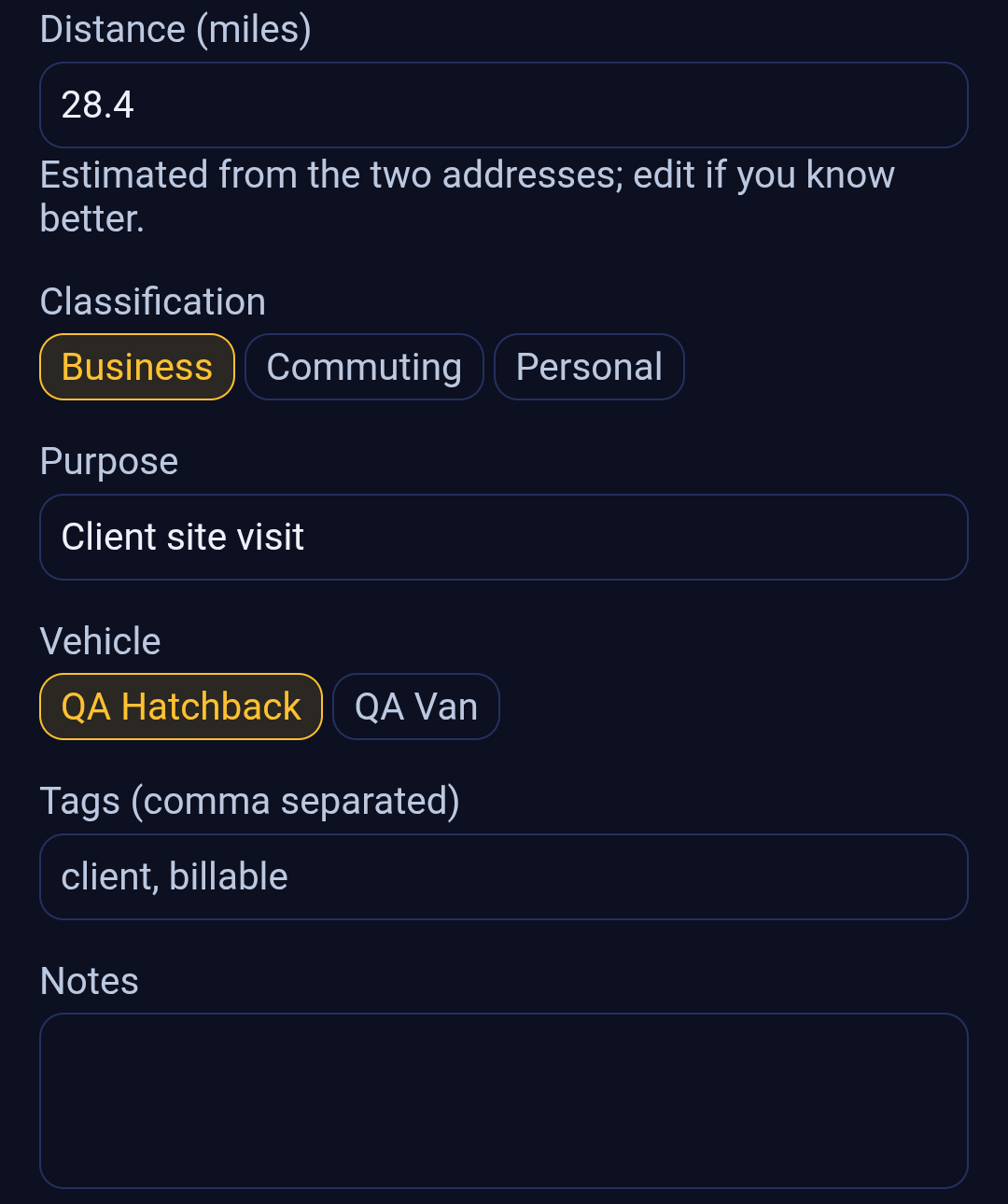
As soon as both addresses are chosen, Backbuild Miles fills this in for you and says underneath: "Estimated from the two addresses; edit if you know better." Take that literally. The figure is an estimate of the road distance between the two points, deliberately a little longer than the straight line because roads bend, and it cannot know which way you actually went. It is a starting point, not a measurement.
If you know the real distance, type it. Your odometer, a receipt, a navigation app's history: any of those beats the estimate. The moment you edit the field the note underneath changes to say the number is yours and that the odometer is the authority, and the app stops re-estimating it, even if you go back and change an address. Clear the field and it stays empty until you fill it.
Round trips are the case to watch. If you drove out and back, the two addresses are the same place, so the estimate will be close to zero while the real journey was twice the one-way distance. Type the real figure.
4. Classification
Three choices, one tap, and it starts on Business:
- Business: a journey made for work. These are the miles a standard mileage deduction is calculated from.
- Commuting: travel between home and a regular place of work. It is kept separate on purpose, because commuting is generally not deductible and folding it into business is one of the most common ways a mileage claim gets disallowed.
- Personal: everything else.
5. Purpose
The Purpose field appears only when the trip is classified as Business, and for a business trip it is required. Switch to Commuting or Personal and it disappears, because neither needs one.
Write something specific enough to mean something to you in eighteen months: the client and the reason, not "work". A business mileage claim is substantiated by what the journey was for, and a business trip with an empty purpose is exactly the entry an auditor asks about.
6. Vehicle
Every trip is logged against one vehicle, so this is required too. Your vehicles appear as choices, and if you keep exactly one, it is chosen for you and you can move on. Vehicles you have retired are not offered, because a drive cannot be attributed to a car you no longer keep. If you have not registered a vehicle yet, the form says so instead of showing an empty row: register the car first, then come back and the trip will save.
7. Tags and Notes
Both are optional, and both are for you rather than for the app. Tags are short labels separated by commas, for example client, billable. Spaces around them do not matter, blanks are dropped, and repeating the same tag twice records it once. They are how you recognise a group of trips later. Notes is free text over as many lines as you like, and it is the right place for anything that explains the trip: the fact that it was reconstructed from a fuel receipt, for instance, or what happened to the phone.
Then Save trip, with Cancel beside it. While the trip is being saved the button shows a spinner and stops responding, so a second tap cannot start a second save. A completed business trip looks like this.
What the Form Will Not Let You Save
After this section you will recognise every refusal on sight and know what to change.
A mileage log is evidence, so the form checks your entry before it becomes part of one. Press Save trip with something missing or impossible and nothing is saved: instead, each field that needs attention turns red and says what is wrong, in its own words, underneath itself.
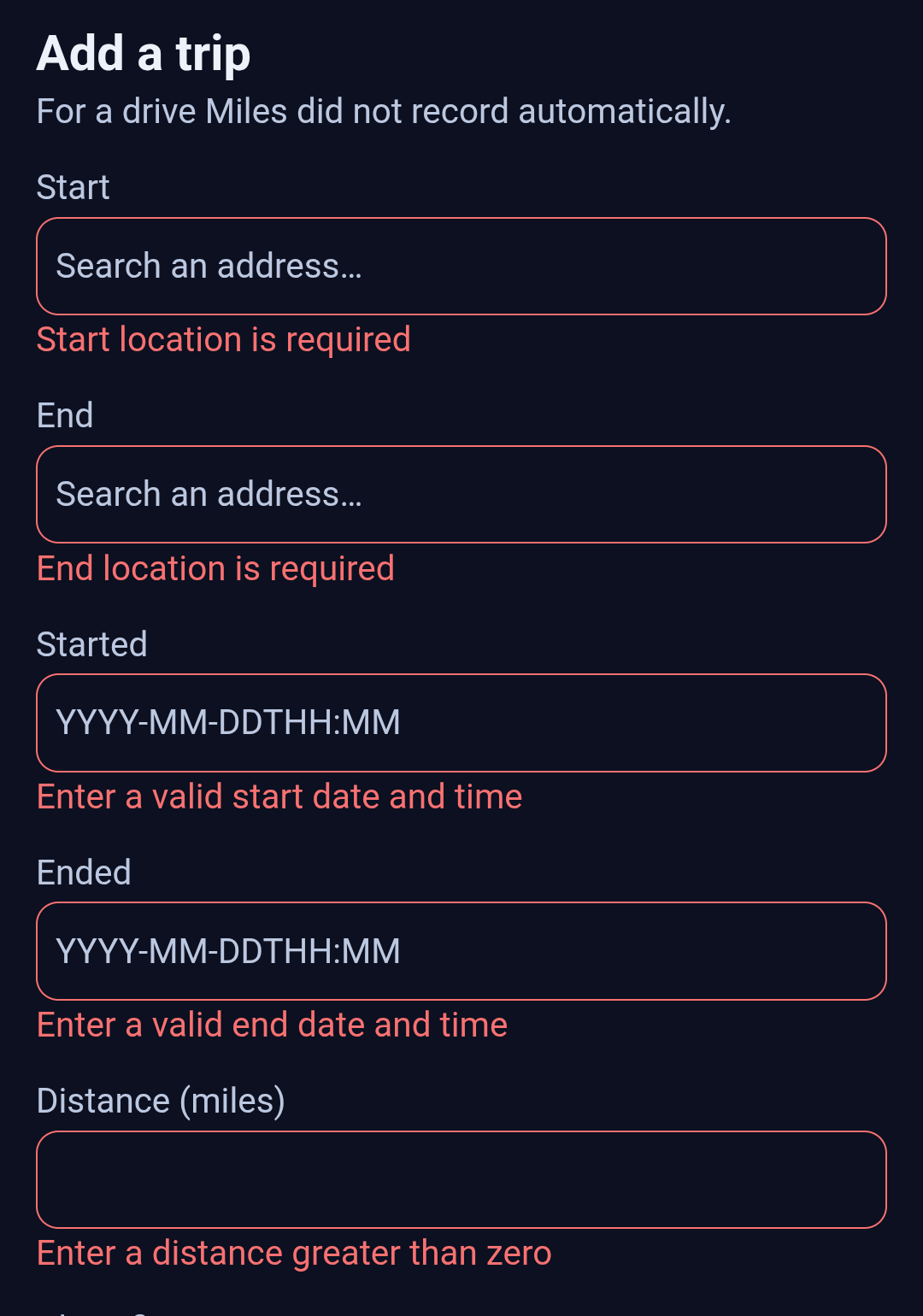
The checks, and what each one is protecting:
- Both places are required. A trip with only one end is not a journey, and neither end can be typed freehand, so pick both from the lookup.
- Both times must be real times, in the shape asked for. Anything the form cannot read unambiguously is refused rather than guessed at.
- Neither end can be in the future. A drive that has not happened yet cannot be logged as a completed trip, and a drive that has not finished yet is not finished.
- The end must be after the start. A trip that ends before it begins has a negative duration, which nothing downstream can use.
- The distance must be greater than zero, and it must be plausible for one drive. A figure larger than any single journey the app accepts, beyond roughly 1,240 miles, is refused as implausible; the usual cause is a slipped decimal point.
- The distance and the times have to agree. If they imply an average speed above 180 km/h (about 112 mph), the form tells you the average your own figures imply and asks you to check the distance or the times. This is the check that catches a typed hour, a missed day, and a distance entered in the wrong units.
- A business trip needs a purpose, and every trip needs a vehicle.
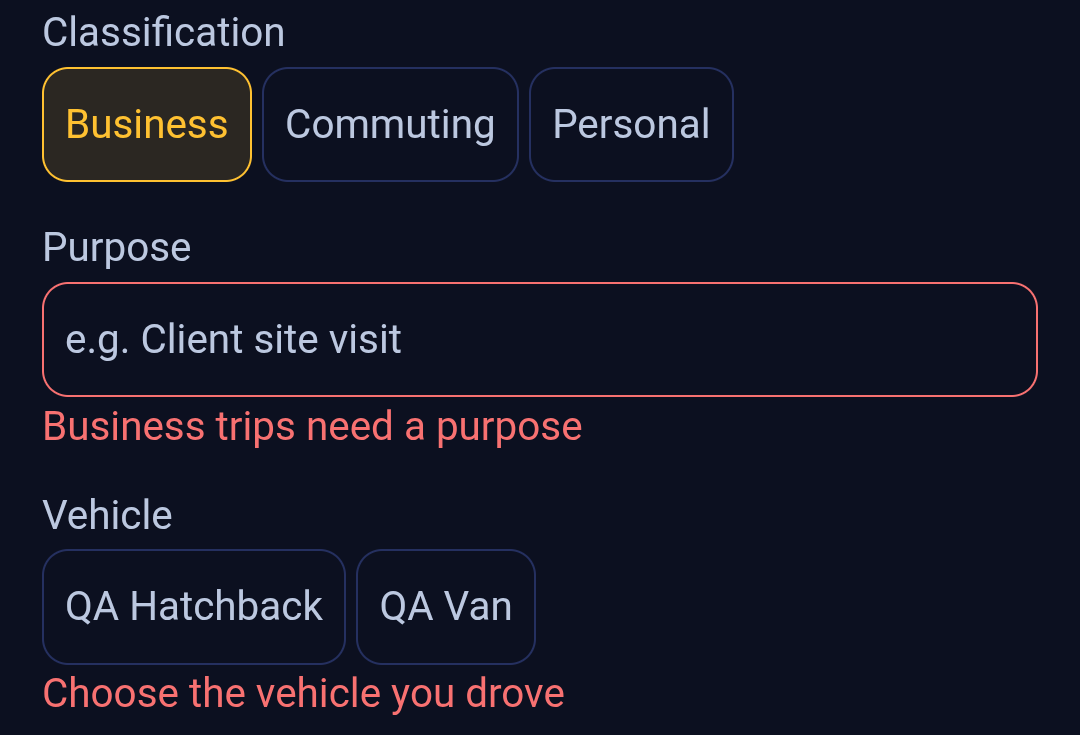
The refusal is also summarised where you tapped
The form is taller than a phone screen, and Save trip is at the bottom of it, so the message under a field near the top would be out of sight at the moment you press it. That would look like the button doing nothing. So the refusal is repeated immediately above the buttons, where your thumb already is, and it does three things: it tells you how many fields need attention, it names the first one and quotes its message, and it moves the screen to that field so you land on the thing to fix rather than hunting for it.
Work from that first named field down and press Save trip again. The messages clear as the fields become valid.
If a save is refused after it leaves your phone, the reason appears in the same place. When it is something you can act on, you get the reason itself. When the fault is on our side rather than in what you typed, the message says so plainly, so you are not left editing fields that were never the problem.
When the Address Lookup Cannot Be Reached
After this section you will be able to tell "no such address" apart from "we could not look".
Recording a drive never needs a signal, but looking up an address does. If the lookup cannot be reached, the field says so and offers to retry, rather than showing you an empty list of matches.
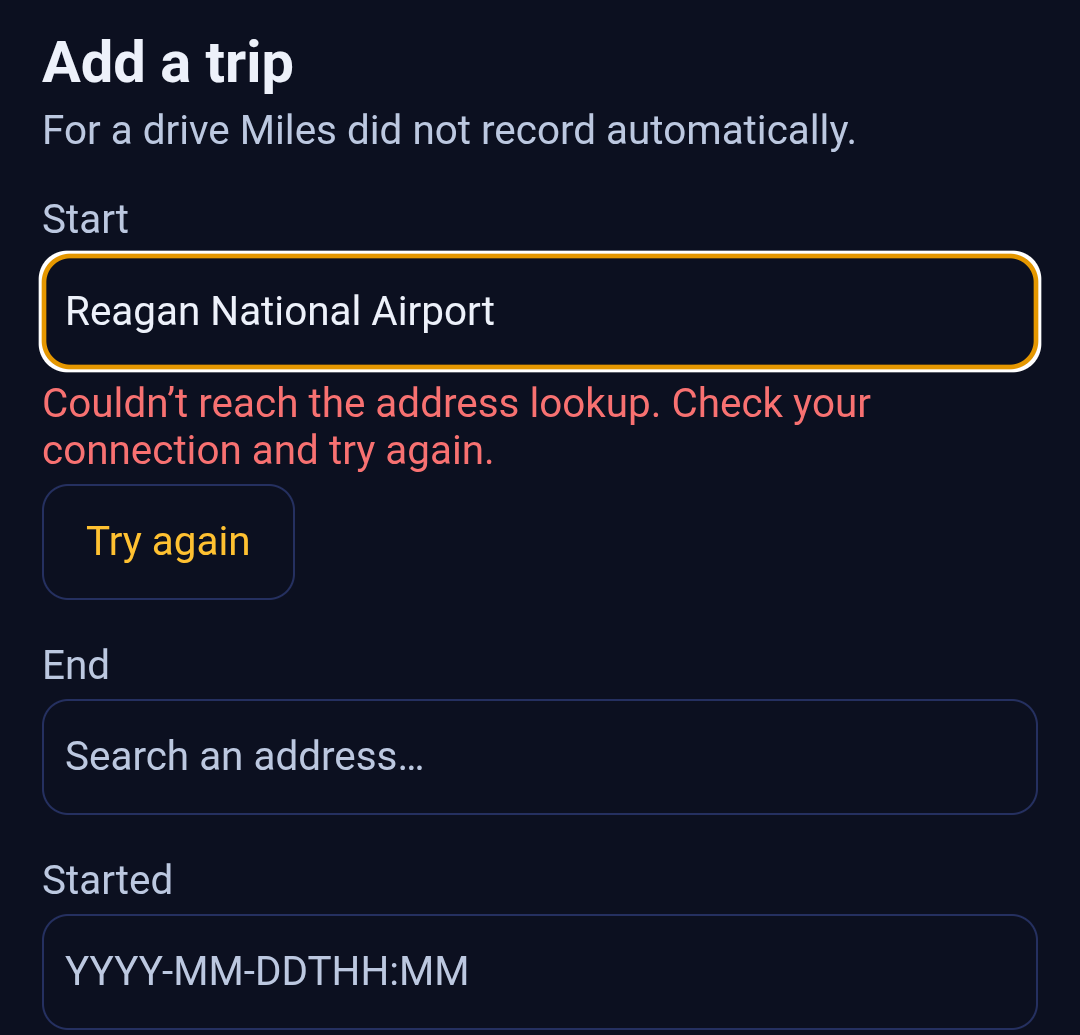
The distinction matters more than it looks. If a failed lookup showed nothing at all, the screen would be telling you that a real airport does not exist, and since both ends of a trip can only be set from this lookup, you would have no way to finish the trip and no idea why. So the two outcomes are always kept apart: no matches means the lookup ran and found nothing, and the message above means it never got an answer. Reconnect and press Try again; your typing is still there.
The rest of the form is yours to fill in while you wait. The times, the distance, the classification, the purpose, the tags and the notes are all typed on the phone, so you can complete them first and come back to the two addresses when you have a connection again.
Leaving Without Losing Your Work
After this section you will know exactly what happens when you leave a half-filled form.
A part-finished trip is real work: two addresses looked up, two times typed, a distance checked, a purpose written. So once there is anything to lose, Backbuild Miles will not let you leave the form silently. Press Cancel, or use the phone's own back gesture, or tap another tab, and the same question appears just above the buttons.
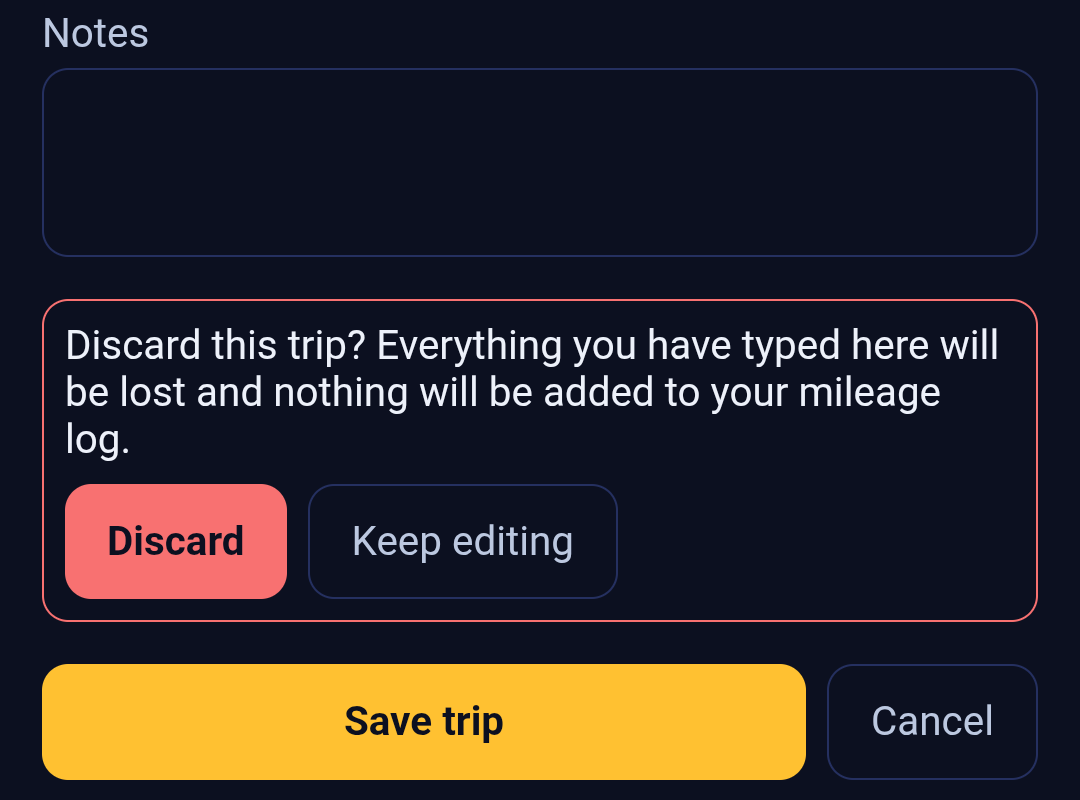
Discard throws the entry away and lets you go where you were heading; nothing is added to your mileage log. Keep editing cancels that departure and returns you to the form with every field exactly as you left it. You are asked once, and one tap on Discard is enough.
An empty form does not ask. If you opened it by mistake and typed nothing, Cancel simply leaves.
After You Save
After this section you will be able to confirm the trip is really in your log.
Saving takes you straight back to the Trips tab, and the trip is already in your history, filed under the date you gave it: the distance, how long it took, the two addresses with a green dot at the start and a red one at the end, the classification and the vehicle it was driven in. Your history runs newest first, so a drive from last spring appears where last spring belongs rather than at the top. From that moment it counts in your totals, your dashboard, your reports and your exports, exactly like a drive the app recorded itself.
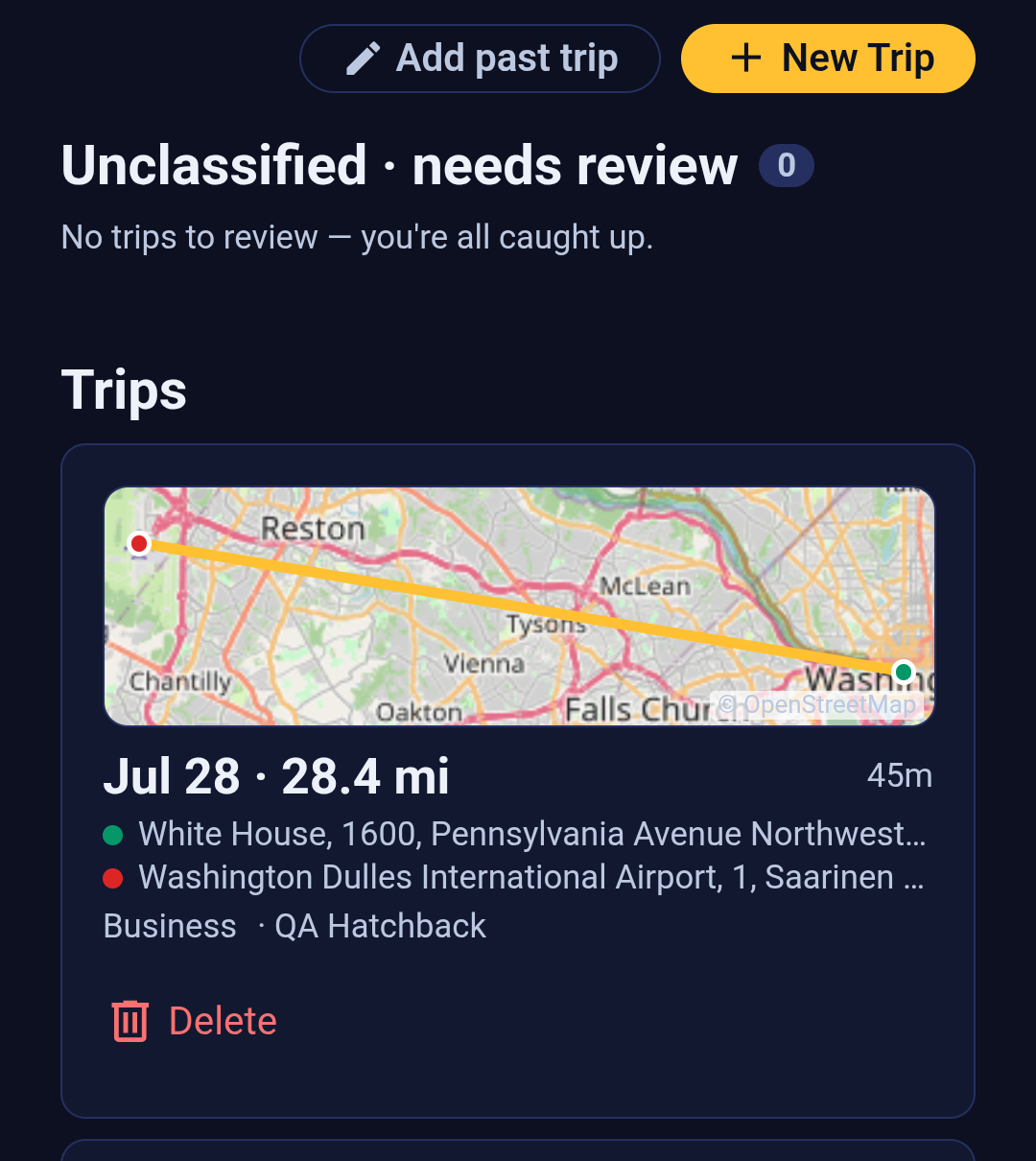
Two things are worth noticing on that card. It goes straight into your history rather than into the review queue, because you have already said what kind of trip it was and which car it was in. And the map draws the line between your two addresses rather than the roads you took, because nothing recorded the route: that is what a trip entered after the fact honestly is, and it is why the distance field matters so much. For the same reason a trip added by hand has no detected stops to confirm.
From there it behaves like any other trip. Tap the card to open it and add notes, change the classification, or mark it reported once the figure has gone onto a return.
If a save does not go through, press Save trip again. A retried save adds the trip once, not twice, even when the first attempt got as far as our side before the connection dropped.
Common Questions
Why will it not accept the date the way I write it?
Because two common ways of writing a date as digits disagree about which number is the month, and the app will not guess on a tax record. Use the shape in the placeholder: year, month, day, the letter T, then hours and minutes on a 24-hour clock, for example 2026-07-28T14:45.
The distance it filled in is wrong. Am I stuck with it?
No, and you should not be. It is an estimate from the two addresses and it cannot know your route. Type the real figure over it. Once you do, the app stops estimating and keeps your number.
How do I add a return journey?
Enter it as one trip with the real total distance typed in, or as two trips, one out and one back. Either is a correct record; what matters is that the distance reflects what you actually drove. If you enter one trip, expect the estimate to be near zero, because it only sees that you started and finished in the same place.
Why does it insist on a purpose?
Only for business trips, and because that is what substantiates the deduction. A business trip with a blank purpose is the entry that fails an audit, so the form will not create one. Commuting and personal trips are never asked for one, and the field is not even shown for them.
Can I add a drive from months ago?
Yes. The form sets no limit on how far back a trip can be, as long as it is in the past, the end is after the start, and the distance and times are plausible together. It will appear in your history under the date you gave it, not at the top of the list.
I pressed Save and nothing seemed to happen.
Something did: the form refused the entry. Look just above the Save trip button, where a message says how many fields need attention and names the first one, and the screen moves you to that field. Fix it and press Save trip again.
Can I fill the form in with no signal?
Mostly. The times, the distance, the classification, the purpose, the tags and the notes are all typed on the phone. The two address lookups need a connection, and so does saving the finished trip. Fill in what you can, then use Try again on the address fields once you are back online.
I left the screen and lost everything. Can that happen?
Not without you saying so. Once there is anything in the form, Cancel, the back gesture and switching tabs all ask "Discard this trip?" first, and Keep editing brings you back with nothing lost.
Does a trip I typed in count the same as one that was recorded?
Yes. It goes into the same history and the same totals, and it appears in your reports and exports like any other trip. The one difference is evidence: an automatically recorded drive carries the route it actually took, while a trip entered afterwards carries the distance you stated, which is why it is worth stating an odometer figure and using the notes to say where the number came from.
What if I add the same drive twice by mistake?
Delete one of them. Open your history in the Trips tab, find the duplicate and remove it; its mileage stops counting immediately. Retrying a save that failed does not create a duplicate, so this only arises if you genuinely filled the form in twice.
Where to Go Next
- Working your trips list: where the trip you just added lives, and how to read and correct it.
- Reviewing a trip: opening one drive and finishing its record.
- Your vehicles: registering the vehicle every trip has to be logged against.