

Semantic Search
Semantic search finds information by meaning, not just exact keyword matches. Ask for “overdue deliverables” and Backbuild surfaces the right results even when your content says “late milestones” or “missed deadlines.” You get the actual matching passage with a path back to its source document, ranked by relevance, and search is always scoped to your organization and to the content you are entitled to see.
Free Semantic search over your Files content is part of the free Backbuild workspace. Background indexing and AI-powered search draw on universal usage credits or your own connected AI keys. See pricing.
Ask in Your Own Words
By the end of this section you will have run a search that answers a plain-language question without you guessing the wording inside your files. That is the core promise: describe what you are looking for, and get the relevant passage back, not a folder to dig through.
The simplest and most powerful mode is natural-language search. You type a question or a description in plain English; Backbuild prepares the query for you and returns the most relevant chunks of your content, each pointing at the document it came from and carrying a relevance score. You do not need to prepare anything, know any special syntax, or match the exact words used in the file.
Search by Meaning, Not Just Keywords
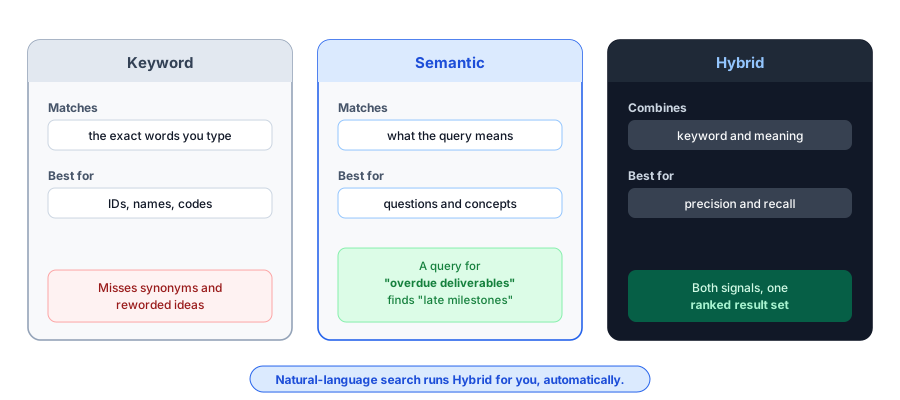
Traditional keyword search matches the exact words you type. It is fast and precise when you already know the right term, but it misses results that express the same idea in different words. Semantic search closes that gap: it understands what a query means and ranks your content by how closely it matches that meaning.
The two approaches complement each other. Keyword search is ideal for exact identifiers, names, and codes. Semantic search is ideal for questions, descriptions, and concepts where the wording may not match. Backbuild’s hybrid mode blends both signals so you get the precision of keyword matching and the recall of meaning-aware search in a single request, and natural-language search runs hybrid for you automatically.
What Gets Searched, and How Fresh It Is
Semantic search runs over the content in your Files app: the documents and files you create, upload, or generate within your projects. Your content is kept indexed for search in the background, so new and updated content becomes searchable shortly after it changes, with no manual reindexing required.
Because indexing runs in the background, there is a brief freshness window: a file you just saved becomes a search hit moments later rather than instantly. This window is normal and short. If a brand-new file is not yet appearing, wait a moment and search again.
Search is always organization-scoped. The organization is taken from your
access token, never from the request body, so you can only ever search
content you are entitled to see, and no request parameter can redirect a
search to another organization’s data. Pass a project_id
to narrow results to a single project.
Why a File You Know Exists Might Not Appear
There are exactly two ordinary reasons a file you are sure is there does not come back in your results, and neither is a bug:
- It was never shared with you. Search respects the same visibility floor as the Files app: you cannot find, and are not told about, a file you were not granted access to. That is by design, not a defect. If you expected access, ask the owner to share it (see sharing).
- An edit is still becoming searchable. A file created or changed a moment ago may still be inside the freshness window above. Give it a moment and search again.
A third, gentler reason is simply that your query was narrower than your content. Semantic search matches meaning, so you rarely need the exact words, but a longer, more specific description consistently beats a single keyword.
Search Modes
Backbuild exposes three search modes. Most callers should use natural-language search; it is the simplest and most powerful. The vector and hybrid endpoints are available for callers that have already prepared a query representation themselves.
| Mode | Endpoint | When to use it |
|---|---|---|
| Natural-language | POST /v1/search/natural | Submit a plain-language query as text. Backbuild prepares the query and runs hybrid search for you. The recommended default. |
| Vector | POST /v1/search/vector | Meaning-based similarity search for callers that supply their own query representation. |
| Hybrid | POST /v1/search/hybrid | Meaning-based search combined with optional relevance reranking for higher precision. |
Natural-Language Search
POST /v1/search/natural
Send a plain-language query and get back the most relevant matches by
meaning. Scope is your organization (taken from the access token); pass
project_id to narrow to one project.
Request Parameters
| Parameter | Type | Description |
|---|---|---|
query | string (required) | Plain-language search text, from 1 to 2000 characters. |
limit | integer (optional) | Maximum number of results to return, from 1 to 20. Defaults to a small page of top matches. |
threshold | number (optional) | Minimum relevance score, from 0.55 to 1. Lower values are refused to keep results meaningful. |
project_id | string (optional) | Restrict results to a single project. Omit to search across the whole organization. |
# Natural-language search over your Files content
curl -X POST https://api.backbuild.ai/v1/search/natural \
  -H "Authorization: Bearer $TOKEN" \
  -H "Content-Type: application/json" \
  -d '{
    "query": "overdue deliverables for the Q2 launch",
    "project_id": "019d...",
    "limit": 10
  }'

# Response includes a relevance score per result
{
  "data": {
    "query": "overdue deliverables for the Q2 launch",
    "chunkCount": 2,
    "chunks": [
      {
        "document_id": "019d...",
        "document_title": "project-timeline.pdf",
        "content": "Three milestones are past their target date...",
        "similarity": 0.82
      },
      {
        "document_id": "019e...",
        "document_title": "phase-2-plan.pdf",
        "content": "Deliverable deadlines for Phase 2...",
        "similarity": 0.76
      }
    ]
  }
}
The fields your application reads are query,
chunkCount, and the ranked chunks array, each chunk
carrying its document_id, document_title,
content, and similarity. Responses also include
additional safety metadata that most integrations can safely ignore.
Vector and Hybrid Search
Callers that have already prepared a query representation can search directly.
POST /v1/search/vector runs a meaning-based similarity search,
and POST /v1/search/hybrid adds optional relevance reranking for
improved precision. Both accept a query representation, plus an optional
threshold (with the same 0.55 floor) and project_id.
Their limit accepts a wider range than natural-language search:
from 1 to 100 results. The threshold floor of 0.55 is enforced on
every mode, so a query cannot fish for loosely related content.
Understanding Results
Each result carries a relevance score (the similarity field)
from 0 to 1. Higher scores mean the result is more semantically related to
your query. Results are returned ranked from most to least relevant.
| Score range | Interpretation |
|---|---|
| 0.80 and above | Very strong match; closely on-topic. |
| 0.70 to 0.79 | Strong match; clearly relevant. |
| 0.55 to 0.69 | Moderate match; related, worth reviewing. |
Results below the minimum threshold are not returned. The default cut-off is set conservatively so the results you receive are genuinely relevant rather than noise.
Search Tips
- Describe what you are looking for in plain language; you do not need to guess the exact wording used in your content.
- Longer, more specific queries tend to produce better results than a single keyword.
- Filter by
project_idto scope results to one project. - Raise
thresholdwhen you want only the strongest matches; lower it (down to 0.55) to widen recall. - For exact identifiers, names, or codes, a keyword match may be more direct than a meaning-based query.
- If a brand-new file is missing, wait a moment for the freshness window and search again.
Rate Limits and Fair Use
Search requests are rate limited per user to keep the service responsive for
everyone. If you exceed the limit, the API responds with
429 Too Many Requests and a Retry-After header
indicating how long to wait. The limit is comfortably above what interactive
use requires and is intended to stop automated scraping. Natural-language
search also passes an AI-budget check, so under exceptional load it may ask
you to retry shortly.
How It Relates to the AI Assistant
The AI assistant uses semantic search under the hood to ground its answers in your own content. When you ask the assistant a question, it searches your indexed Files content for the most relevant material and uses those results as context for its response, so answers stay grounded in your data rather than coming from general knowledge alone. You can also call the search endpoints directly whenever you want ranked results without a conversational answer.
Eligibility and Credits
Semantic search over your Files content is part of the free Backbuild workspace. Background indexing and AI-powered search draw on universal usage credits, or you can connect your own AI keys to use your own provider account. Usage is metered per organization and per user so one workspace cannot exhaust another’s allowance. See the pricing page for current plans and included credits.
Frequently Asked Questions
Can I ask a plain-language question and get the actual passage, not a
list of links?
Yes. Natural-language search returns the relevant chunks of your content, each
with the text that matched and a link back to its source document, ranked by
relevance.
Why does search miss a file when I do not use the exact words?
It should not. Semantic search matches meaning, so a query about
“overdue deliverables” still finds content that says “late
milestones.” If a file is genuinely absent, the usual causes are that it
was never shared with you or that a recent change is still within the
freshness window.
Why can I not find a file I know exists?
Either it is not shared with you (search respects the same visibility floor as
Files, so you are never shown a file you were not granted), or it was just
created or edited and is still becoming searchable. Neither is a bug.
Can a search reach another organization’s content by changing a
parameter?
No. The organization is taken from your access token, never from the request
body, so results are always confined to content you are entitled to see.
How many results can I get, and how strict is relevance?
Natural-language search returns up to 20 results; vector and hybrid return up
to 100. Every mode enforces a relevance floor of 0.55, so loosely related
content is filtered out.
API Reference
POST /v1/search/natural: natural-language semantic search (recommended);limit1 to 20.POST /v1/search/vector: meaning-based similarity search from a supplied query representation;limit1 to 100.POST /v1/search/hybrid: hybrid search with optional relevance reranking;limit1 to 100.
Related concepts
- Files: the content search runs over, plus visibility and sharing.
- Real-time Collaboration: co-editing, presence, and offline sync.
- AI Assistant: conversational, grounded answers built on top of search.
See the Search API reference for complete request and response documentation.