

Backbuild Slides
Backbuild Slides is the presentation app built into your Backbuild workspace. You build a pitch, a QBR, a lecture, a board pack, or an investor deck slide by slide, with full control over every element, and present it live from the same tool. It is the same deck editor a sales rep uses for an opportunity pitch, a brand designer uses to enforce one visual system, a consultant uses for a chart-heavy board review, and a founder uses to raise a round. After this page you will know what Backbuild Slides does, how to build your first deck, what is included on every plan, and which guide answers the job in front of you.
What You Get
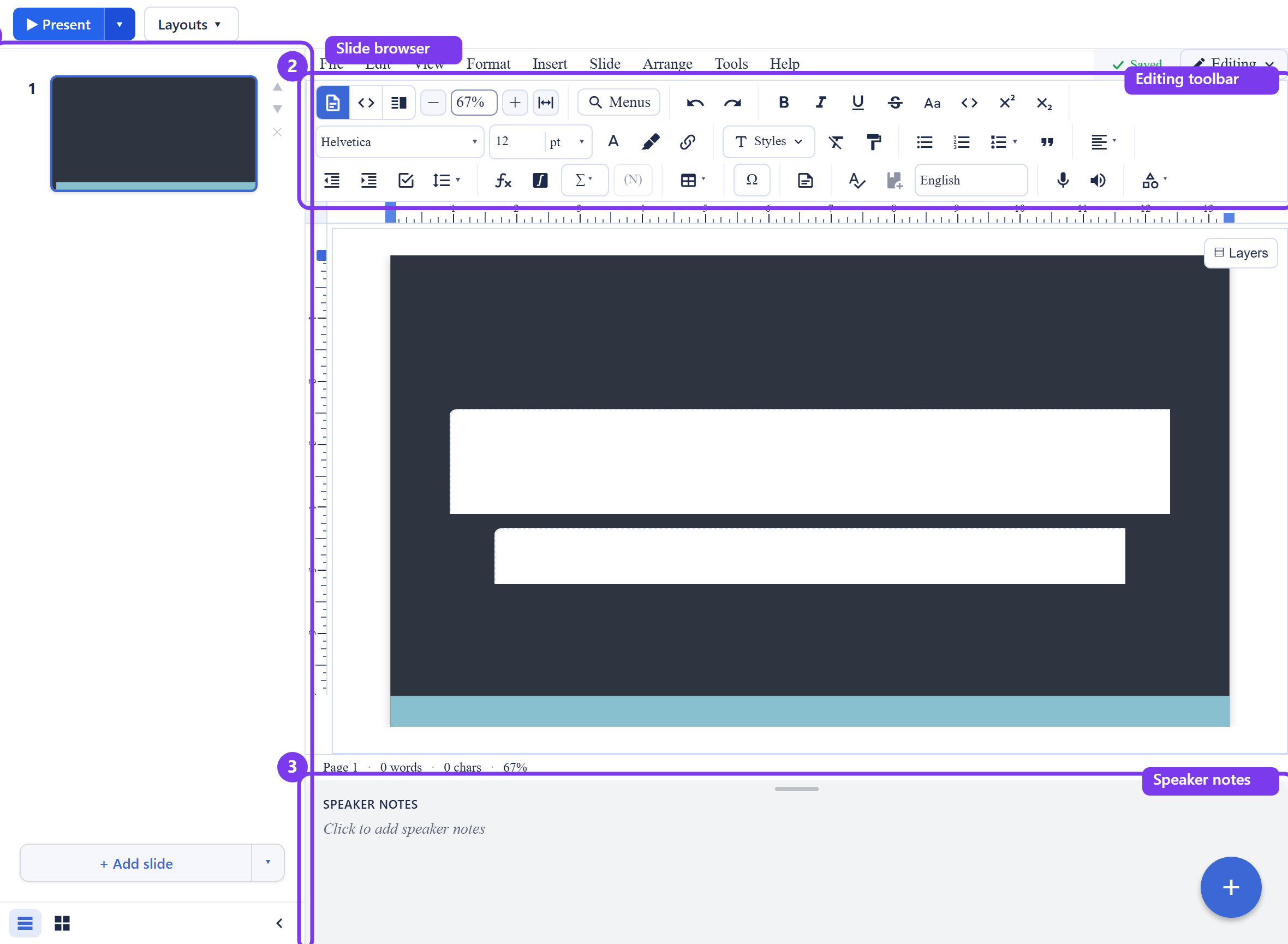
After this section you will understand the shape of the product and which guide answers your question. A Backbuild Slides deck is a presentation document built on the same editor as Backbuild Docs, so every formatting, positioning, and content control you have in a document is available on a slide. A slide is a page laid out at 16:9, and its content sits on positioned layers, which gives you pixel-level control over where each shape, image, chart, and text box lives. This is the fine control a prompt-only generator does not give you.
- A live slide browser. A rail of real composite thumbnails, not placeholders, to add, insert, duplicate, reorder, skip, and delete slides, switch between a filmstrip and a light-table grid, and move through the deck as you build.
- Themes, layouts, and your own templates. Ten built-in themes carry a coordinated color and geometry, eight layouts arrange the frames on a slide, and you can save the current slide as a reusable design template so a whole team builds inside the same frame.
- Real visual content. Shapes and WordArt, charts built from the values you enter, built-in process, hierarchy, cycle, and grid diagram scenes, images including pictures from your workspace Photos library, embedded video and audio, and live LaTeX math for technical and academic talks.
- Transitions, animations, and speaker notes. Animate slide changes and reveal a slide one point at a time as you talk, and keep a private script on every slide that only you see while presenting.
- A real presenter runtime. Present fullscreen on one screen, or run a two-screen presenter console with the current slide, the next slide, your notes, and a timer on your display while the room sees only the clean slide.
- Real-time co-editing, on every plan. Several people build the same deck at once, edits merge automatically, and there is no per-collaborator seat charge to co-edit.
- Move decks in and out. Export to PowerPoint, OpenDocument Presentation, and PDF, export the current slide as an image, and import an existing PowerPoint or OpenDocument deck to keep working. Nothing is trapped in a proprietary format.
- Drivable by AI and by API. An AI agent can build and restructure a deck through the same access checks a person passes, on your own AI provider key or on usage credits, and the deck surface is available over the public REST API and as native tools.
Build Your First Deck
After this section you will have a working deck open and know it is saved. There is nothing to install and nothing to configure.
- Open a project. Decks live inside projects, the same containers that hold your files, documents, sheets, and tasks. Open an existing project or create one from the workspace.
- Open Slides and create a presentation. Choose Slides in the project sidebar, then New Presentation. A blank deck opens with a single 16:9 slide, ready to build.
- Pick a look. Open the Layouts menu and apply one of the ten themes for a coordinated color scheme, then type your title and body straight onto the slide.
- Add slides and content. Use Add slide in the browser to build out the deck: its caret menu adds a slide already arranged with a layout such as Title and body, or right-click a slide and choose Apply layout to rearrange its frames. Then insert shapes, a chart from your numbers, an image, or a diagram from the editor toolbar.
- Present or share. Press Present to show it fullscreen, or share the deck with a colleague to co-edit or review. Every change is saved as you go; there is no Save button to remember.
Is this hard to learn if I already know PowerPoint or Google Slides? No. The mental model is the same: a rail of slides on the left, a canvas in the middle, a toolbar on top, and speaker notes below. What is different is that the deck is live and shared by default, so several people can build it at once and there is no file to email around.
Included on Every Plan
After this section you will know what is free and what draws credits. Backbuild Slides is part of the free Backbuild workspace, next to Backbuild Docs, Backbuild Sheets, Backbuild Photos, Backbuild Calendar, and Backbuild Contacts. It is not a Pro-only feature and there is no separate presentation subscription.
- Free on every plan, including Free: the editor, the slide browser, all ten themes and eight layouts, saved design templates, shapes, WordArt, charts, diagram scenes, images, video and audio, live math, transitions and animations, speaker notes, the presenter runtime, real-time co-editing, comments, version history, and PowerPoint, OpenDocument, PDF, and image import and export.
- No per-collaborator seat gate: inviting someone to comment on or co-edit a deck does not cost a separate seat.
- No watermark and no per-deck AI gate: the decks you make are yours, unbranded, with nothing to unlock.
- What draws universal usage credits: the in-app AI assistant, unless you bring your own AI provider keys, in which case that usage is billed by your provider rather than by Backbuild, and database storage for your deck content beyond your plan's included allowance. Images you place count against file storage.
The pricing page is the authoritative source for current allowances and rates. See Usage and Credits for how metering works, and File vs Database Storage for which pool your deck content lands in.
Choose Your Guide
Each guide teaches one job end to end. Start with the one that matches what you need to do.
- Building a Deck: Slides, Themes, and Layouts: work the slide browser (add, insert, duplicate, reorder, skip, delete, change background), switch between the filmstrip and the grid, apply themes and layouts, and save the current slide as a reusable design template so a team stays on brand.
- Adding Content: Shapes, Charts, Diagrams, and Media: insert and style shapes and WordArt, build charts from the values you enter, drop in process, hierarchy, cycle, and grid diagrams, place images from your Photos library, embed video and audio, and align, distribute, group, and layer everything precisely.
- Transitions, Animations, and Speaker Notes: animate slide changes, reveal a slide one build at a time as you talk, and write the private script every slide carries for delivery.
- Presenting: Present Mode and Presenter View: run a fullscreen show with a timer, or a two-screen presenter console with the current slide, the next slide, your notes, and navigation, and drive it entirely from the keyboard.
- Importing and Exporting: export to PowerPoint, OpenDocument, and PDF, export a slide as an image, import an existing PowerPoint or OpenDocument deck, and understand exactly what a round-trip preserves.
- Collaboration, Comments, Sharing, and Governance: co-build one live deck, comment on a slide and assign a fix to a teammate, share with scoped, expiring, revocable links, and see how access, revocation, and audit are enforced for an administrator.
- AI Assistance, the API, and Agents: what an AI agent can and cannot build in a deck today, running on your own AI keys or credits, and how to drive decks over the public REST API and the native tool surface.
What Backbuild Slides Does Not Do Yet
Choosing well means matching the tool to the requirement, so these limits are stated plainly rather than discovered later. The presenter console and its audience window run on the presenter's own computer and its second display; letting a remote viewer follow your live position across the internet as you advance is coming soon, so to include a remote audience today you present on your screens and give viewers a link to open the deck themselves. An AI agent can create, structure, restyle, and read a deck, but writing finished body text into slide text frames and writing speaker notes through the agent surface is on the roadmap, so an agent delivers a structured, styled deck and you finish the words in the editor. A one-step prompt-to-finished-deck generator, turning a deck into a narrated video, recorded slideshows with synced narration, and presenter picture-in-picture are on the roadmap as well. Each guide says where one of these matters rather than implying a capability that is not there.