

Autonomy and Approvals
The question every buyer of an AI worker asks first is: what can it do without me? Backbuild answers it plainly. A worker starts supervised, drafting its work for a person to approve, and you loosen that grip one capability at a time, only on the queues where the worker has proven itself. Two actions, sending external email and pushing code, are hard floors that always require a person and cannot be switched off. After this page you will be able to set a worker's autonomy per capability, understand what always needs approval, work the approval queue, and stop a worker instantly.
Autonomy is set per worker and per capability. The approval floor described below is enforced on the server for every worker, on every plan, and cannot be disabled by a setting.
Supervised First, by Default
After this section you will understand the safe default every worker starts from. A new worker is supervised. When it does a task, it produces a draft, not a completed outside action. A support worker writes a reply and posts it as an internal note on the ticket for a human to review; it does not message the customer. This is deliberate: the failure mode buyers fear, an over-eager worker saying something wrong to a customer or closing a ticket it should not have, simply cannot happen while the worker is drafting for review. You get the worker's speed on the reading and the writing, and a person keeps the last word.
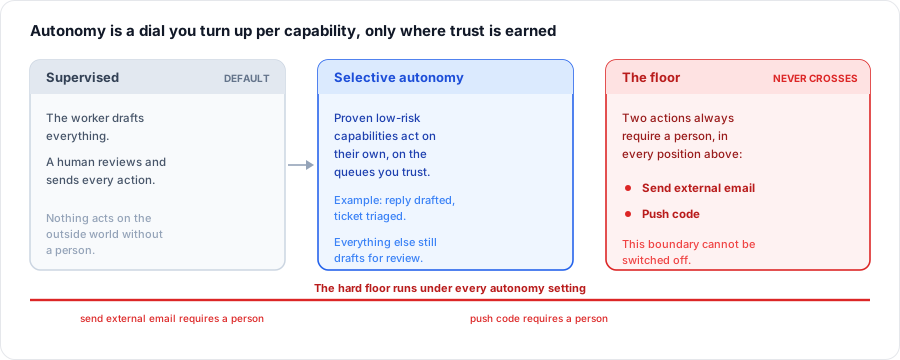
The Per-Capability Autonomy Dial
After this section you will be able to grant autonomy narrowly, exactly where a worker has earned it. Under AI settings, then Autonomy, each capability a worker has is set to Supervised or Autonomous on its own. Autonomy is not a single on-or-off switch for the whole worker; it is a per-capability grant. The capabilities you dial include:
- Reply to tickets. Draft, or draft and post, a reply.
- Resolve or close tickets. Advance or close a ticket. This is a separate grant from replying, so a worker can be trusted to draft replies while still never closing a ticket on its own.
- Fix bugs (no push). Do code work in a container up to, but not including, pushing. Pushing is never part of this grant.
Because reply and resolve are distinct dials, you avoid the classic trap where deflection climbs while quality falls: a worker can help draft answers on a queue for weeks before you ever let it advance or close anything there. You move a worker from supervised to autonomous per capability, per queue, as its transcript earns your trust, and you can move it back just as easily.

The Approval Floor: What Always Needs a Person
After this section you will be able to tell a security reviewer which actions a worker can never take alone. Two actions are non-overridable floors. No autonomy setting, on any worker, can make them automatic:
- Sending external email. A worker can read, triage, and draft, but a message leaving your organization to an outside recipient always requires a person to approve it. A worker cannot email a customer on its own, ever.
- Pushing code. A worker can edit, test, and prepare a change in a container, but pushing that change always requires a person. A worker cannot merge to your main branch; see Developer Workers.
These are the irreversible, high-stakes actions, so they sit below the dial entirely. Think of autonomy as a three-tier model: reversible, low-stakes work can be made autonomous where you trust it; everything else drafts for review; and the irreversible actions above are blocked from ever being automatic. The floor is enforced where the action actually happens, not merely hidden in the interface, so it holds no matter how a request is made.
Can a worker send a message to a customer without me? No. Sending external email is a hard floor that always requires a person, and it cannot be turned off by any setting. A worker drafts; a human sends.
Can I let a worker close tickets but not reply, or reply but not close? Yes. Reply and resolve or close are separate autonomy dials, so you grant each independently and keep a worker in draft mode on the one you are not ready to hand over.
The Approval Queue
After this section you will be able to review and decide a worker's pending actions. When a worker reaches an action that needs a person, whether because it hit the floor or because you left that capability supervised, it opens a pending approval that goes to its manager and to administrators. The roster shows a Pending approvals card, each row naming the worker and the capability it wants, with the reason it gives, and an Approve or Deny decision. The approver sees what the worker wants to do and why before deciding, so approval is an informed act, not a rubber stamp. Nothing crosses the line until a person approves it.
Pausing and the Kill Switch
After this section you will be able to stop a worker instantly if it goes sideways. From a worker's card or its editor you can pause it at once. A paused worker takes no new work and holds its shift until you resume it. If you want it gone, fire it: firing moves the worker to the Deactivated tab, where it keeps its configuration and can be re-hired later, so letting a worker go is reversible and never destroys its setup. Because a worker never completes an irreversible outside action without a person, pausing or firing mid-task cannot leave a half-sent message to a customer behind; the drafts simply stop.
Can I turn a worker off immediately? Yes. Pause it from its card and it stops taking work at once. Fire it and it is deactivated but kept, so you can re-hire it later with its configuration intact.
If I stop a worker mid-task, can something irreversible already be in flight? No. The irreversible actions, sending external email and pushing code, always require a person first, so stopping a worker only stops its drafting. Nothing leaves your organization without an approval you gave.
Scheduled and Event-Triggered Runs
After this section you will understand how a worker starts a run on its own, without a person clicking start. A worker does not only act when you open it. An automation rule can start a run on a schedule, on a fixed date and time, or on an event in your organization, and it can dispatch the run to a worker, to one of your skills, or to a script. A support worker bound to a help desk stage is the event-triggered case in everyday use: when a ticket reaches that stage, the assigned worker runs its assigned skill on it automatically, with no person in the loop to hand it the work. Scheduled rules add the time dimension, so a run can fire every morning, every Monday, or on a set calendar date. The autonomy dial and the approval floor described above still apply to every one of these runs, so an automatic start never means an automatic irreversible action: sending external email and pushing code still wait for a person.
A scheduled or triggered run reads its work, does its reasoning, and posts its drafts the same way an interactive session does. The fully container-backed unattended runtime, where a background run drives a complete Linux desktop, browser, and terminal on its own container for the length of the task rather than a single reasoning turn, is rolling out and enables per organization, so treat the richest unattended container runs as a capability that is arriving rather than uniformly on for every tenant today. The trigger surface itself, dispatching a worker, a skill, or a script on a schedule or an event, is available now.
Where to Next
- Support Workers: how drafts-as-internal-notes and the reply-versus-resolve dials play out on a real help desk.
- Developer Workers: the no-push floor in practice, and opening a change for human review.
- Security and Governance: the audit trail behind every approval, and why the floor cannot be bypassed.
- Hiring and Configuring a Worker: where the autonomy settings live in the editor.