

Sharing Vaults with Your Team
This guide teaches you to stop sharing passwords over chat, email, and spreadsheets, and to run shared access properly instead. By the end you will know how vault-level sharing works, which role to give someone, how a share is delivered without ever sending a password, how to confirm a new recipient, and, most importantly, how removing someone cuts off their access completely and immediately.
Sharing Happens at the Vault Level
After this section you will understand the one rule that makes sharing predictable. You share a vault, not an item. Granting someone access to a vault lets them open every entry in it. There is no per-item sharing to track, which means there is also no way to accidentally share one login and forget another in the same vault.
This is why the habit from Vaults, Items and the Password Generator matters: organize your secrets into vaults that match how you want to share them. A Marketing logins vault for the marketing team and a separate Ops infrastructure vault for engineers is a structure you can reason about at a glance. If you find yourself wanting to share half a vault, that is the signal to split it into two.
Sharing a vault with a teammate lets them view and use the credentials in it, which is the point of sharing. What it replaces is the loose copy: no password gets pasted into a chat, mailed around, or parked in a spreadsheet, and the credential stays in one managed place you can revoke. If what you need is for a person to use a secret without ever seeing its value, that is a different tool, covered in Secrets for Machines, Integrations and AI Agents.
The Three Roles
After this section you will know exactly which role to give someone. Vault access uses three roles:
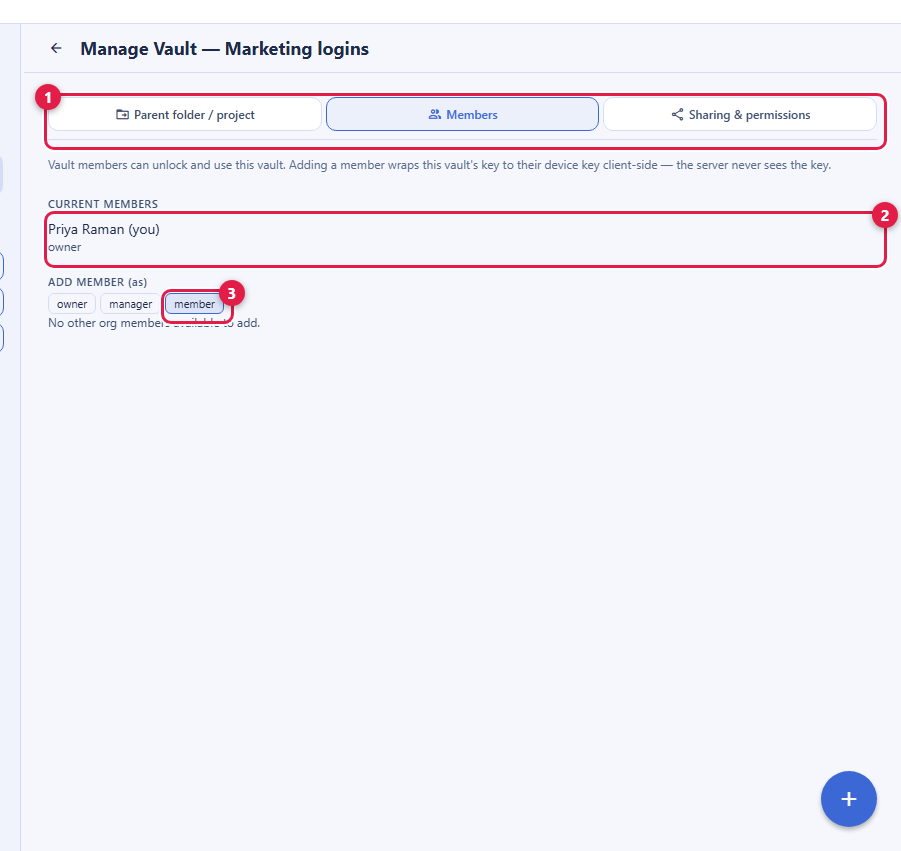
- Member can view and use the secrets in the vault. This is the right role for most people you share with: they get the logins they need and nothing more.
- Manager can also create, edit, and delete items, and add other members. A manager can grant access only at or below their own level, so a manager cannot appoint another manager or an owner.
- Owner can additionally manage all members and roles, appoint managers and owners, and rename or delete the vault.
Two guarantees keep this safe. A vault always keeps at least one owner, so it can never be orphaned, and the owner of your Personal vault (you) cannot be removed from it. And delegation is self-ceiling: a person can only grant the access they themselves hold, never more. This is what stops a shared vault from quietly sprawling: no one can hand out authority above their own.
Avoid the single-key-holder trap. Because you can appoint more than one owner on a shared team vault, do so: two owners means the team is never locked out because one person is unavailable. Your Personal vault is yours alone by design, but any vault you share for the team should have a backup owner.
How a Share Is Delivered
After this section you will be able to explain, honestly, that sharing never sends a password. When you add someone to a vault, Backbuild does not email them a password or hand them a shared secret to copy. The vault's key is cryptographically wrapped to that person's own verified key, on your device, so that only they can unwrap it. The server never sees a vault key in the clear, and no password travels anywhere. Adding a member simply re-wraps the vault key so their key can open it too.
The first time you share to a new recipient, or any time that recipient's key changes, the app asks you to confirm their fingerprint out of band before the share completes. This is the anti-impersonation step: it proves you are sharing with the real person and not an attacker who managed to insert a key under their name. Confirm it through a channel you already trust, then approve.
Who You Can Share With
After this section you will know every audience a vault can reach. From Manage Vault, open the Sharing and permissions tab (it opens inline, not as a pop-over modal). An owner can grant access to:
- A person in an organization you belong to, found by searching.
- A group, department, or role, so access follows membership: add someone to the group later and they inherit the vault; remove them and they lose it.
- Your whole organization, for a vault everyone should have, like shared tool logins.
- Another organization, for cross-tenant collaboration (see below).
Granting to a group or department is the offboarding-friendly choice: because access is tied to membership, the same identity lifecycle that removes someone from the group removes their vault access, with nothing to clean up by hand.
Removing Someone Cuts Off Access Completely
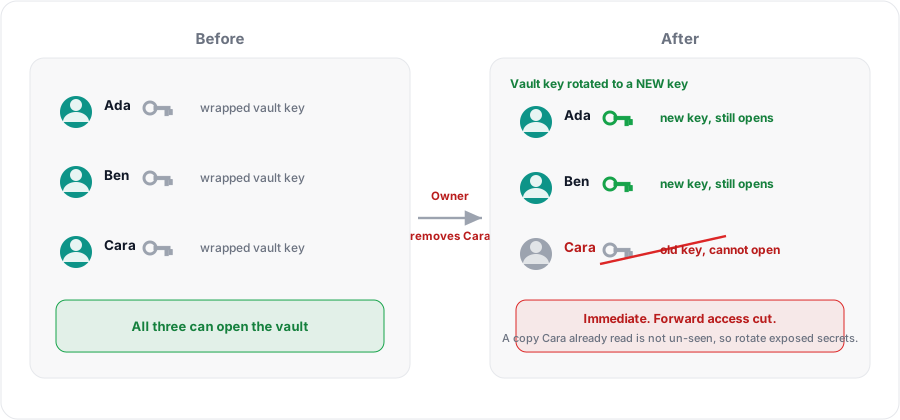
After this section you will be able to answer the question every owner asks: when I remove someone, are they really locked out? Yes. Removing a member, or downgrading their role, takes effect immediately on the server side, and the vault is re-keyed so that the access they had can no longer open items going forward. They cannot decrypt anything new or changed in the vault after removal. This is the property a plain login disable does not give you: disabling an account stops a new sign-in, but a vault re-key stops the credentials themselves from being usable.
One honest caveat applies to any secret manager: a person who already viewed and copied a specific password before you removed them has seen that value. Re-keying stops future access, not human memory. So for a departure that matters, the complete move is to remove their access and rotate the specific passwords they had used, exactly as your policy would after any offboarding. Backbuild makes both halves easy: revocation is one action, and rotation is the generator plus a save.
See Who Has Access, and Who Used What
The Sharing and permissions tab is the current picture of who can open the vault and at what role. Beyond that, every create, edit, delete, share, role change, and grant is written to a tamper-evident audit log with the actor, the time, and the target, and never the secret value. Machine and integration grants also show last-access telemetry so you can see when an automated grant was last used. The audit trail and how to read it are covered in Administration, Zero-Knowledge and Compliance.
Sharing Across Organizations
After this section you will know how to collaborate with a partner in another tenant. You can share a vault with another organization, for example a client or a partner. Cross-organization sharing is a deliberate, two-sided, audited flow: you offer the share, and the recipient accepts it with a fresh step-up in an unlocked session on their side, so no one is added silently. Either side can sever the link instantly. Cross-organization write access is short-lived by default, favoring least privilege for access that reaches outside your own tenant.
How do I share a set of logins with my team without them getting
pasted around?
Put those logins in a vault and share the vault with the team, a group, or a
department. The credentials stay in the managed vault; no password is emailed
or copied into chat, and you can revoke the whole thing in one action.
When I remove someone, are they really locked out of
everything immediately?
Yes. Removal is immediate and the vault is re-keyed, so their old access
cannot open items going forward. For a sensitive departure, also rotate the
specific passwords they had used, since re-keying cannot un-see a value
someone already copied.
Can a teammate grant access to more people than I intended?
Only within limits you set by their role. A member cannot share at all; a
manager can add members but cannot appoint managers or owners; only an owner
can appoint managers and owners. No one can grant access above their own
level.
What stops me being the only person who can get in?
Appoint a second owner on any shared team vault. A vault always keeps at
least one owner, and having two means the team is never locked out because
one person is unavailable.
Can I see who accessed what?
The Sharing and permissions tab shows who currently has access and their
role, and a tamper-evident audit log records every change and grant with the
actor and time. Automated grants also show when they were last used.
Next Steps
- Unlocking, Device Factor and Recovery: make sure a shared team can always get back in.
- Administration, Zero-Knowledge and Compliance: identity lifecycle, enforcing multi-factor, and reading the audit trail.
- Secrets for Machines, Integrations and AI Agents: give a machine or an agent a secret it can use but never reveal.