

The Audio Editor
The Studio Audio Editor is a mastering-grade waveform editor for spoken word and music: clean up a noisy recording, level it to a broadcast loudness target, cut it by editing the transcript, and export a real WAV or FLAC for free. It is reachable two ways, as a full editor module and as a modal you open on any audio clip anywhere in Studio, so you never have to leave what you are doing to fix a take. This guide teaches the DSP stack, the metering, transcript editing, the two processing tiers, and export. After it you will be able to take a rough recording to a distributable master.
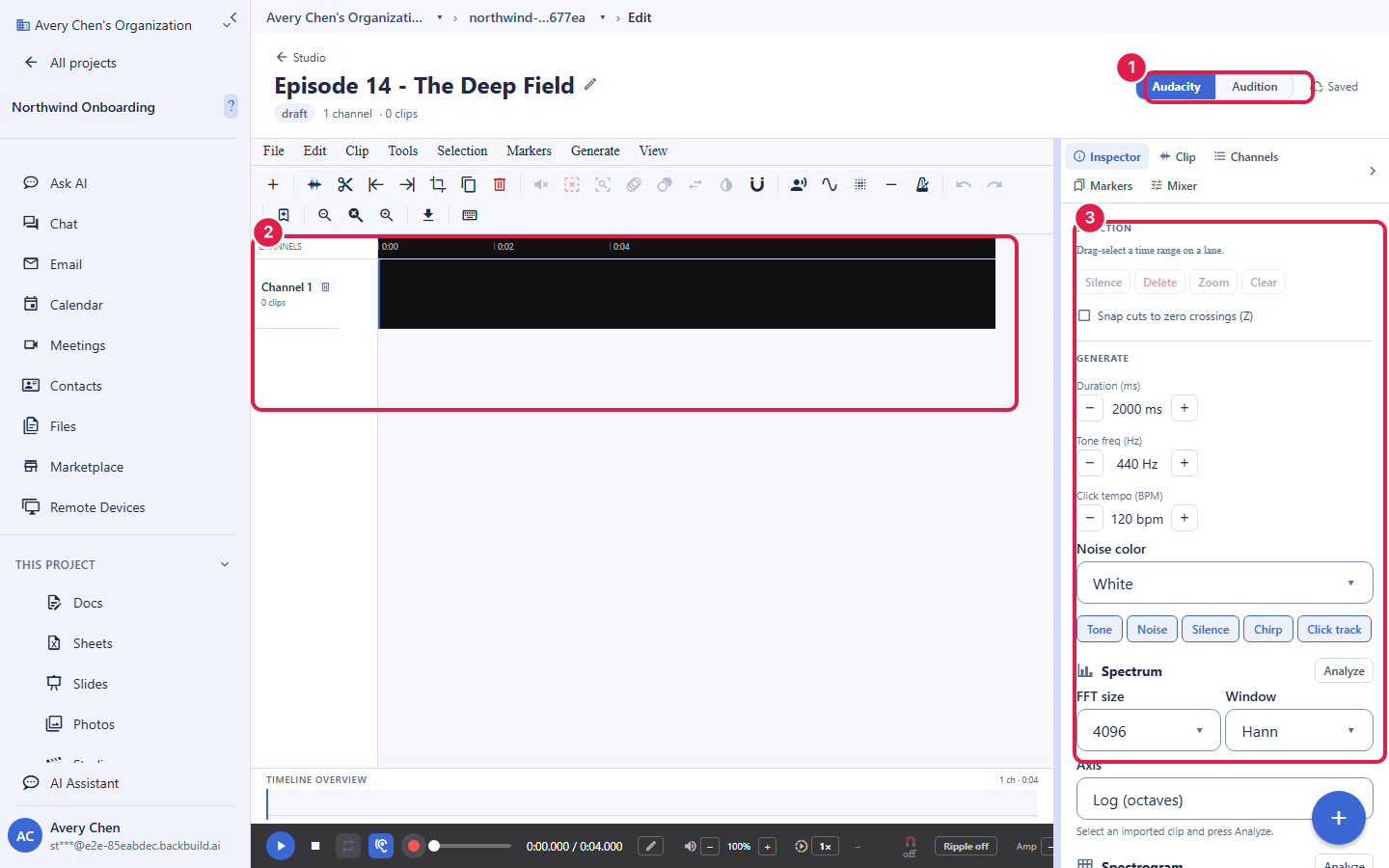
Two Ways In: Full Editor or a Modal on Any Clip
After this section you will fix audio without breaking your flow. The same editor is available as its own module for a dedicated audio project, and as a modal you open on any audio clip in any Studio editor. Cleaning a noisy line in a video cut, tightening a chapter in an audiobook, or polishing a music stem all open the same tools in place. You do not export the clip, fix it in a separate app, and re-import it; the mastering editor comes to the clip.
Do I have to leave my video or podcast to clean the audio? No. Open the Audio Editor as a modal on any audio clip, anywhere in Studio, fix it in place, and carry on. The full editor module is there when you want a dedicated audio project.
The Waveform and the DSP Stack
After this section you will clean and shape a recording properly. The editor shows a multi-channel waveform you can trim, fade, and crossfade, with a spline fade editor for the exact curve, gain changes, and per-clip effects. The restoration and shaping stack is deep:
- Repair: noise reduction, spectral repair to paint out a noise, de-click, de-esser, de-hum and hum removal, de-reverb, and room-tone generation to fill an edit.
- Shape: dynamics and multiband compression, EQ, pitch shift, resampling, dither, truncate silence to tighten long gaps, and vocal isolation to lift a voice out of a mix.
- See what you are doing: spectrogram and spectrum views to find a problem by eye, meters including a goniometer and stereo correlation, and zero-crossing snapping for clean, click-free cuts.
Loudness to Your Target
After this section you will hit the exact loudness a platform wants. The editor meters loudness in LUFS along with peak and RMS, so you level to the standard your destination requires, a podcast target, a broadcast target, or a number you set yourself, and see it confirmed on the meter rather than guessing. Metering to a real LUFS figure is the difference between an episode that plays back at a consistent level and one a platform quietly re-levels for you.
What loudness target does it hit, and how accurate is the metering? You set the target. The editor meters in LUFS with peak and RMS, so you can level to a podcast standard, a broadcast standard, or your own number, and read the result on the meter rather than estimating it.
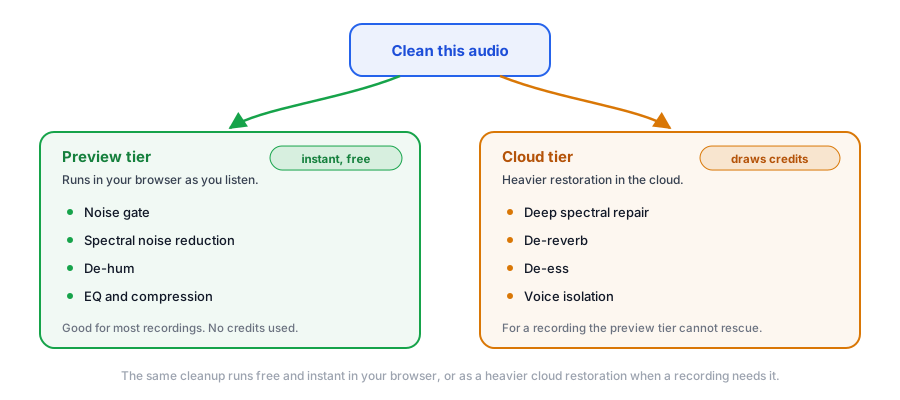
How good is the noise reduction? Will it add artifacts? The stack includes noise reduction, spectral repair, de-hum, de-esser, and de-reverb. Two tiers let you choose the trade-off: an instant preview clean in your browser for quick work, and a heavier cloud restoration for the toughest material. Work at the preview tier, and escalate a stubborn recording to the cloud tier when it needs it.
Edit by Editing the Transcript
After this section you will cut speech like text. The editor can work from a transcript: find and replace across the words, and edit the audio by editing the words, so removing a stumble or a filler is a text edit, not a hunt through the waveform. You can also insert a text-to-speech narration line where you need a pickup, and export captions from the same transcript.
Can I edit the audio by editing the transcript? Yes. Find and replace across the transcript, and edit the recording by editing the words, so trimming a stumble or a filler word is a text edit rather than a manual waveform hunt.
Two Processing Tiers: Free Preview and Cloud Restoration
After this section you will know which processing is free and which draws credits. One cleanup operation can run in two places. The preview tier runs in your browser, a fast noise gate, spectral noise reduction, de-hum, EQ, and time-stretch, applied instantly at no cost, which is enough for most everyday cleanup. The cloud tier runs a heavier restoration for the hardest material and draws credits. You reach for the cloud tier only when a recording genuinely needs it, so routine work stays free and instant.
Exporting
After this section you will get a real master out for free. The Audio Editor exports WAV and FLAC in your browser at 16-bit, 24-bit, and floating point, at no credit cost on every plan. For a chaptered audiobook file or a podcast audio file with embedded catalog metadata and cover art, produce it through the Audiobook module, whose engine writes those fields into the file; see Narration, Voices, and Cost for what the metadata carries.
What export formats and bit depths do I get, and are they free? WAV and FLAC at 16-bit, 24-bit, and float, exported in your browser at no credit cost on every plan.
Does it write ID3 and chapter metadata? A distributable audiobook or podcast file with embedded catalog metadata, chapters, and cover art is produced through the Audiobook module, which writes those fields into the file. The Audio Editor's own export is a clean WAV or FLAC master.
Does browser DSP really match a desktop editor? For everyday cleanup, the instant in-browser tier handles it. For the hardest restoration, the cloud tier does the heavy work rather than asking your browser to. Choosing the tier is how you match the result to the material.
Where to Go Next
- Audiobooks and Visual Storybooks: produce a chaptered, leveled, distributable audiobook file.
- The Music Editor: compose or generate music and bounce stems into your mix.
- The Video Editor: open a video clip's audio in this editor from the timeline.