

Working a Ticket
Open a ticket and everything about it is on one screen: the conversation with the customer, the private record your team keeps, and every property that governs the work. You do not tab-hop between tools or lose track of what happened. You answer the customer or leave a note for your team from the same composer, you can correct your own message after sending, and when a requester recorded a walkthrough you see exactly what they did. After this page you will be able to reply and note, read the full history, set every property, and use the issue reproduction.
The internal record, notes, the event timeline, custom fields, and labels, is staff-only. It is never shown to the requester. See Security, Privacy and Governance.
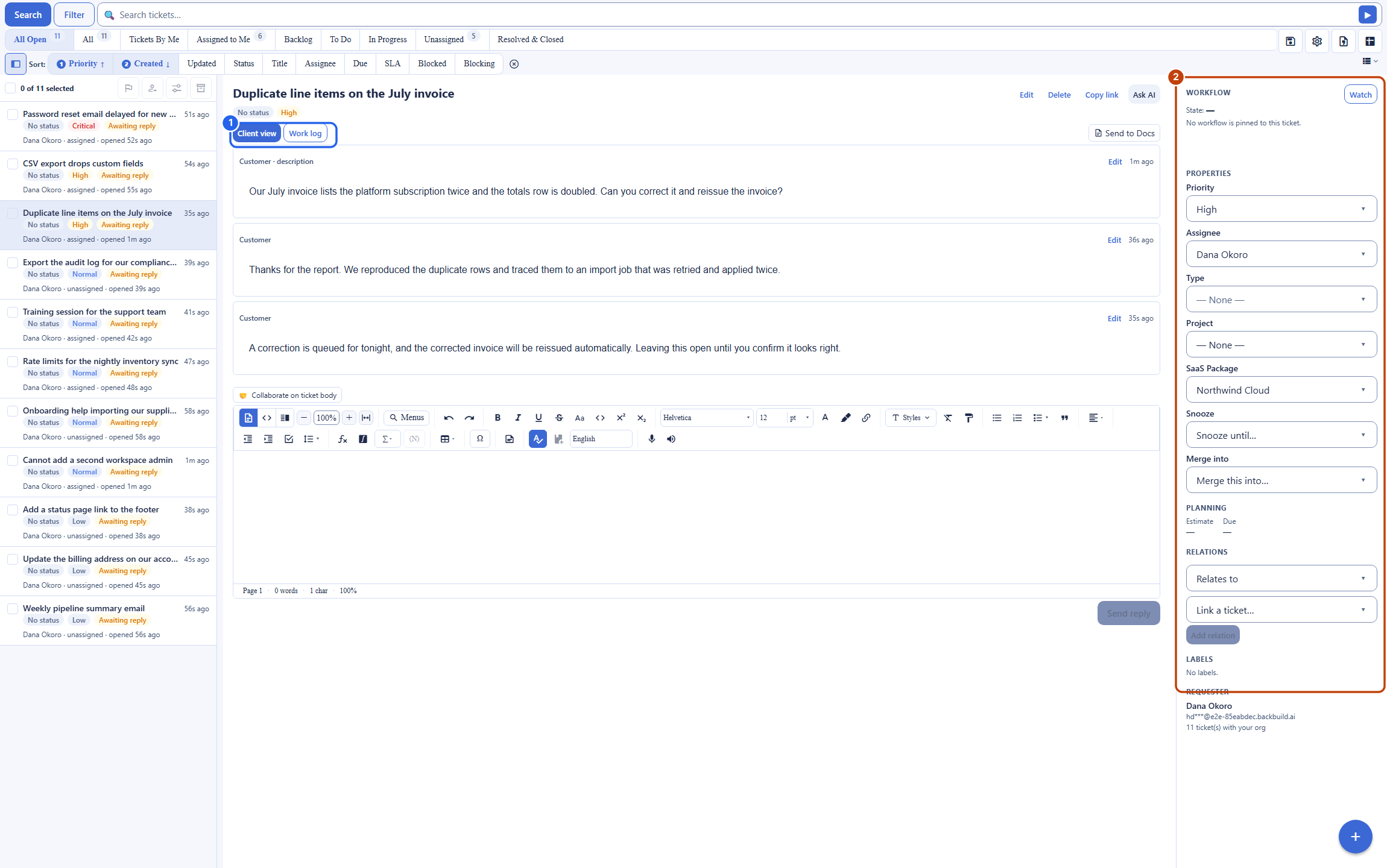
Two Tabs: Client View and Work Log
After this section you will understand the wall between what the customer sees and what your team sees. A ticket has two tabs in the center.
- Client view is the public conversation: the messages between you and the requester, and only those. It is exactly what the requester sees on their side.
- Work log is the staff-only record: public and internal messages interleaved with the full event timeline of the ticket. Every state transition, field change, assignment, satisfaction rating, snooze, and merge is here, each stamped with who did it and when, so a supervisor can read the complete story of a ticket in one place.
An internal note lives only on the Work log and is never shown to the requester. That is the guarantee: the customer sees the answers meant for them, and your team keeps its working notes to itself.
Replying Versus Noting: One Composer
After this section you will be able to answer a customer or leave an internal note without a mode to get wrong. The composer is the same rich editor as Backbuild Docs, and where you type decides who sees it. There is no separate reply or note switch to fumble:
- Post from the composer on Client view and it is a public reply to the requester.
- Post from the composer on Work log and it is an internal note for your team.
Because the composer is the full document editor, a reply can be as clear as a document: formatted steps, a link, a table, inline math. You reply and resolve in place, without leaving the ticket.
Editing Your Own Message, With History
After this section you will be able to fix a message after sending and keep an honest trail. A message you wrote carries an inline Edit control. When you save an edit, the previous wording is snapshotted as a version and an Updated at line appears, with Prev and Next controls to step through the edit history. You can edit only your own messages, never someone else's, so attribution and history stay trustworthy.
The Meta Panels: Everything That Governs a Ticket
After this section you will know where every ticket property lives. The panels beside the conversation carry the full context, so you set priority, move the work, and see status without hunting:
- Assignee: a person on your team, or a Virtual Worker.
- Priority, type, and project: what kind of work this is and where it belongs.
- Labels and custom fields: your own tags and structured fields; a field can be marked internal so it never reaches the requester.
- Relations and hierarchy: link this ticket to others as blocks, blocked-by, relates-to, or duplicate, and set a parent or children so an Epic rolls up its Stories and Tasks.
- SLA and satisfaction: the response and resolution countdown, and the CSAT score once the customer rates the ticket.
- Snooze, watchers, and merge: hide a ticket until a date, follow it for updates, or merge a duplicate into another ticket.
Because the customer ticket and any engineering work are the same object graph, a support agent can see the linked Bug or Story and its status change without leaving the ticket, so the customer never disappears into a black hole when work moves to another team. The properties themselves, and how you define types, states, SLAs, and fields, are in Ticket Types, Workflows and SLAs.
The Issue Reproduction
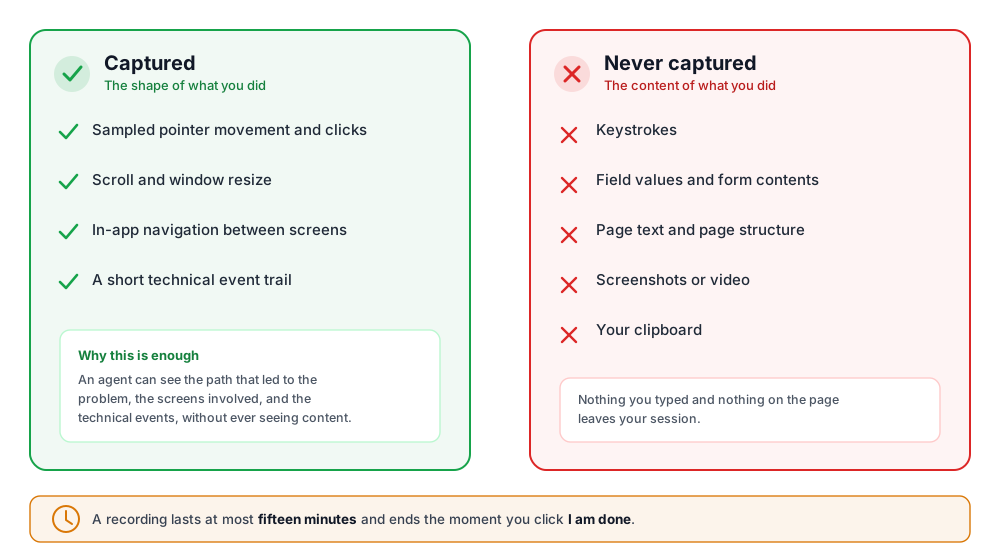
After this section you will be able to read a requester's recorded walkthrough. When a requester filed with the reproduce flow, the ticket shows an issue-reproduction panel. Expand it and you get a read-only diagnostic timeline: how long the session ran, the viewport it was in, the pages the requester moved through, counts of the technical events recorded, and a sanitized timeline of the interaction, so you can follow the path to the failure. There is no video and no pixel replay, because none was ever captured; the requester's keystrokes, field values, page text, and screen contents are not in it. Opening a reproduction is a staff-only action and is recorded in the audit trail.
Are internal notes truly hidden from the customer? Yes, unconditionally. An internal note lives only on the Work log. The requester's view is the public conversation and nothing else: no notes, no labels, no fields, no assignments, no event timeline.
Can I see everything on one screen, including what another team did? Yes. The conversation, the full event timeline, the meta panels, and any linked or child tickets are all on the ticket. Because a linked engineering ticket is the same object, its status is visible here, so you can update the customer without chasing another tool.
How many clicks to reply and resolve? You reply in place from the composer and move the ticket along its workflow from the meta panel or the Board, both on the same screen. There is no reply-or-note mode to set: the tab you are on decides.
Can I edit my own message and reopen a ticket? You can edit your own messages, with the prior wording kept as a version you can step through. A ticket reopens automatically when the requester replies after it was resolved.
Where to Next
- The Tickets Console: the queue you open a ticket from.
- Ticket Types, Workflows and SLAs: the types, states, SLAs, relations, and custom fields the meta panels expose.
- AI Support with Virtual Workers: how a Virtual Worker drafts a reply as an internal note for you to review.
- Backbuild Docs: the editor every ticket message is written in.