

Remote Hosts
Remote Hosts brings Linux machines you own or rent into your Backbuild organization. Each host runs a small Backbuild agent that keeps a private link to Backbuild on your organization's own isolated network. Turn on a host's Docker host role and your Virtual Workers' containers can run on it instead of on Backbuild's cloud, without drawing container compute credits, because you supply the machine. From the same screen you manage the host firewall and decide who gets an operating-system account on which hosts. After this page you will be able to pair a host, keep it updated, group hosts into pools, control access to them, and decide where each worker runs.
Remote Hosts is in Settings, under Administration. By default, organization owners and administrators hold the permissions to add hosts, manage the firewall and host groups, and manage OS accounts; a person without them does not see the screen. Pairing a host and approving one both require a recent two-step verification. Where workers run is set in Container Operations, and changing it needs the permission to manage your organization's container policy.
What a Host Is For
After this section you will know when a Remote Host is the right choice. Backbuild runs every container on its own cloud by default. A Remote Host is the answer when you want the compute underneath your Virtual Workers to be yours: a server you already pay for, hardware in your own data center, a machine inside a network your workers need to reach, or a cloud account where your organization has negotiated its own pricing.
- Virtual Worker containers. A host with the Docker host role on is a place your Virtual Workers' containers can start. Containers you launch yourself from a project keep running in the cloud run locations your policy allows (see Container Policies and Administration).
- No container compute credits. A worker's container on your own host draws no container compute credits. The AI work the worker does is metered as usual.
- Managed access. Backbuild keeps the host firewall and the OS accounts of your team in step with your organization, so removing a person from the organization locks their account on every host.
Which Linux distributions are supported? Debian and Ubuntu; Red Hat Enterprise Linux, Rocky Linux, AlmaLinux, CentOS, Fedora, and Oracle Linux; Amazon Linux 2 and Amazon Linux 2023; Azure Linux; and Google Container-Optimized OS, on 64-bit x86 and ARM64. Setup detects the distribution and uses its package manager and firewall. On a distribution it does not recognize, setup installs no packages and needs Docker to be present already.
Does the host need an open inbound port? No. The agent connects out to Backbuild and keeps its private link from the host side, so you do not open a port to the internet for Backbuild.
Add a Host
After this section you will have a host paired with your organization. Open Settings, then Remote Hosts under Administration. The Hosts tab starts with the Add a host card, which offers two ways in: a one-shot pair command, which is the quickest, and a manual enrollment for when you would rather confirm the machine by hand.
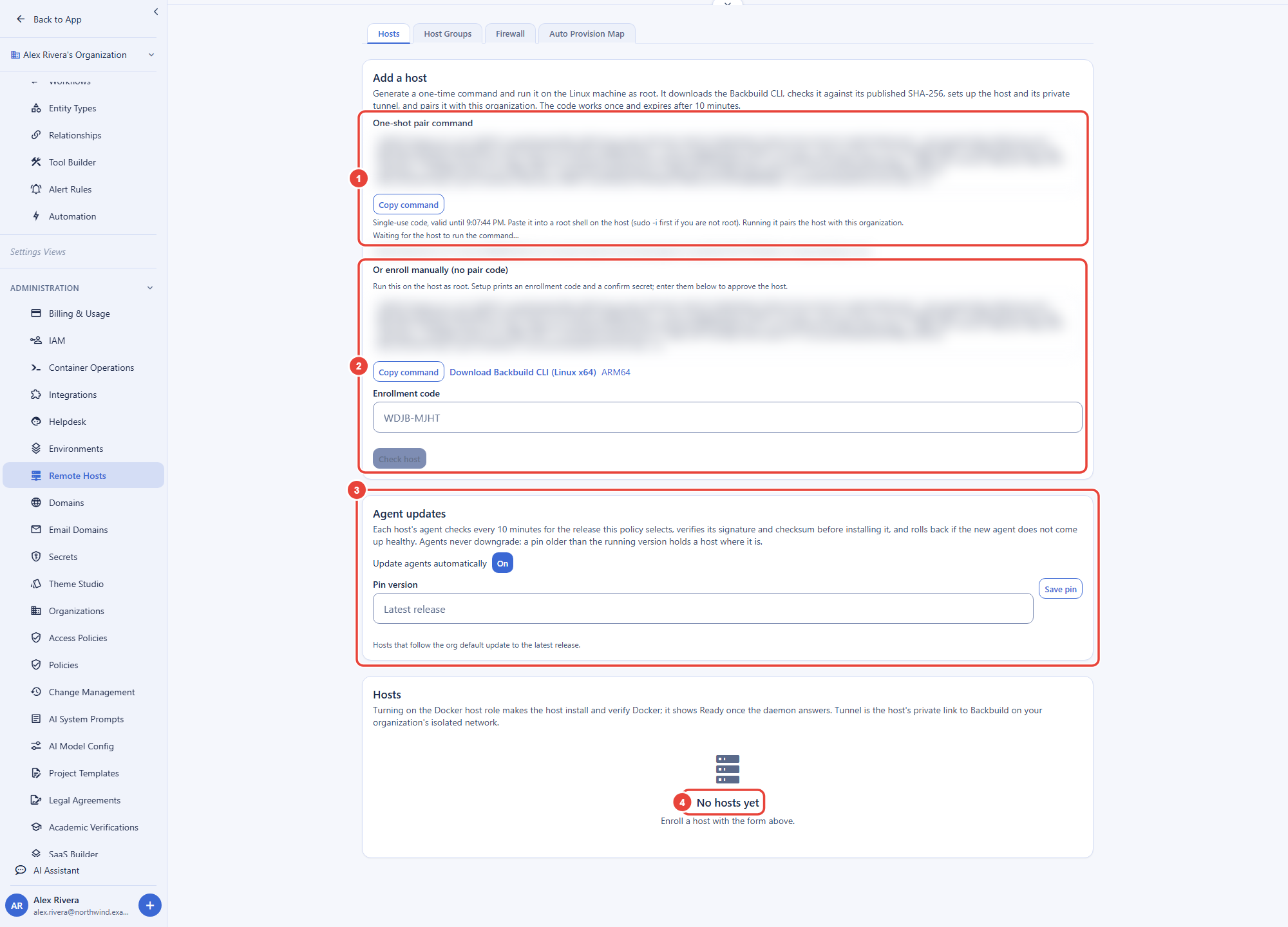
The one-shot pair command
- Generate it. Select Generate pair command. Generating it needs a fresh two-step verification, so Backbuild may ask for your authenticator code. It then shows a command carrying a code that is tied to you and to this organization. The code works once and expires after 10 minutes.
- Run it on the machine as root. Select Copy command and paste it into a root shell on the Linux machine (run
sudo -ifirst if you are not root). The command downloads the Backbuild CLI, checks the download against its published SHA-256 before running anything as root, sets up the host and its private link, and pairs it with your organization. - Watch it appear. The card shows Waiting for the host to run the command until the host reports in, then Paired with the host's name. The host is now in the Hosts list. Setup keeps going on the machine: packages, firewall, private link, and accounts.
- Approve it if asked. If Backbuild could not finish the pairing on its own, for example because your access changed while the command ran, the card instead shows Your pair command was run on the host, with the host key and the address it connected from. Check that they match what setup printed on the machine, give the host a name, and select Approve host.
Manual enrollment
Under Or enroll manually (no pair code), copy the install command, or download the Backbuild CLI for Linux x64 or ARM64, and run it on the machine as root. Setup prints an enrollment code and a confirm secret on the machine's console. Back in Remote Hosts:
- Type the Enrollment code and select Check host.
- Type the Confirm secret exactly as the host's console shows it. Because only someone at that console can see it, it proves the machine you approve is the one you started.
- Give the host a Name and, if you like, a Region label.
- Under Serving roles, leave Docker host on to run containers there, or turn it off for a host that should only carry accounts and the firewall. You can change it later.
- Select Approve host. Approving needs a session with a recent two-step verification.
An enrollment that is not approved in time expires; run the setup again on the host to get a new code.
Read the Hosts List
After this section you will be able to tell, for each host, whether it can take work. Every paired host has a row in the Hosts card. Its name and region come first, then the host key fingerprint, when the host was last seen, and the version of its agent.
| Column | What it tells you |
|---|---|
| Status | Pending (approved, the host has not reported in yet), Initializing (setup is running), Running, Draining (fenced) (takes no new work), Unhealthy (the host has stopped reporting in), or Revoked. |
| Docker host role | The On or Off switch for the role, and its state: Installing while the host installs and verifies Docker, Ready once Docker answers, or Off. |
| Tunnel | The host's private link to Backbuild on your organization's isolated network: Connected, Not connected, or Not set up. Check tunnel tests it on demand. |
| Dispatch | Yes when the host is running with Docker ready, so it can take a new container now. |
A host reports in every 30 seconds. When its last report is older than a few minutes, the Docker and tunnel states read Unknown (no heartbeat) rather than repeating an answer that may no longer be true.
- Fence stops sending new work to a running host, for maintenance or before you retire it. Containers already on it keep running. Unfence puts it back into service.
- Revoke removes the host from your organization for good. Backbuild removes the host's private link and stops the credentials it was given from working. When the host next checks in, its agent stops the containers it runs, locks the accounts Backbuild manages, and switches itself off. Everything Backbuild hands a host is short-lived, so even a machine that ignores the revoke is left with nothing that keeps working.
Keep Agents Up to Date
After this section you will be able to choose how your hosts' agents update. The Agent updates card sets the policy for the organization. Each host's agent checks every 10 minutes for the release the policy selects, verifies the release's signature and checksum before it installs anything, and rolls back if the new agent does not come up healthy.
- Update agents automatically turns updates on or off for every host that follows the organization's default.
- Pin version holds those hosts on one release. Leave it blank for the latest release. Agents never downgrade, so a pin older than the version a host already runs leaves that host where it is.
- Per host, each row offers Org default, Automatic, or Off, plus its own Host pin (blank follows the organization). Use it to try a new release on one host before the rest.
If an update is refused or rolled back, the host's row says so and why, and the host keeps running the agent it had.
Group Hosts
After this section you will be able to manage hosts as a set. On the Host Groups tab, type a Group name and select Create group. Each group in the list shows how many hosts it holds; select Hosts on its row to add or remove hosts. A host can belong to several groups.
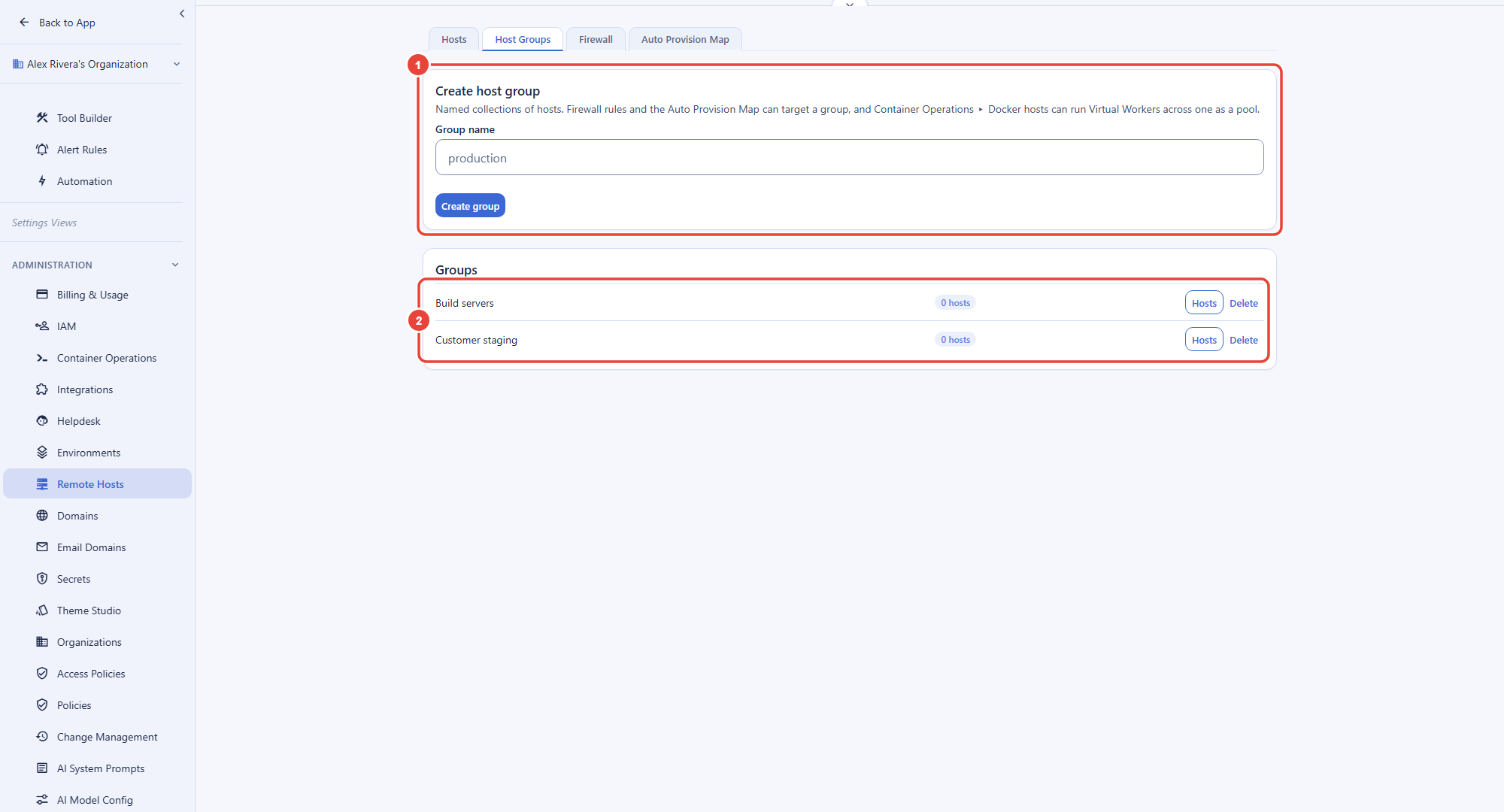
A group does two jobs. The Auto Provision Map can give people accounts on every host in a group, and the Docker hosts placement policy can use a group as a host pool for Virtual Workers. A group that a provision rule, a firewall rule, or the placement policy still uses cannot be deleted; change those first.
The Host Firewall
After this section you will be able to control what may connect to your hosts. Every host denies inbound connections by default and allows only what your organization lists. On the Firewall tab, enter a CIDR (the address range to allow), a Port, the Protocol, and a Description, then select Add rule. The Scope decides which hosts the rule reaches: All hosts (global) applies it to every host, Host group to the hosts in one group, and Single host to one host. Each host fetches its allowlist (the global rules, its groups' rules, and its own) and applies it on its own within its 30-second check-in, so a change reaches every host without you touching them.
Choose Host group and a Host group list appears with your organization's groups; choose Single host and a Host list appears with its hosts, leaving out any host that has been revoked. Pick the target before you add the rule, or the tab answers Pick a host group. or Pick a host. In the Rules list, each scoped rule is shown by its group's or host's name, and a global rule as All hosts.
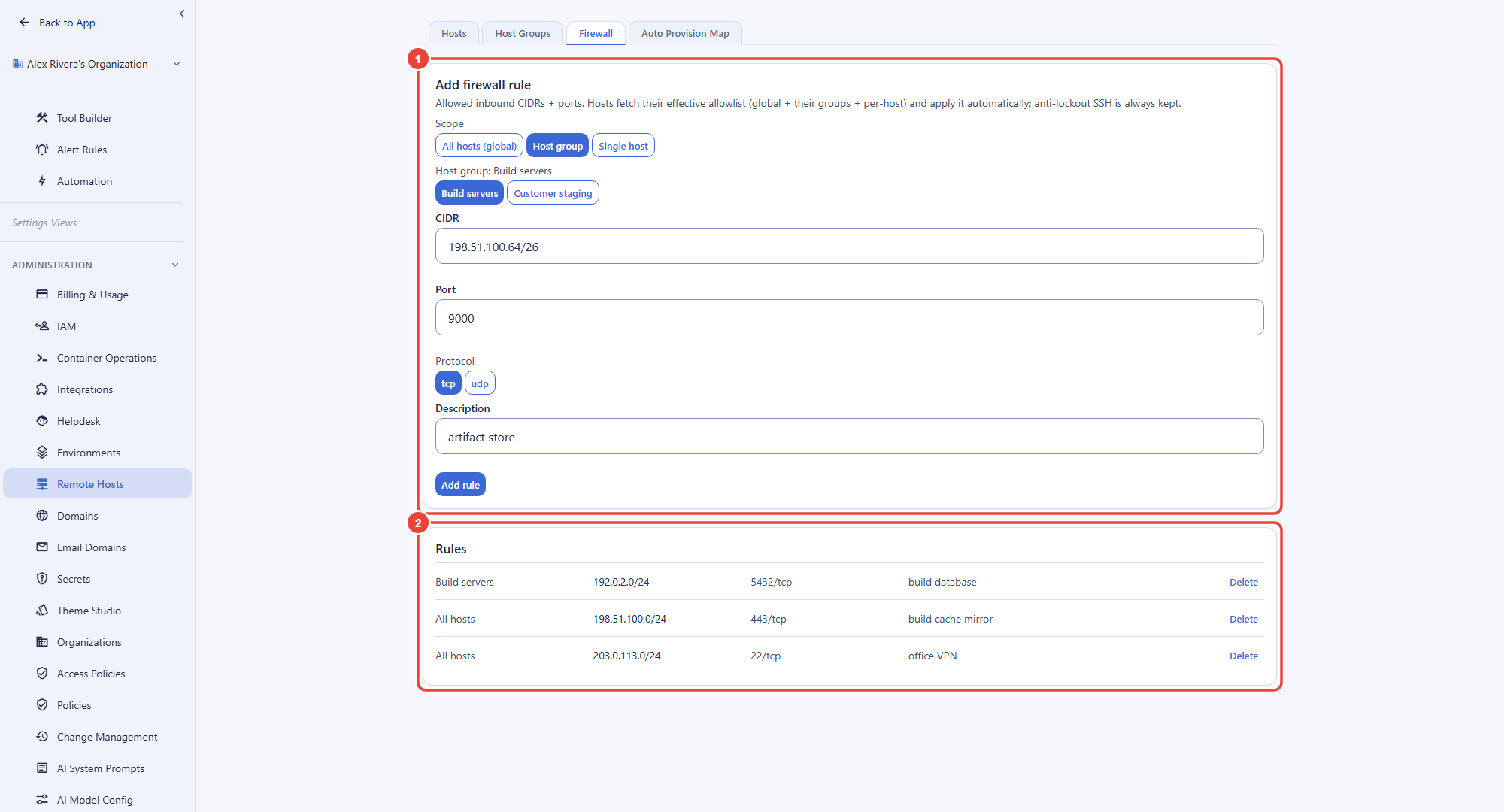
The firewall can never lock you out over SSH. When setup runs over SSH, the address you connected from is kept as a way in, and a change that would leave a host with no way in over SSH is not applied: the host keeps its last working rules and reports it. Removing a person's account or key still reaches the host on its next check-in, so the firewall is a second layer behind the login, not the only one.
People who sign in to hosts also add their own SSH Sources, described below. Those become SSH allows on the hosts they have accounts on when their provision rule says so.
Give People Accounts on Hosts
After this section you will be able to decide who can sign in to which hosts. The Auto Provision Map tab maps people to hosts. Each rule names a Principal, which is one Person, a Role, a Group of people, or a Department, and a Target, which is All hosts, a Host group, or a Single host. Everyone the rule covers gets an OS account on every host it targets.
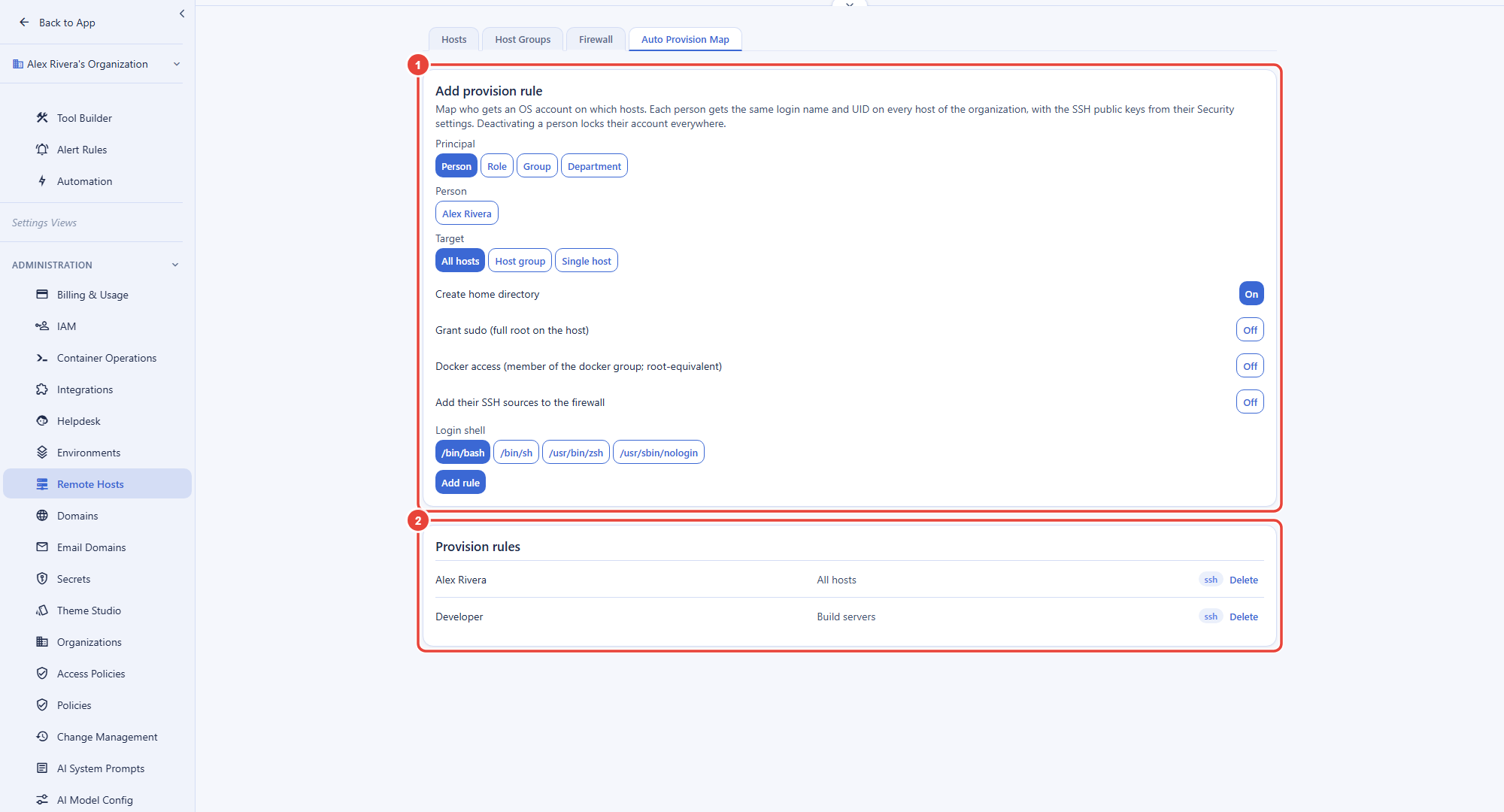
- Create home directory gives each account a home folder.
- Grant sudo (full root on the host) and Docker access are offered only on a rule for one person, because each gives that person full control of the host. Add a Person rule for each person who needs them.
- Add their SSH sources to the firewall lets the covered people reach the hosts over SSH from the networks they declared.
- Login shell is
/bin/bash,/bin/sh,/usr/bin/zsh, or/usr/sbin/nologinfor an account that must not open a shell.
Each person gets the same login name and the same user ID on every host of the organization, and their SSH public keys come from their own Security settings. The hosts follow your organization on every 30-second check-in: a new member a rule covers gets an account, a person who changes role or department gains or loses accounts to match, and a member who is removed, deactivated, or suspended has their account locked everywhere. Backbuild only ever manages the accounts it created. It never changes an account that was already on the machine, such as root or one someone made by hand.
For the people who sign in
Each person manages their own keys in Settings, then Security, on the SSH Keys tab.
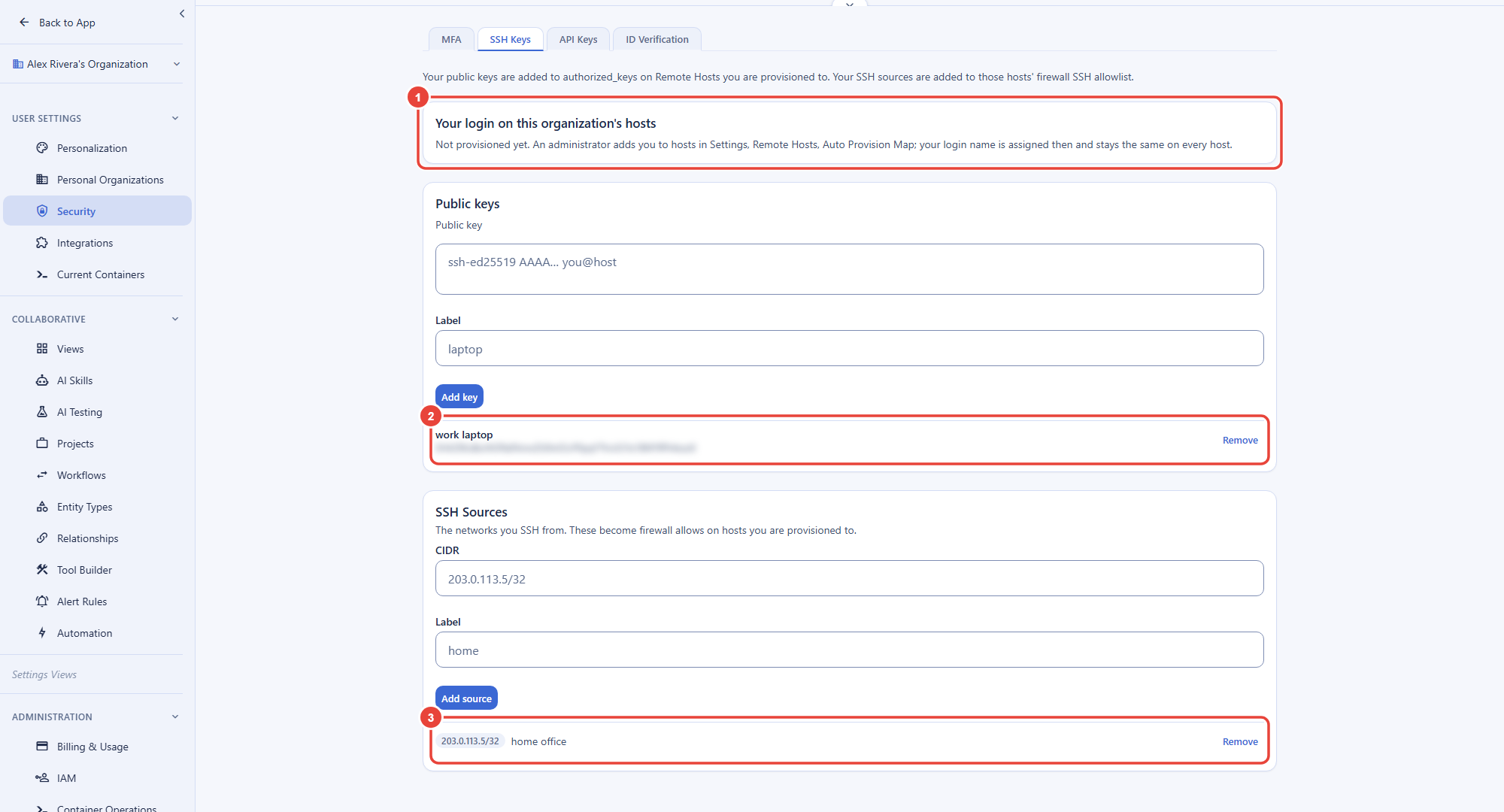
- Your login on this organization's hosts shows the login name and user ID you have on every host, once a host has created your account. Until then it reads Not provisioned yet.
- Public keys: paste a public key and give it a label. It is added to your account on every host you are provisioned to, and removing it removes it from them.
- SSH Sources: the networks you connect from, as a CIDR such as
203.0.113.5/32. A source broader than a /16 for IPv4 or a /48 for IPv6 is refused, so no one can open SSH to a large part of the internet by accident; an administrator who needs a broader allow adds a firewall rule instead.
Choose Where Virtual Workers Run
After this section you will be able to send your workers' containers to your own hosts. Open Settings, then Container Operations, then the Docker hosts tab. Under Run Virtual Workers on, pick one placement policy:
| Policy | A worker without a pin runs on |
|---|---|
| Backbuild's cloud | Backbuild's cloud. This is the default. |
| All Docker hosts | The least-loaded ready Docker host of your organization. |
| A host pool | The least-loaded ready host in the host group you pick under Host pool. |
| Specific hosts | The least-loaded ready host among the hosts you switch on, up to 50. |
A host is ready when it is running with its Docker host role on and Docker ready; a host that is not yet running, or is fenced, unhealthy, or revoked, never takes a new container. Load is how many containers a host is running, and the choice is made once, when a container starts. Start on Backbuild's cloud when no allowed host is ready is off by default, so a policy that keeps workers on your own hosts never moves them to the cloud silently: with it off, a start with no ready host is refused. Select Save placement policy to apply it.
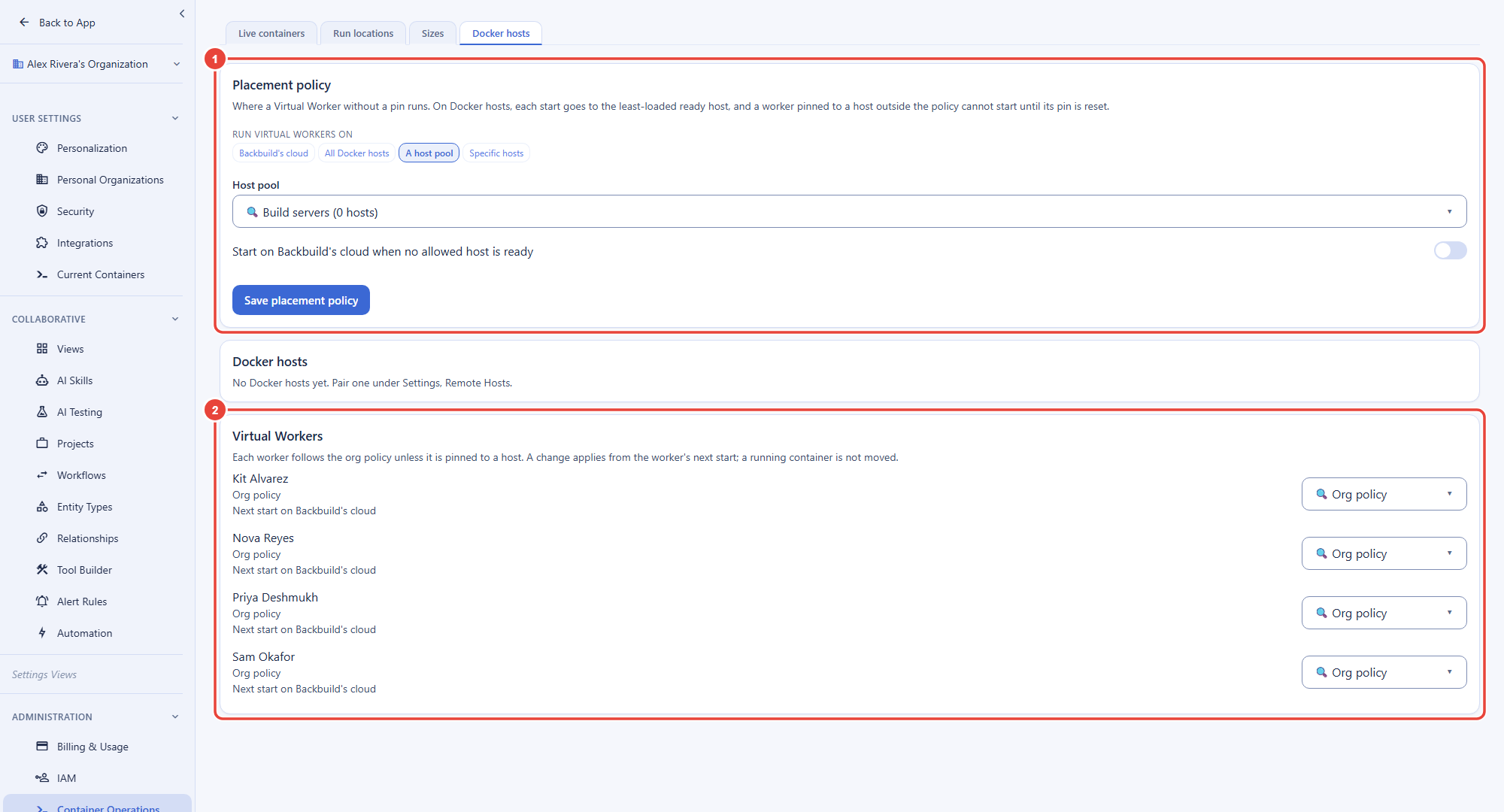
The Docker hosts card lists your hosts, each with how many containers it is running, Ready or Not ready, and, unless the policy is Backbuild's cloud, whether the policy includes it. The Virtual Workers card lists every worker with where it is placed and where its next container would start. Its picker pins a worker to one host or sets it back to Org policy, and, once any worker is pinned, Reset all pins to the org policy clears every pin at once. You can also pin a worker from its own Configure wizard, under Runs on (see The Configure Wizard). A change applies from the worker's next start; a running container is not moved.
What happens to a pinned worker when I narrow the policy? Its pin stays, but a worker pinned to a host outside the policy cannot start until its pin is reset. When you save a narrower policy, the screen tells you how many pinned workers it leaves outside, and the Virtual Workers list shows each one.
Do my own hosts cost credits? A worker's container on your own host draws no container compute credits. You pay for the machine itself, wherever you run it.
Can a person launch their own container on a Remote Host? Not today. Placement on your hosts applies to Virtual Worker containers; containers people launch from a project run in your cloud run locations.
Security and Governance
After this section you will be able to answer how a Remote Host fits your security posture.
- Per-organization isolation. Each host belongs to one organization and links to Backbuild on that organization's own isolated network. One organization's hosts cannot reach another's.
- Verified installs and updates. The install command checks the CLI against its published SHA-256 before it runs as root, and every agent update is signature-checked, never downgrades, and rolls back if it is unhealthy.
- Human-confirmed enrollment. A pair code is single use, tied to the person who generated it, and expires in 10 minutes; a manual enrollment needs the confirm secret from the machine's own console. Both require a recent two-step verification.
- Least privilege for accounts. A host receives only what an account needs, its login name, user ID, keys, groups, and shell, and never a person's email address or display name. Sudo and Docker access are granted one person at a time.
- Audit logging. Pairing, approving, fencing, revoking, firewall and provision rule changes, and placement changes are recorded with the identity of the person who made them.
A host is your machine. Whoever has root on it, or Docker access, can see what runs there, including your workers' containers, so give those rights only to people you would trust with the workers' work.
Where to Next
- Container Policies and Administration: run locations, sizes, and the rest of Container Operations.
- The Configure Wizard: a worker's runtime, including where it runs.
- Developer Workers: workers that do code work in their containers.
- Roles and Permissions: the roles that hold the Remote Hosts permissions.